
A resource is something you only have so many of that an activity needs in order to run. That can be equipment (a kayak, a bike, a paddleboard, a seat on a bus, a rental scooter) or a person (a guide, driver, or crew member). You add your resources here so TripWorks can keep availability in line with what you actually have: when every kayak is committed, the kayak trip stops selling, and when your only guide is booked, the guided walk stops selling too, even across different activities that share the same resource.
In this article
Every resource belongs to one resource group (Kayaks, Bikes, Guides). Groups are how activities ask for what they need: an activity says "I need 1 from Kayaks per guest," and TripWorks does the counting. This matters for any operator who runs on limited gear or staff, whether you rent equipment, run guided experiences, or seat guests in a fixed-capacity space.
Learn how to manage permission groups
How resources cap your availability
This is the part worth understanding. It's why resources exist, and it isn't obvious from the setup screen. Resources are a shared capacity pool, not just a checklist:
- Each resource has Max Uses: how many can be in use at the same time. A single kayak is
1; a 40-seat bus is one resource with Max Uses40. - Resources are pooled by group. An activity declares how many of a group each ticket needs. That's set on the activity, not here (see resource requirements per ticket type).
- As bookings come in, TripWorks draws down the group's pool for that time and closes availability automatically once it's committed, so you can't sell more kayak seats than you have kayaks. Because the pool is shared, two activities that both use the Kayaks group draw from the same kayaks, and neither can oversell them.
- The resources committed to a booking show up on the Manifest, with the name, icon, and color you set, so staff know exactly what goes out the door.
The upshot: model your real inventory here, tell each activity what it needs, and availability takes care of itself.
Moving a guest between resources checks capacity
When you assign a guest to a resource, or move them to a different one from the Manifest, TripWorks checks that resource's capacity for that time first. If the guest wouldn't fit, or the resource is blacked out, you see a message such as "Bike #1 fits 1 guest and already has 1 assigned" and choose Cancel or Assign anyway. Cancel leaves everything as it was; Assign anyway overbooks that resource on purpose. Team members who sell through a reseller channel can't override and are stopped instead.
An activity on resource-based capacity needs a resource before it goes Live
An activity that uses resource-based capacity can't be set to Live or Unlisted until you've configured at least one resource for it. TripWorks refuses the change with "Finish the remaining setup steps before publishing this activity" (using your own word for activity), and the activity's setup checklist shows Configure at least one resource as unfinished. An activity that is already Live can still be switched to Unlisted. Switching a Live or Unlisted activity to resource-based capacity is also blocked until its resource requirements are in place.
Add a resource
Go to Setup Run your day Resources and select New Resource. The editor opens in a drawer.
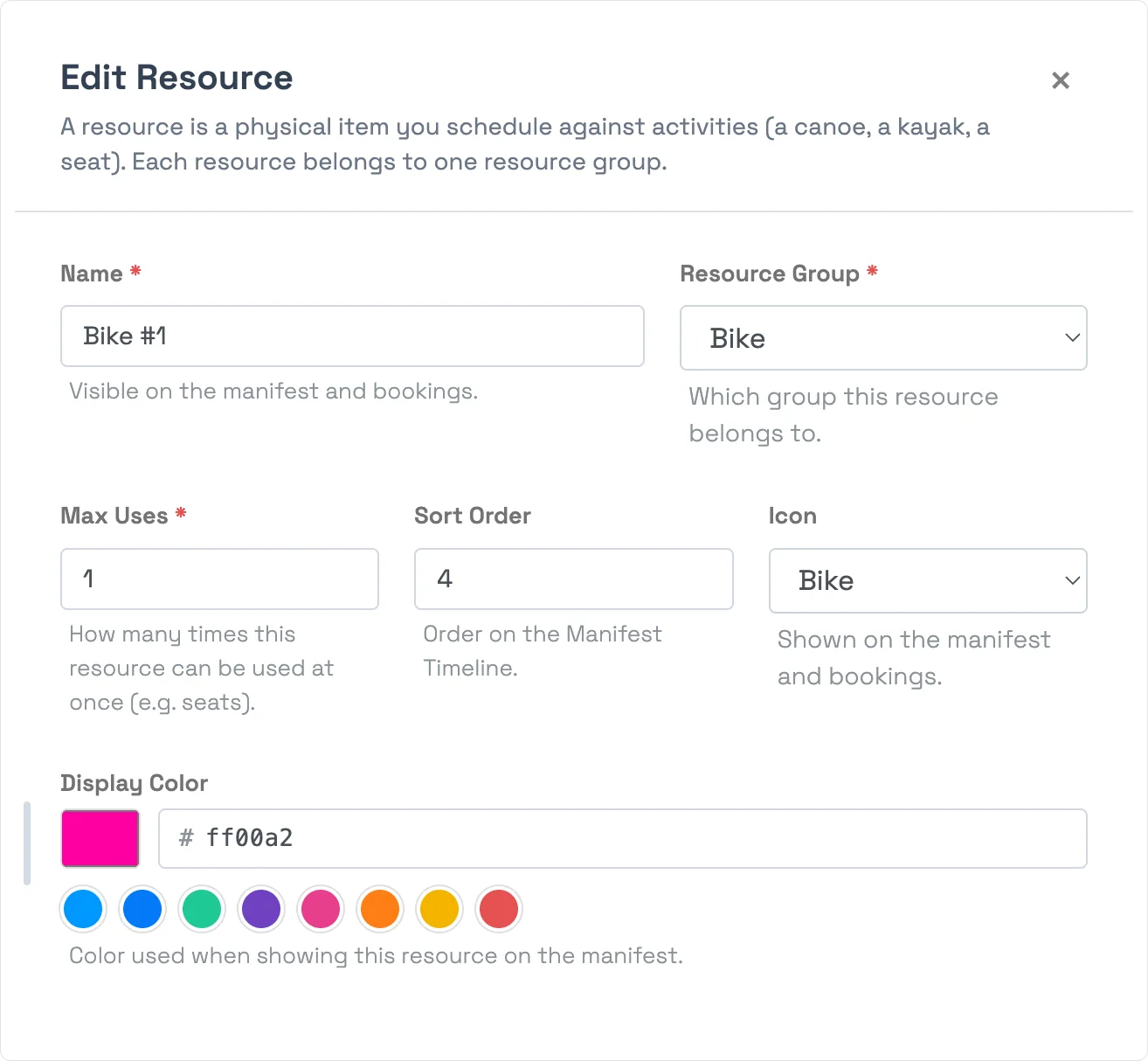
- Name (required): what staff see on the manifest and bookings, like "Canoe #12" or "Guide — Sam."
- Resource Group (required): the group this belongs to. Create groups first, or from the same screen (see below).
-
Max Uses: how many can be in use at once. Use
1for a single item tracked on its own; use the seat count for something interchangeable like a bus or a boat. - Sort Order: where it sits on the Manifest Timeline.
- Icon and Display Color: how it's shown on the manifest so it's easy to spot.
Two ways to model a fleet: add each unit as its own resource (Bike #1 through Bike #10) when you track them individually, or add one resource with Max Uses set to the total (one "Bus" with Max Uses 40) when the units are interchangeable seats. Both cap availability the same way.
Organize with resource groups
Select Manage Resource Groups on the toolbar to add, rename, or remove groups. A group is only a name (Kayaks, Bikes, Guides). You set which group a resource belongs to on the resource itself, not here.
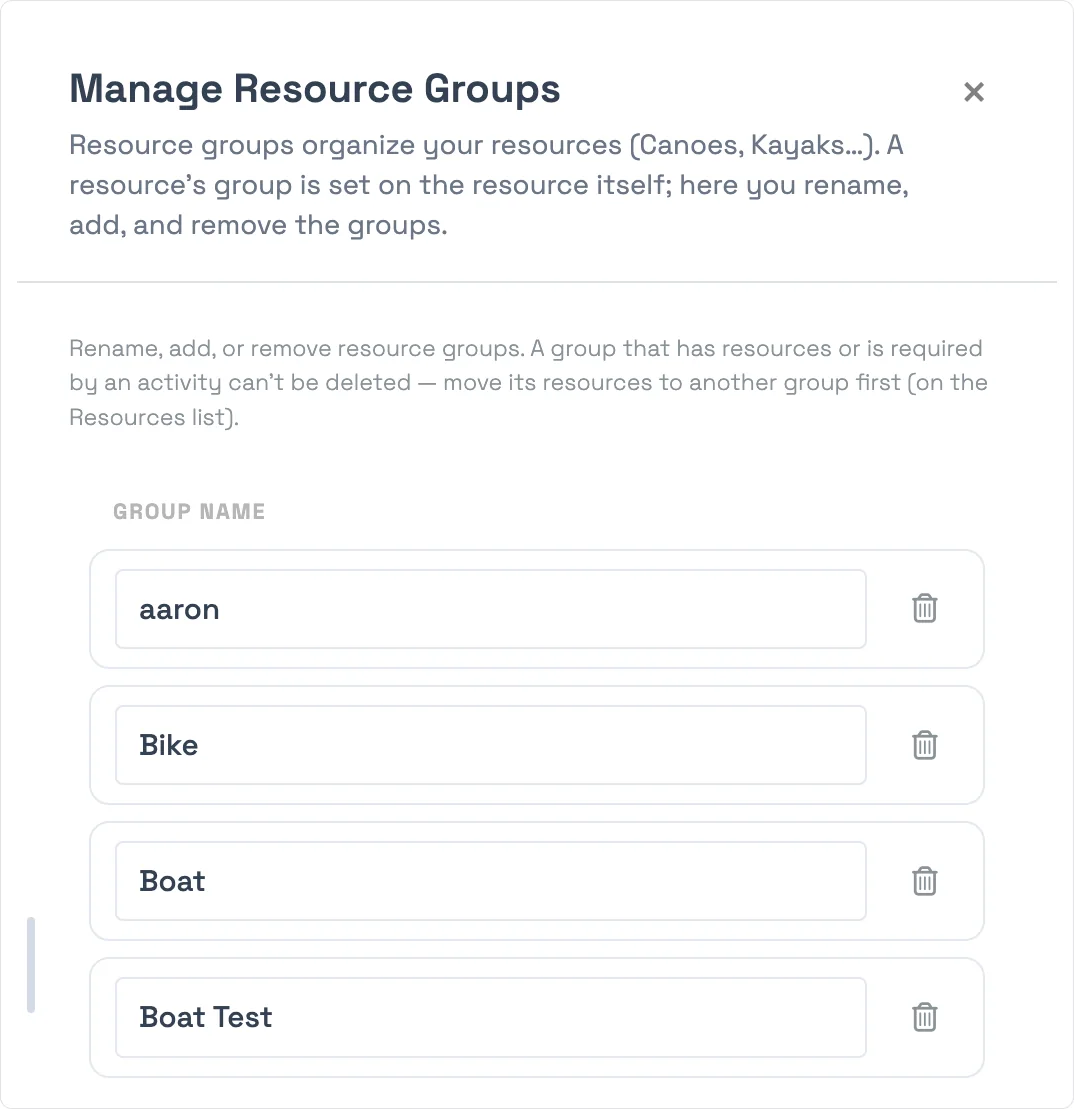
You can't delete a group that still has resources, or that an activity requires. TripWorks blocks it and tells you why. Move its resources to another group first, then remove it.
Resource settings
The Settings (gear) button on the toolbar opens Resource Settings, where you set account-wide labels for how resources are named across your calendar, reports, and manifest. There are two, both singular:
- People-Based Resource Label: what you call resources that are people, like Guide, Crew, or Driver.
- Asset-Based Resource Label: what you call equipment, like Vehicle, Boat, or Bus. If you use several kinds, pick something generic like "Resource."
These labels only change wording, not behavior. Resources cap availability the same way whatever you call them.
Deleting a resource
A resource that's been used on a booking can't be deleted, because it's part of that booking's record and removing it would break history. TripWorks blocks the delete and says so. Resources you added by mistake or never used can be deleted freely.
Frequently asked questions
What's the difference between a resource and a resource group?
A resource group is the category (Kayaks, Bikes, Guides); a resource is an actual item in it (Kayak #3, or a specific guide). Activities request a group, such as "1 from Kayaks per guest," and TripWorks draws from the resources in that group.
How do resources limit availability?
They form a shared pool per group. Each resource's Max Uses sets how many can run at once; when an activity's bookings commit the group's pool for a timeslot, that timeslot stops selling automatically, and across every activity that uses the same group. You can't sell more than you have.
I have a 40-seat bus — is that one resource or forty?
One resource with Max Uses set to 40. Only track seats as separate resources if you assign specific seats individually. Otherwise one resource with the right Max Uses is simpler and caps capacity the same way.
Can a resource be a person, like a guide or driver?
Yes. A resource can be a person (a guide, driver, or crew member) as well as a piece of equipment. You add people the same way you add gear, and they cap availability the same way: if an activity needs a guide and your only guide is already booked for that time, the timeslot stops selling. Under Settings, you can set the People-Based Resource Label so these read as "Guide" or "Crew" across your calendar, reports, and manifest.
Do two activities that share a group draw from the same resources?
Yes. Resources are pooled by group, so any activity that requires a group draws from the same set of resources in it. If a morning kayak trip and an afternoon kayak lesson both require the Kayaks group, they share the same kayaks and neither can oversell them. This is the point of resources: one shared pool keeps every activity honest about what you actually have.
What does Max Uses mean?
Max Uses is how many times a single resource can be in use at the same time. Set it to 1 for an item you track on its own, like one specific kayak or one guide. Set it to the total count for something interchangeable, like a bus or boat where you sell seats — one "Bus" resource with Max Uses 40 caps that activity at 40 booked seats per run.
How do I make an activity actually use a resource?
Set a resource requirement on the activity: how many of a group each ticket type reserves. See resource requirements per ticket type. Adding a resource here makes it available to be required; the activity side is where you connect it.
Why can't I delete a resource or a group?
A resource that's on any booking can't be deleted, because it's part of that history. A group can't be deleted while it still has resources or is required by an activity, so move its resources to another group first.
Related
- Resource requirements: set resources reserved per ticket type
- Activity capacity by resources
- Locations
Built for attractions, tours & activities
Never oversell your equipment again
See how attractions, tours, and activities track boats, bikes, and seats so availability matches what they actually own — in one place on TripWorks. Book a demo and make the switch.