
A booking calendar shows guests a month of availability on your own website. They pick a date, choose a time, and book without leaving your page. You build it as a booking widget in TripWorks, then paste two snippets into your site.
In this article
Learn how to manage permission groups
Choose how your calendar is built
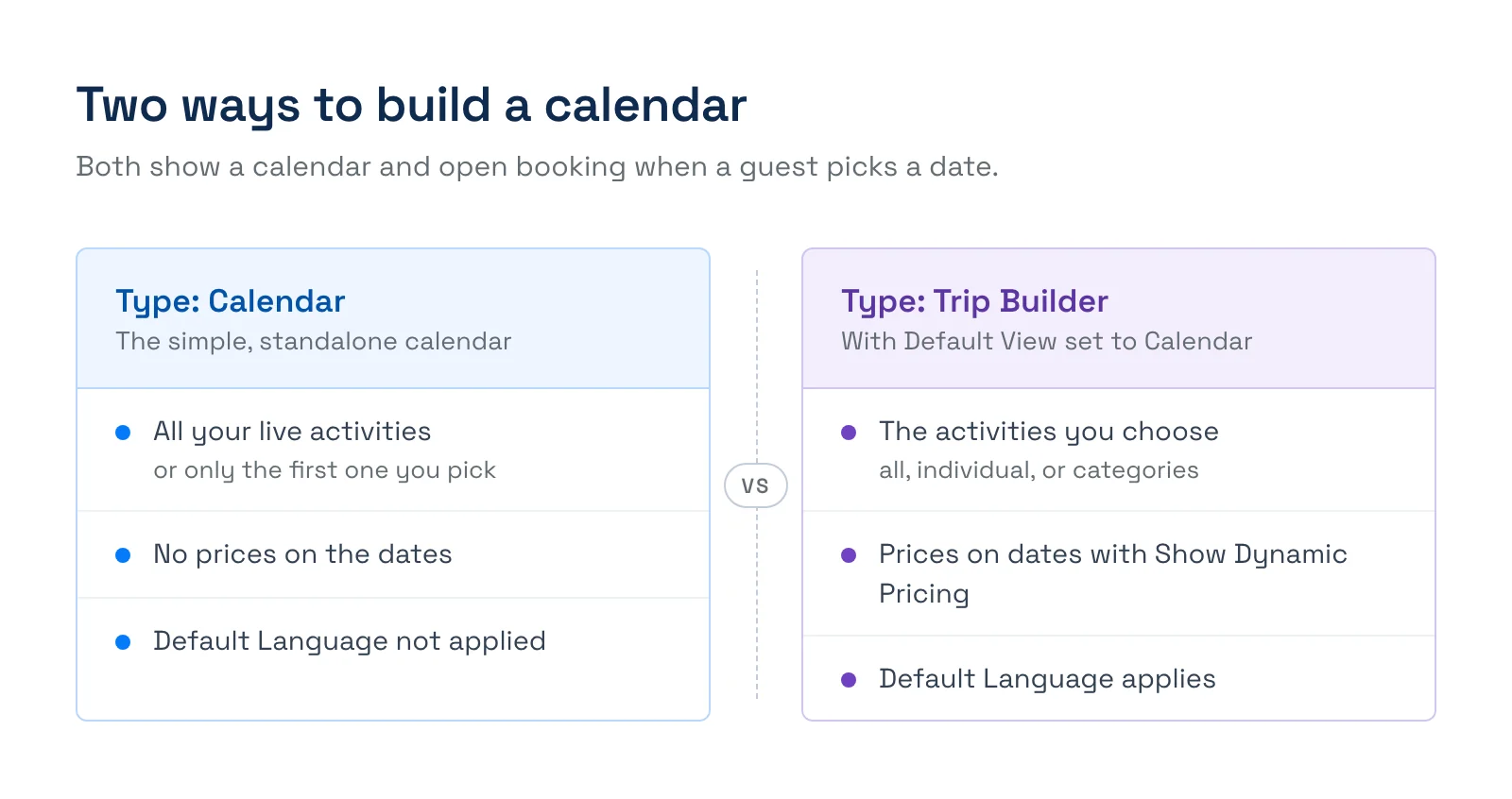
A calendar is not a separate product. It is a booking widget, and there are two ways to get one:
- Widget type Calendar. A standalone month calendar. It shows all of your live activities, or only the first activity if you pick individual activities. It ignores category selections, the Show Dynamic Pricing option, and the Default Language setting.
- Widget type Trip Builder with Default View set to Calendar. The same calendar view, but driven by everything you set in the builder: which activities appear (all, individual, or categories), prices on the dates, and the language.
Most operators who want to limit the calendar to certain activities or show prices should pick the second. Pick the first for a quick, no-fuss calendar of everything you sell.
The Default View setting also matters on its own. On a Trip Builder widget it chooses the first screen guests see: Catalog, Calendar, Agenda, Categories, or Gift Cards. Only Calendar gives you a date-first experience. The other views are covered in Create & manage booking widgets.
Build your calendar
- Go to Setup Sell online Booking Widgets and select New Widget.
- Enter a Widget Name you will recognize later, such as "Homepage calendar".
- On the first tab, open the widget type list and choose Calendar or Trip Builder (see the section above).
- Choose what the calendar covers: All Activities, Individual Activities, or All Items in Selected Categories. With the Calendar type, an individual selection uses only the first activity, so pick one.
- If you chose Trip Builder, open the second tab (the grid icon) and set Default View to Calendar.
- Open the third tab (the sliders icon) to set the options below, then select Create Widget.
- In the Booking Widgets list, select Install Widget on your new row. On the Embed tab of Use this Widget, copy the base JavaScript and paste it into your site's
<head>(once per site). Then copy the widget markup and paste it where the calendar should appear.
Reload your page and the calendar appears where you pasted the markup. The two snippets are the same for every widget type, so see Embed your booking widget for the lightframe pop-up, Book Now button, shareable link, and QR code options.
The builder's live preview always shows the booking flow, not the standalone Calendar type. Check a Calendar-type widget on a page of your site after you install it.
Calendar options
These settings are on the sliders tab of the builder. On a Trip Builder widget with the Calendar view they all apply.
- Show Dynamic Pricing. Puts a price on each date so guests see the cost before they pick a time. It shows a starting price, which can differ by timeslot.
- Show Time Slot Prices. Shows prices on the timeslots after a guest picks a date. Ticket prices always appear at checkout.
- Display Mode. Full Details shows photos, descriptions, and duration. Compact View keeps it to ticket types, times, and prices.
- Default to "Flex Booking". Guests can buy now and choose their date and time later.
- Hide Navigation. Hides the widget's navigation bar, which suits a calendar embedded in a busy page.
- Default Language. The language the widget loads in. See Offer your booking widget in multiple languages.
What guests see
Guests see a month grid. Dates with no availability aren't offered. When a guest selects a date, a booking window opens on top of your page showing that day's times. If several activities run that day, the guest picks one first. They then choose a time and tickets and check out.
What shows on the calendar comes from your activities and their rules, not from the widget:
- Only activities that are Live and bookable online appear. Draft activities don't, and Unlisted activities stay hidden from a Trip Builder calendar.
- Sold-out and closed timeslots follow each activity's booking restriction. See Booking restrictions for Hide unavailable time slots, and Customize how timeslots appear for closure messages.
- A date where every timeslot is closed with no closure reason disappears from the calendar.
Examples
- Do build a "Book a date" page for your main site: create one widget with All Activities and put it on your Book Now page.
- Do build a calendar for a single activity: choose Individual Activities, pick the one activity, and embed it on that activity's page.
- Find the cheapest days of the month: turn on Show Dynamic Pricing on a Trip Builder calendar so each date shows a starting price.
- Do give a partner site its own calendar: create a second widget and install it only there, so bookings from that site trace back to it.
- Do limit a calendar to your evening cruises: use a Trip Builder widget with All Items in Selected Categories and choose your evening category.
- Find out whether the calendar is being used: open the Booking Widgets list and check the embeds, clicks, and interactions for that widget.
Frequently asked questions
Where do I find the booking calendar option I used to see under Discover More?
Calendars are now built in the widget builder at Setup > Sell online > Booking Widgets. Select New Widget and choose the Calendar type, or a Trip Builder widget with its Default View set to Calendar. The old "Embed a booking calendar on my website" screens in the older setup pages still exist, but new calendars should be built in Booking Widgets so you get the current options and per-widget stats.
What is the difference between the Calendar widget type and the Calendar default view?
The Calendar type is a standalone calendar of all your live activities, or just the first one you pick. The Calendar default view is a setting on a Trip Builder widget that makes the calendar the first screen. Only the Trip Builder version respects categories, a multi-activity selection, Show Dynamic Pricing, and Default Language.
Why is my activity missing from the calendar?
The activity must be Live and bookable online, and it must have open availability on dates you are looking at. On a Trip Builder widget it must also be in the widget's selection (all activities, picked activities, or a chosen category). A Calendar-type widget set to individual activities shows only the first one picked, so switch to Trip Builder with the Calendar view if you need several.
Can the calendar show prices on each date?
Yes, with Show Dynamic Pricing on a Trip Builder widget set to the Calendar view. Each date then shows a starting price, which can vary by timeslot. The standalone Calendar type has no prices on its dates. Ticket prices always appear at checkout either way.
Why does a date show as closed or disappear?
A date appears only if it has open online availability, or a closed timeslot that is set to be shown. If every timeslot on a date is closed and none has a closure reason, the date is hidden. Add a closure reason to the closed timeslots to keep the date visible with your message, or turn off Hide unavailable time slots on the activity's booking restriction to show sold-out slots.
Do I paste the base script on every page?
Paste the base JavaScript once per site, in your template's head, or before the closing body tag. Then paste the widget markup wherever a calendar should appear, on as many pages as you like. A calendar that doesn't load usually means the base script is missing or the markup was edited.
Can I put the calendar in a pop-up or behind a button instead of on the page?
Yes. Choose the Button tab in the Use this Widget window to open the widget from a Book Now button, or tick the lightframe option on the Embed tab. Both are covered in Embed your booking widget.
Can I link guests straight to a calendar without embedding it?
Yes. The URL tab in the Use this Widget window gives you a hosted booking link. A Trip Builder widget with the Calendar view opens with all your builder settings. A Calendar-type link opens a calendar of all your live activities regardless of your selection. To start on a specific date or activity, see Deep-link your widget with URL parameters.
Do I need a developer to add a booking calendar?
No. You build the widget in TripWorks and paste two snippets into your site. Most website builders have an embed or custom HTML block for the markup and a spot in site settings for the head script. If you can't edit your site's head, ask whoever manages the site to add the base script once.
Related
- Create & manage booking widgets
- Embed your booking widget
- Deep-link your widget with URL parameters
- Customize how timeslots appear
Built for attractions, tours & activities
Let guests shop by date on your own site
See how attractions, tours, and activities put a live availability calendar on their website with TripWorks. Book a demo and make the switch.