
Demand for an experience rarely stays flat across the year. A whale-watching tour, a museum day pass, or a kayak rental is often worth more in peak summer, on weekends, or over a holiday than it is in the quiet off-season. Seasonal pricing lets you charge a different rate depending on when a booking falls (a date range, certain weekdays, a single holiday, or a time of day) without editing your base prices by hand each time the calendar turns. You set it up once by defining a reusable season (the when) and attaching it to an experience with a rate sheet (the prices), and TripWorks then applies the right rate automatically at the moment each booking is made. This keeps your pricing consistent across your website, front desk, and resellers, and frees you from remembering to switch rates over on the day a season starts or ends.
In this article
Learn how to manage permission groups
How pricing works here
Every experience has a base rate: the price each sales channel pays when nothing special applies (see Standard activity pricing). On top of that, you layer rate sheets, named prices that apply only when their conditions match, such as a season, a channel, or a group size.
Your rate sheets sit in a priority ladder on the experience's Ticket prices tab. When a booking matches more than one rate sheet, the one nearest the top of the ladder wins. If none match, the booking falls back to the base rate. You set the order by dragging rate sheets up or down, so there's no priority number to manage.
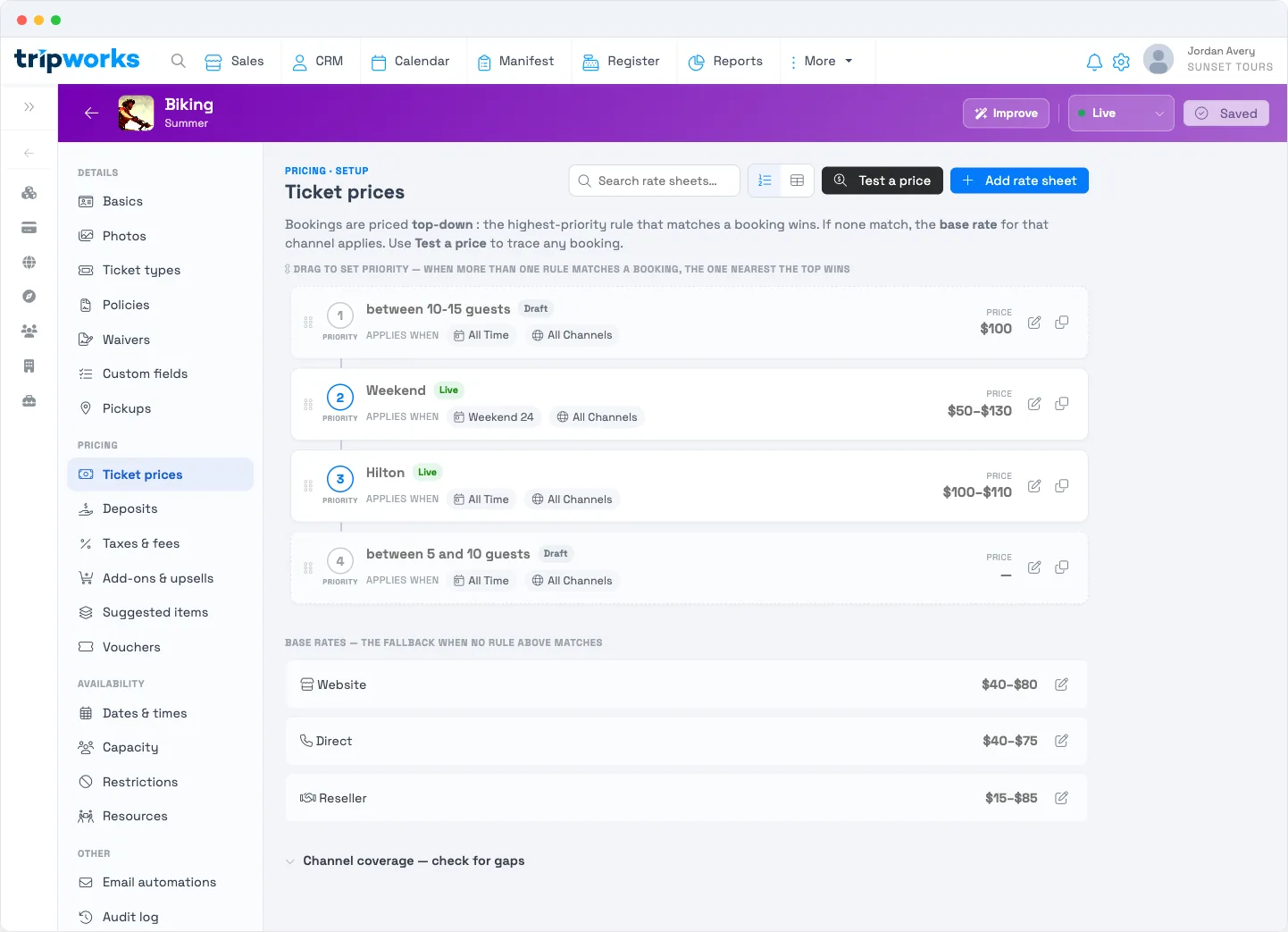
With a single rate sheet there's no ordering to worry about. It applies on top of the base rate whenever a booking matches it, and the base rate covers everything else.
Set up seasonal pricing
Setting up seasonal pricing takes two steps. First define a season (the when), then attach it to an experience with a rate sheet (the prices).
Step 1: Create a season
A season is a reusable set of dates — "Peak season," "Weekends," "July 4" — that you can attach to any rate sheet. Find them under Setup Build what you sell Seasons & Schedules.
- Select New Season and enter a Season name you'll recognize later.
- Under Date periods, select Add a date period and choose Date range (a span, like Memorial Day to Labor Day) or Single day (one date). Add as many periods as the season needs; a holiday season might be several separate dates.
- Optionally set a time window on a period: change its Time from all day to Between times and enter a start and end, so the period only covers part of the day, like a happy hour. Each date period has its own time setting.
- Optionally narrow the whole season to certain Days of week using the day chips, or the Weekends / Weekdays presets. This applies to every date period in the season.
- Select Save.
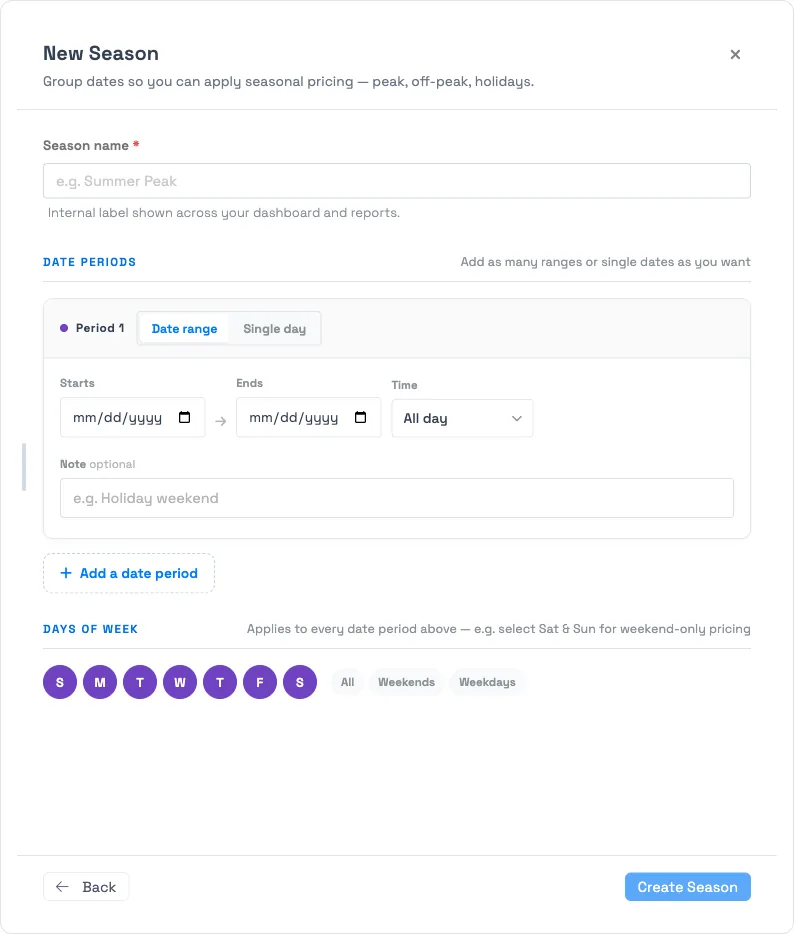
Because seasons are reusable, you can attach the same one to as many experiences as you like. A season that's already applied to an experience can't be deleted until you remove it from that experience's pricing.
Step 2: Add a rate sheet for the season
Open the experience you want to price and go to the Ticket prices tab. Select Add rate sheet. If this experience still uses only its base rate, the tab also offers quick-start templates, including a Seasonal pricing one that seeds sensible defaults so you only fill in the price. The rate sheet opens with three sections:
- Settings: name the rate sheet, set the price for each ticket type, and set its Status.
- Criteria: under During seasons, choose the season you made in Step 1. You can add further limits here, such as guest count, advance-booking window, or remaining availability, but for pure seasonal pricing the season is all you need. See [Dynamic pricing](https://help.tripworks.com/experience-pricing/rate-sheets-dynamic-pricing) for those other limits.
- Channels: choose where this pricing applies. Ecommerce (your website), Direct (walk-up and call-in), or Resellers (and which resellers).
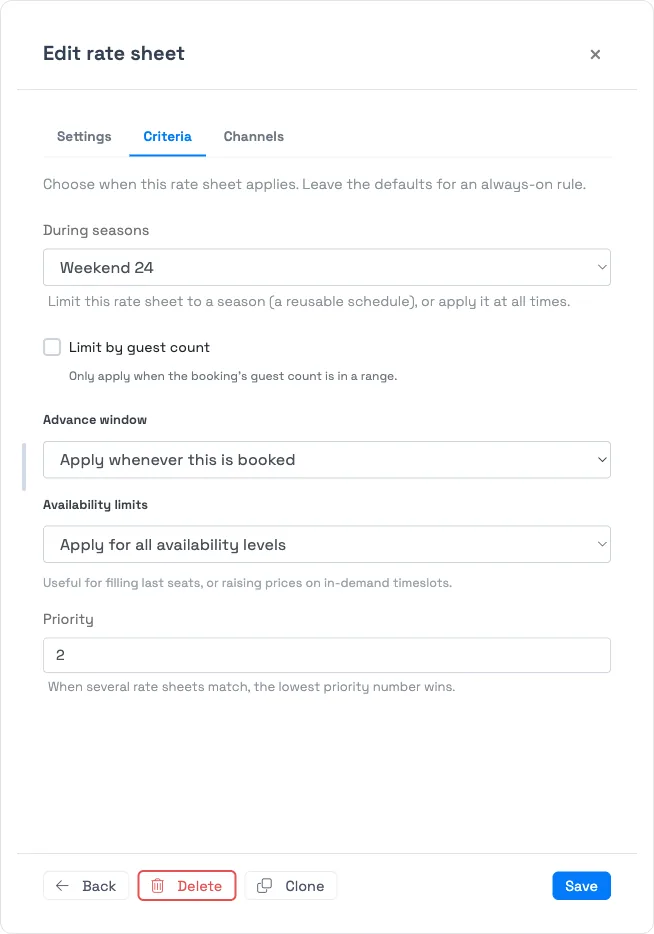
Select Add rate sheet to save it. It now appears in the priority ladder on the Ticket prices tab.
Rank overlapping rate sheets
If a booking could match more than one rate sheet, their order decides the winner. On the Ticket prices tab, drag rate sheets up or down. The one nearest the top wins, and the base rate is always the fallback beneath them. Put your most specific rule above broader ones: a single July 4 rate sheet should sit above a broad Peak season one, so the holiday price wins on that date.
Draft versus live
A rate sheet's Status controls whether its prices are in play:
- Draft: saved but not applied. Use this while you set it up.
- Live: applied now. Matching bookings get these prices.
- Archived: a rate sheet you no longer use, kept for reference.
Set the rate sheet to Live when you're ready for it to take effect.
Test it before you rely on it
Use Test a price on the Ticket prices tab to trace any booking. Enter a date, channel, and party size, and TripWorks shows which rate sheet applies and the resulting price. Check a date inside your season to confirm the seasonal price appears, then a date outside it to confirm the base rate returns.
Rate sheets apply at the moment a booking is made. Changing a rate sheet does not reprice trips that are already on the books. To adjust one of those, reprice it from the trip itself.
Frequently asked questions
Why isn't my seasonal price showing up?
Check three things: the rate sheet's Status is Live (not Draft), the booking's date, channel, and party size actually match the rate sheet's Criteria, and no other rate sheet sits above it in the ladder and also matches. Use Test a price to see exactly which rate sheet is winning.
Which rate sheet wins when two of them match a booking?
The one nearest the top of the priority ladder. Drag rate sheets to reorder them; if none match, the booking falls back to the base rate. Put specific rules (a single holiday) above broad ones (a whole season).
Will changing a rate sheet reprice trips that are already booked?
No. Rate sheets apply only at the moment of booking. To change the price on a trip that's already booked, reprice it from the trip itself.
Can one season apply to several experiences?
Yes. Seasons are reusable. Build "Peak season" once, then choose it in the During seasons criteria of a rate sheet on each experience that should follow that schedule.
Can I run different seasonal prices on different sales channels?
Yes. Each rate sheet's Channels section controls where it applies: Ecommerce (your website), Direct (walk-up and call-in), or specific Resellers. So you can charge one seasonal rate on your website and another through resellers during the same season.
What's the difference between a season and a rate sheet?
A season is just a set of dates (the when) that you build once under Setup and reuse. A rate sheet is the actual prices (the what) you attach to one experience, and it points at a season in its Criteria. One season can power rate sheets on many experiences, each with its own prices.
Can I price only certain hours of the day, like a happy hour?
Yes. When you build the season, set a date period's Time to Between times and enter a start and end. The rate sheet then applies only to bookings that fall in that window. Each date period carries its own time setting, so you can mix all-day and time-limited periods in one season.
Can a season cover just weekends or a few scattered holidays?
Yes to both. Use the Weekends preset under Days of week to limit an entire season to Saturdays and Sundays, or add several separate Single day date periods for scattered holidays. Days of week apply across every date period in the season.
How do I stop a seasonal price without deleting it?
Set the rate sheet's Status to Draft or Archived instead of deleting it. Draft keeps it out of play while you adjust it; Archived keeps it for reference. Either way, matching bookings fall back to the next rate sheet down the ladder, or to the base rate.
Can I preview a seasonal price before making it live?
Yes. Use Test a price on the Ticket prices tab. Enter a date, channel, and party size, and TripWorks shows which rate sheet wins for that scenario and why the others were eliminated. It's the fastest way to confirm the season, dates, and channel line up before you flip the rate sheet to Live.
Built for attractions, tours & activities
Price every date for what it's worth
See how attractions, tours, and activities set summer rates, weekend pricing, and last-minute deals — applied automatically at checkout — all in one place on TripWorks. Book a demo and make the switch.