
You don't have to check TripWorks to know what's on the books. TripWorks publishes a calendar feed (iCal) of your bookings that you can subscribe to from Google Calendar, Apple Calendar, or Outlook — once you add it, your trips appear alongside the rest of your day and the feed keeps itself up to date.
In this article
Learn how to manage permission groups
Which feed to subscribe to
You can subscribe to as much or as little as you want — each is a separate URL:
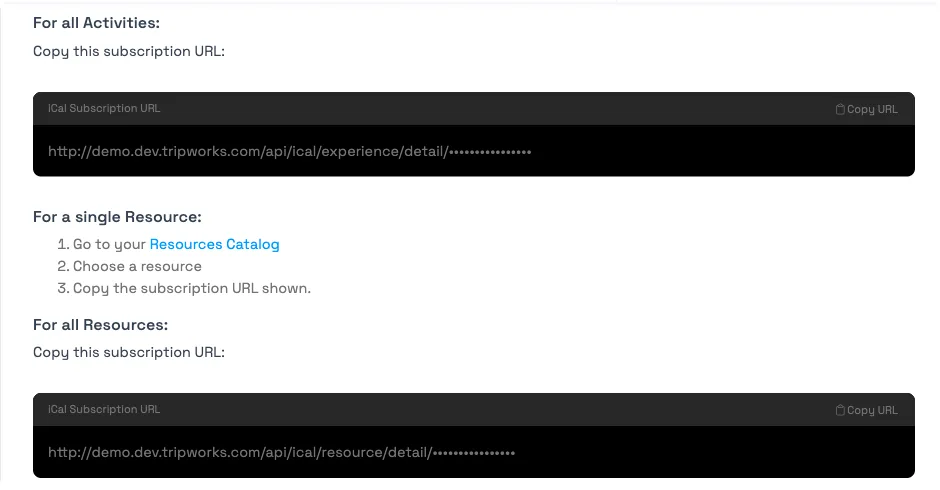
- All activities — every booked trip across your whole business, in one feed. The usual choice.
- A single activity — just one activity's bookings (handy if one calendar per tour suits you better).
- All resources — bookings grouped by the resource assigned (boat, room, vehicle, equipment).
Get your subscription URL
- Go to Setup Integrations and open Google Calendar/iCal.
- Under Finding your Subscription URL, click Copy URL for all activities (or all resources).
- For a single activity, copy the URL from that activity's Calendar tab in the Activity Catalog instead.
Treat this URL like a password. Anyone who has it can see your booking details — including guest names and contact info — so don't post it publicly or share it more widely than you need to.
Add it to your calendar
Paste the URL into your calendar app as a subscribed (or "from URL") calendar:
- Google Calendar — do this on a computer (the phone app can't add one): in the left sidebar, click + next to Other calendars → From URL → paste → Add calendar.
- Apple Calendar (Mac) — File → New Calendar Subscription → paste → Subscribe.
- iPhone/iPad — Settings → Calendar → Accounts → Add Account → Other → Add Subscribed Calendar → paste.
- Outlook / Android — Android adds it through Google Calendar (above); on desktop Outlook, add an internet calendar from the same URL.
What to expect
- It's one-way and read-only. The feed shows your TripWorks bookings in your calendar; editing or deleting the calendar event does not change anything in TripWorks.
- Your calendar app controls how often it refreshes — not TripWorks. Google can take up to about 12 hours to pull updates; Apple/iOS lets you set the refresh as often as every 15 minutes. A brand-new booking may not appear instantly.
- It covers a rolling window, not your full history — roughly the last few weeks through the next several months.
- Each event shows the activity and guest count, with booking details (guest name, confirmation code, contact, amount paid/due) in the notes. Very large timeslots show just the headcount.
Frequently asked questions
How do I sync TripWorks bookings to my Google Calendar?
Copy your subscription URL from Setup → Integrations → Google Calendar/iCal ("all activities"), then in Google Calendar on a computer click + next to "Other calendars" → From URL → paste → Add calendar. Your booked trips then appear in Google automatically.
Why don't my new bookings show up right away?
The refresh interval is set by your calendar app, not TripWorks. Google Calendar can take several hours (up to ~12) to fetch changes; Apple/iOS can be set to refresh as often as every 15 minutes. The booking is in the feed — your calendar just hasn't pulled it yet.
Can I edit a booking from my calendar app?
No. The feed is one-way and read-only — it's a view of your TripWorks bookings. To change a booking, do it in TripWorks; the update flows back to your calendar on its next refresh.
Can I sync just one activity instead of everything?
Yes. Each activity has its own subscription URL on its Calendar tab in the Activity Catalog. Subscribe to that instead of the "all activities" feed. There's also an "all resources" feed if you'd rather see bookings grouped by boat, room, or vehicle.
Does the feed show my whole booking history?
No — it covers a rolling window (roughly the last few weeks through the next several months), so your calendar stays fast and current. For a full history, use your reports in TripWorks.
Is it safe to share the subscription URL?
Be careful — the URL is effectively a key to your booking data, including guest names and contact details. Only share it with people who should see that, and never post it publicly. If a URL is exposed, the safest fix is to rotate access for that user.
My calendar app says the feed is too large to load — what now?
High-volume accounts can exceed what a calendar app will download in one feed. Subscribe to a single activity or a single resource feed instead of "all activities" to keep it manageable.
How is this different from a guide's schedule feed?
A guide's feed shows only the trips that guide is personally assigned to, and lives on their own profile. The feeds here are business-wide (or per activity/resource) for owners and managers. See How guides see their schedule for the guide version.
Related
Built for attractions, tours & activities
Your bookings, in the calendar you already live in
See how attractions, tours, and activities keep their schedule in sync with TripWorks. Book a demo and make the switch.