
Products are physical items you sell — shirts, hats, mugs, prints. Adding them to your catalog lets your team sell them at the register or on a booking, and lets you offer them to guests online.
Products aren't the same as add-ons. Add-ons are upgrades or options on an activity (VIP seating, skip-the-line). If that's what you want, see Set up add-ons instead.
Find your catalog at Setup → Build what you sell → Products.
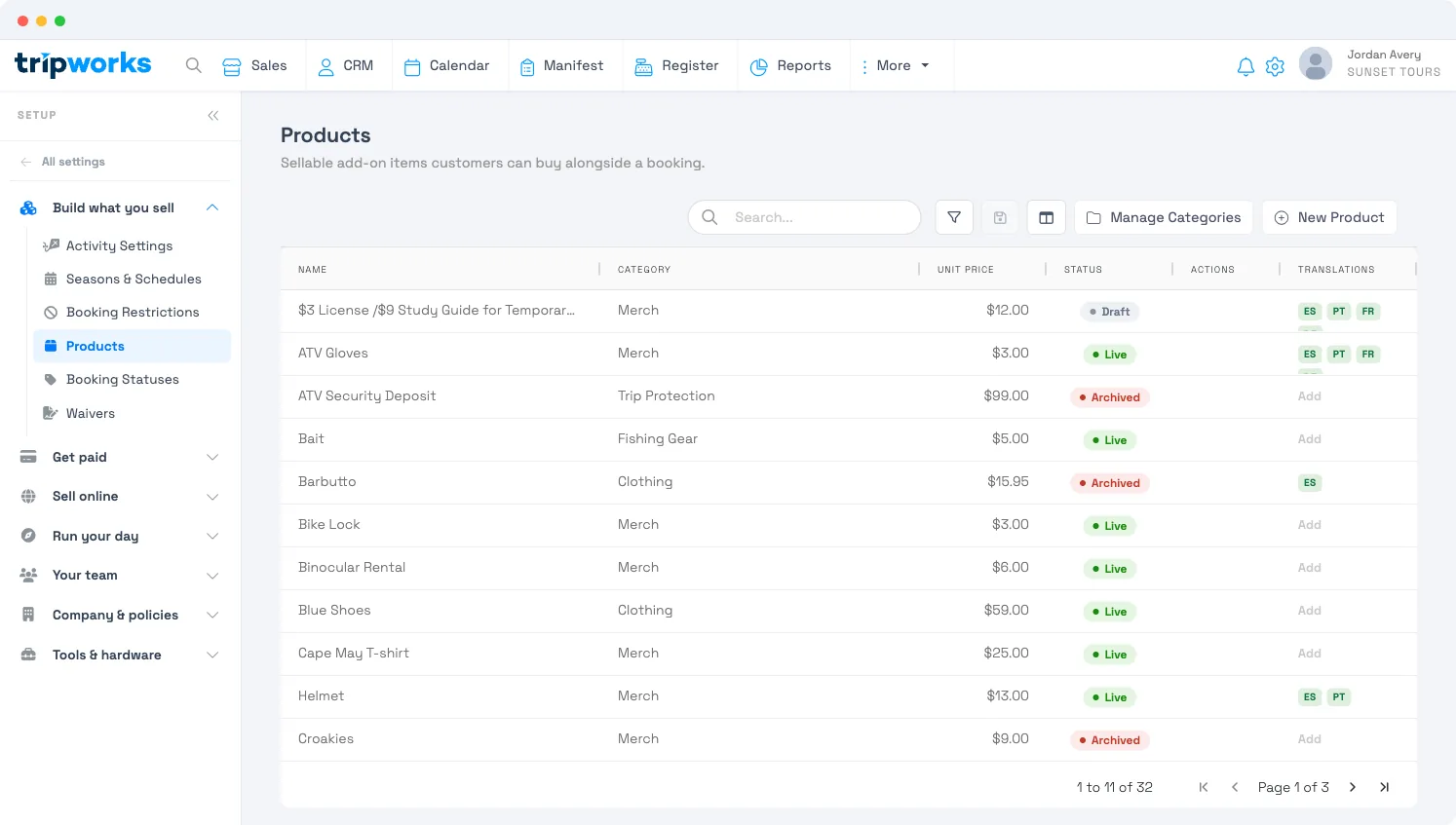
Step 1: Set up product categories (optional)
Categories keep a large catalog organized and group your product sales in reports. You don't need them to sell a product, but they help once you have more than a handful.
On the Products page, select Manage Categories → Create a Category, name it, and Save. Repeat for as many as you need.
Step 2: Add a product
Select New Product and fill in:
- Public Name — what guests see. (Internal Label is an optional name just for your team.)
- Product Description (optional) — shown to online shoppers.
- Unit Price — the product's price.
- Category (optional) — the product category from Step 1.
- SKU / UPC Code (optional) — SKU helps filter products in reports; UPC is stored for your records (the register searches by product name, not UPC).
- Status — see below.
- Taxability — select any taxes or surcharges that apply to this product.
- Additional options:
- Price is Editable — let your team change the sale price at checkout.
- Countable / Max Qty — whether a guest can buy more than one, and the cap per reservation.
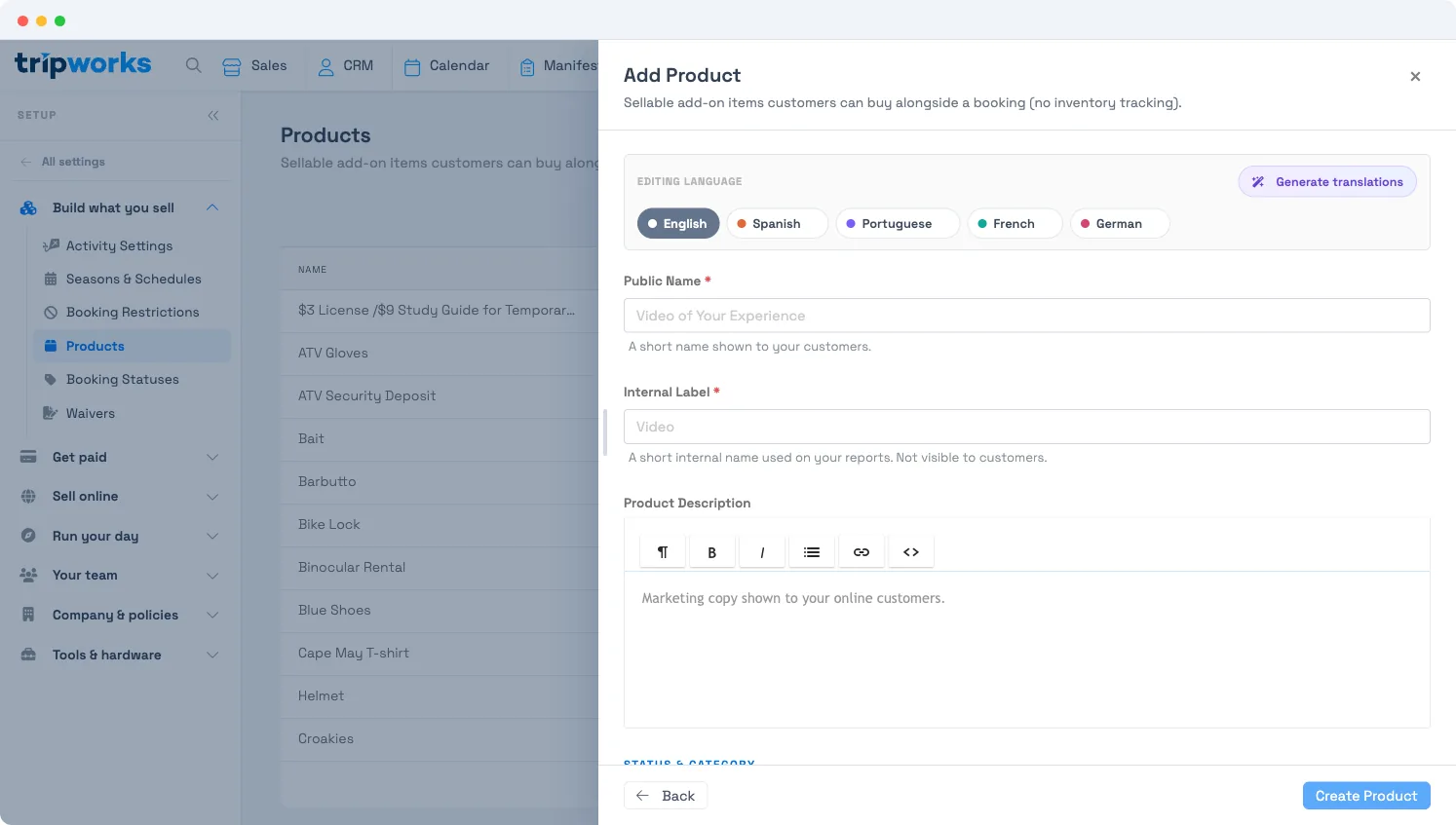
Then Save. You can add a product image via the Browse link (optional).
Products are for selling, not stock management — TripWorks doesn't track product inventory or stock levels (the product editor says as much). Set a price and status; there's no quantity-on-hand to maintain.
Product status
- Draft — saved but not sellable or visible anywhere yet.
- Private — your team can sell it on the dashboard/register, but it isn't shown to online guests.
- Live — sellable by your team and offerable to online guests as a suggested product.
- Archived — removed from sale and hidden online, but past sales stay in your reports.
Selling products
Once a product is set up, it can be sold three ways:
- Guests add it to their cart online (as a suggested product) while booking.
- Your team adds it to an existing trip so the guest pays for the activity and the product together.
- Your team rings it up as a standalone point-of-sale purchase at the register.
Related
Built for attractions, tours & activities
Sell more than seats
See how attractions, tours, and activities sell merch and add-ons alongside their bookings on TripWorks. Book a demo and make the switch.