
Suggested items surface extra products and activities to a guest as they check out — merchandise, a photo package, equipment, or another experience. Guests add them to their booking in a couple of taps without starting over, which is one of the easiest ways to lift average order value.
In this article
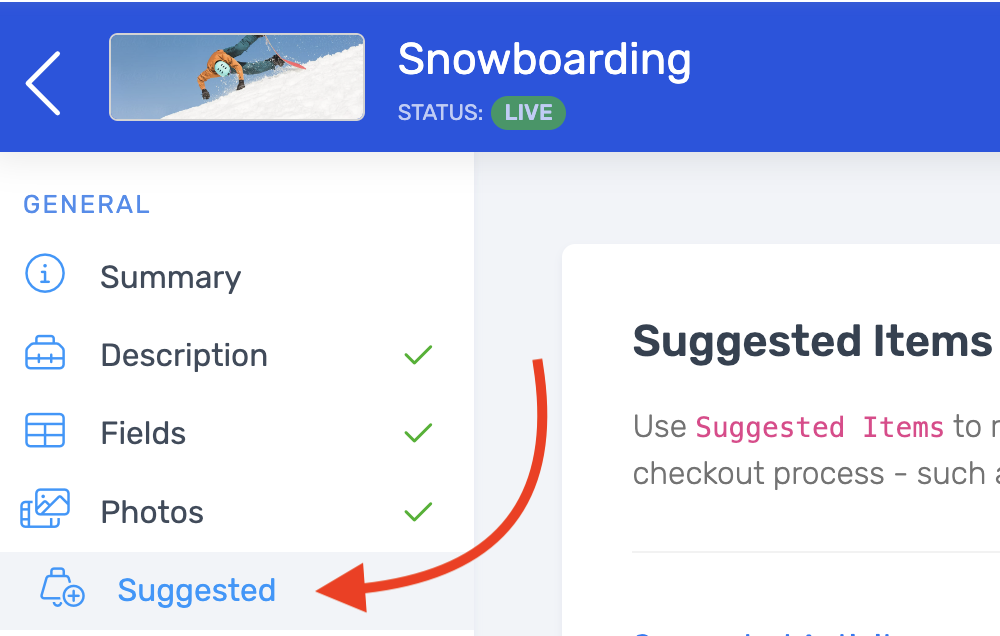
Set up suggestions
Suggestions are configured per activity, so you can tailor what's offered to each experience. Anything you suggest must already exist in your catalog.
- Go to Setup Activities and open the activity.
- Select Suggested Items in the sidebar.
- Choose the products and/or activities to show as suggestions at checkout.
When a guest books that activity, your suggestions appear on the checkout screen for them to add. Suggested activities show in the cart while it holds a single activity. Once the guest adds a second activity, the suggestions strip no longer shows.
Require a suggested activity
Some activities only make sense with a second one, like the return leg of a round-trip ferry or shuttle. To make guests add another activity before they can pay:
- On the activity's Suggested Items tab, add at least one activity under Suggested activities.
- Turn on Require at least one suggested experience during booking.
- Select Save at the top of the editor.
You can't turn the requirement on without at least one suggested activity selected. The save shows an error until you add one or uncheck the box.
How the requirement works when a guest books online:
- The guest needs at least two activities in the cart before checkout completes. Until then, the payment step shows "Add another item to the cart to complete checkout."
- One additional activity is enough. The requirement is a single checkbox, so there's no setting for a minimum of two, three, or more suggested activities.
- The suggested activities are the easiest way for guests to meet it, since they appear in the cart with an + Add button.
The Suggested activities list uses your account's own word for activities (for example, Suggested Tours). The checkbox always reads "Require at least one suggested experience during booking."
Suggested items vs. add-ons
- Suggested items are cross-sells shown at checkout — other products or activities a guest might also want.
- Add-ons are tied to a specific ticket and priced with it (like a rental or upgrade attached to a seat). Set add-ons up on the activity's Add-Ons tab.
Frequently asked questions
What can I suggest at checkout?
Products (merchandise, photo packages, rentals) and other activities in your catalog. They must already exist before you can add them as suggestions.
Are suggestions the same for every activity?
No — they're set per activity, so you can suggest what makes sense for each experience.
What's the difference between a suggested item and an add-on?
A suggested item is a cross-sell shown at checkout; an add-on is attached to a ticket and priced with it. Use suggestions to surface other things to buy, and add-ons for upgrades that go with a seat.
How do I make a suggested activity required?
Open the activity, go to the Suggested Items tab, add at least one activity under Suggested activities, and turn on Require at least one suggested experience during booking. Guests booking online then need a second activity in the cart before they can pay.
Can I require guests to add two or three suggested activities?
No. The requirement is a single on/off setting that asks for one additional activity in the cart. There's no option to set a higher minimum such as two or three. Guests can still add more activities on their own.
Why can't I save "Require at least one suggested experience during booking"?
The requirement needs at least one suggested activity selected on the same tab. Add an activity under Suggested activities, or uncheck the requirement, then save.
What does the guest see if they haven't added the required activity?
At the payment step, checkout shows "Add another item to the cart to complete checkout." and won't continue until a second activity is in the cart. The suggested activities appear in the cart with an + Add button so the guest can add one in a tap.
Related
Built for attractions, tours & activities
Lift every order, automatically
See how attractions, tours, and activities boost order value with checkout upsells on TripWorks. Book a demo and make the switch.