
A handful of settings shape what guests see when they book online: how prices are shown, how guests pay, whether you ask how they found you, and what details you collect. Most live under Setup Sell online E-Commerce Settings.
In this article
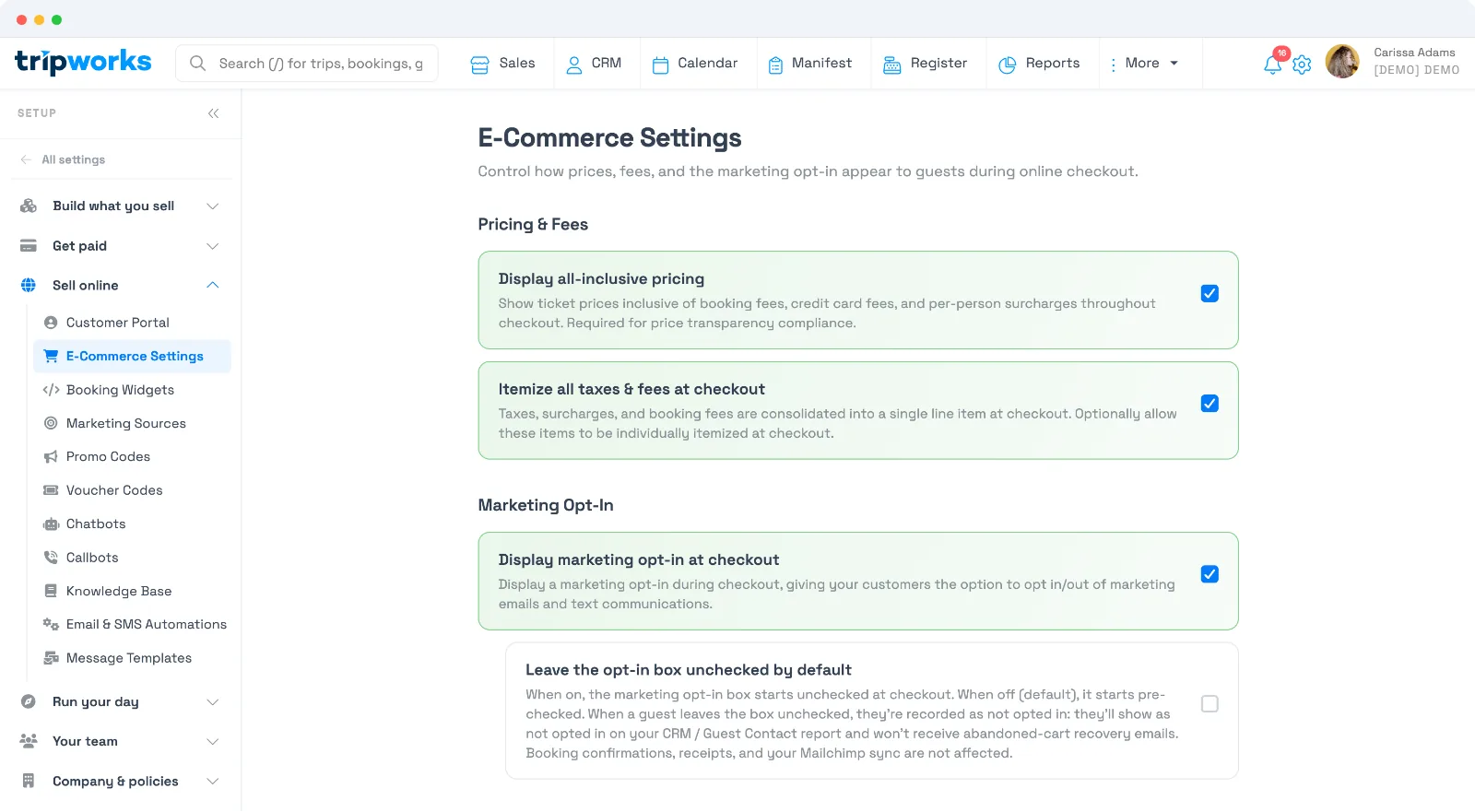
Pricing & fees
- Display all-inclusive pricing: show prices with booking fees, card fees, and per-person surcharges baked in from the start of checkout. Helps you meet price-transparency rules.
- Itemize all taxes & fees at checkout: show taxes, surcharges, and fees as separate line items rather than one combined total.
Marketing opt-in
- Display marketing opt-in at checkout: give guests a checkbox to opt in (or out) of marketing emails and texts.
- Leave the opt-in box unchecked by default: when on, guests start unchecked. Guests who don't opt in won't receive marketing or abandoned-cart recovery emails (booking confirmations and receipts always send).
"How did you hear about us?"
This prompt asks guests how they found you, feeding your marketing reports. Turn it on or off (for online and offline bookings) under Setup Sell online Marketing Sources.
Payment methods at online checkout
Guests who book online pay by credit or debit card. Depending on their device and your settings they can also see Apple Pay or Google Pay (see Express checkout & digital wallets), Klarna on US-dollar accounts where it's turned on (see Klarna payments), and a field to apply a gift card.
The pay button tells the guest how they're paying. It reads Buy Now for a card, Continue with Klarna when the guest picks Klarna, and Pay $50.00 Today (with the amount due now) when the guest chooses to reserve with a deposit. When nothing is due, for example a gift card covers the whole order, it reads Reserve Now.
Online checkout doesn't offer cash, check, or bank transfer, and there's no setting that adds them. When a guest wants to pay that way, your staff create or open the booking in TripWorks and record the cash or check payment on the trip. See Recording payments on a trip.
Promo code field
The Apply a Promo Code link appears at online checkout whenever you have at least one promo code with a status of Available that isn't set to Prevent Online Use. There's no separate on/off switch for the field. To keep it off your online checkout, set every active code to Prevent Online Use (on the code's Limits tab); staff can still apply those codes to bookings in TripWorks. The link also shows when gift cards are offered in your online catalog or a voucher program is on for an activity in the cart, because those share the same section of checkout. See Promo codes.
Customer information fields
Online bookings. The guest who makes an online booking always gives a first name, last name, email, and phone number. These can't be removed, since TripWorks needs them to send confirmations and reach the guest. For retail product purchases, they're all optional. If an activity sets Group name to Required on its Custom Fields tab, the guest fills that in too.
Every required field is marked with a red asterisk from the start, so guests know what to fill in before they try to continue. The button to move on stays unavailable until those fields are filled. An optional email is labelled (optional). Kiosks follow the same rules.

Bookings your staff enter. When a team member signed in to TripWorks makes the booking, the lead contact's email and phone are optional, so staff can book a walk-up or phone guest without them. There's no setting that makes the lead contact's email or phone required on staff bookings.
Per-guest details. Each activity's Custom Fields tab has a Standard guest fields table where you set each guest's name, email, phone, and group name to Required, Optional, or Hidden, separately for Online bookings and Offline bookings (bookings your staff enter). If you need staff to capture an email or phone for every booking, set those fields to Required in the Offline bookings column. They're then required on each guest in the booking.
The same tab is where you add your own custom questions and set fields you don't need to Hidden. See Add custom fields to an activity.
Frequently asked questions
Why does the pay button say something other than Buy Now?
The button names how the guest is paying. It says Continue with Klarna when they pick Klarna, Pay $50.00 Today (with the amount due now) when they reserve with a deposit, and Reserve Now when nothing is due. A card payment shows Buy Now.
How do guests know which checkout fields are required?
Each required field has a red asterisk next to its label, and the button to continue stays unavailable until they're all filled in. Fields you set to Optional on an activity's Custom Fields tab don't get the asterisk.
How do I remove the "How did you hear about us?" prompt?
Go to Setup → Sell online → Marketing Sources and turn the prompt off. You can disable it for online checkout, offline bookings, or both.
Which fields are always required?
On an online booking, the guest who books always gives a first name, last name, email, and phone, and those can't be made optional or hidden. On a booking your staff enter while signed in to TripWorks, the lead contact's email and phone are optional.
Can I require an email or phone number on bookings my staff enter?
Yes, per guest. Open the activity's Custom Fields tab and, in the Standard guest fields table, set Guest's email address or Guest's phone number to Required in the Offline bookings column. Staff then can't complete a booking without it for each guest. The lead contact's own email and phone stay optional on staff bookings, and there's no setting that changes that.
How do I hide extra customer fields at checkout?
They're set per activity. Open the activity's Custom Fields tab and set the fields you don't need to Hidden, separately for online and offline bookings. See Add custom fields to an activity.
Can guests pay with cash or check when they book online?
No. Online checkout takes cards, plus Apple Pay or Google Pay, Klarna where it's on, and gift cards. Cash and check can't be offered online. If a guest wants to pay by cash or check, have your staff create the booking in TripWorks and record the payment on the trip when it arrives.
A guest has a Canadian card but my checkout asks for a ZIP code. What do they enter?
They enter the postal code from their card's billing address, letters and all (for example, K1A 0B1). The ZIP field at online checkout isn't limited to US numbers. If the form shows a Country menu, they choose Canada first. Use the postal code the bank has on file for the card, or the payment may be declined.
Can I hide the "Apply a Promo Code" field at checkout?
There's no direct switch, but the field only appears when you have an Available promo code that guests can use online. Turn on Prevent Online Use for every active code (or set unused codes to Inactive) and the link no longer shows, unless gift cards or vouchers are offered online, which share that part of checkout. Staff can still apply codes marked Prevent Online Use from inside TripWorks.
Should I turn on all-inclusive pricing?
It's recommended. Showing the full price upfront builds trust and helps meet price-transparency rules. Guests see fewer surprises at the final step.
Related
- Recording payments on a trip
- Express checkout & digital wallets
- Create & manage booking widgets
- Suggested products & add-ons at checkout
Built for attractions, tours & activities
A checkout that converts
See how attractions, tours, and activities give guests a fast, transparent checkout on TripWorks. Book a demo and make the switch.