
Once a guest answers a custom field, you can review and update that answer from either the trip view or the manifest.
In this article
Where a response shows up on the trip view
Where a response appears depends on whether the field is collected once per trip or once per guest:
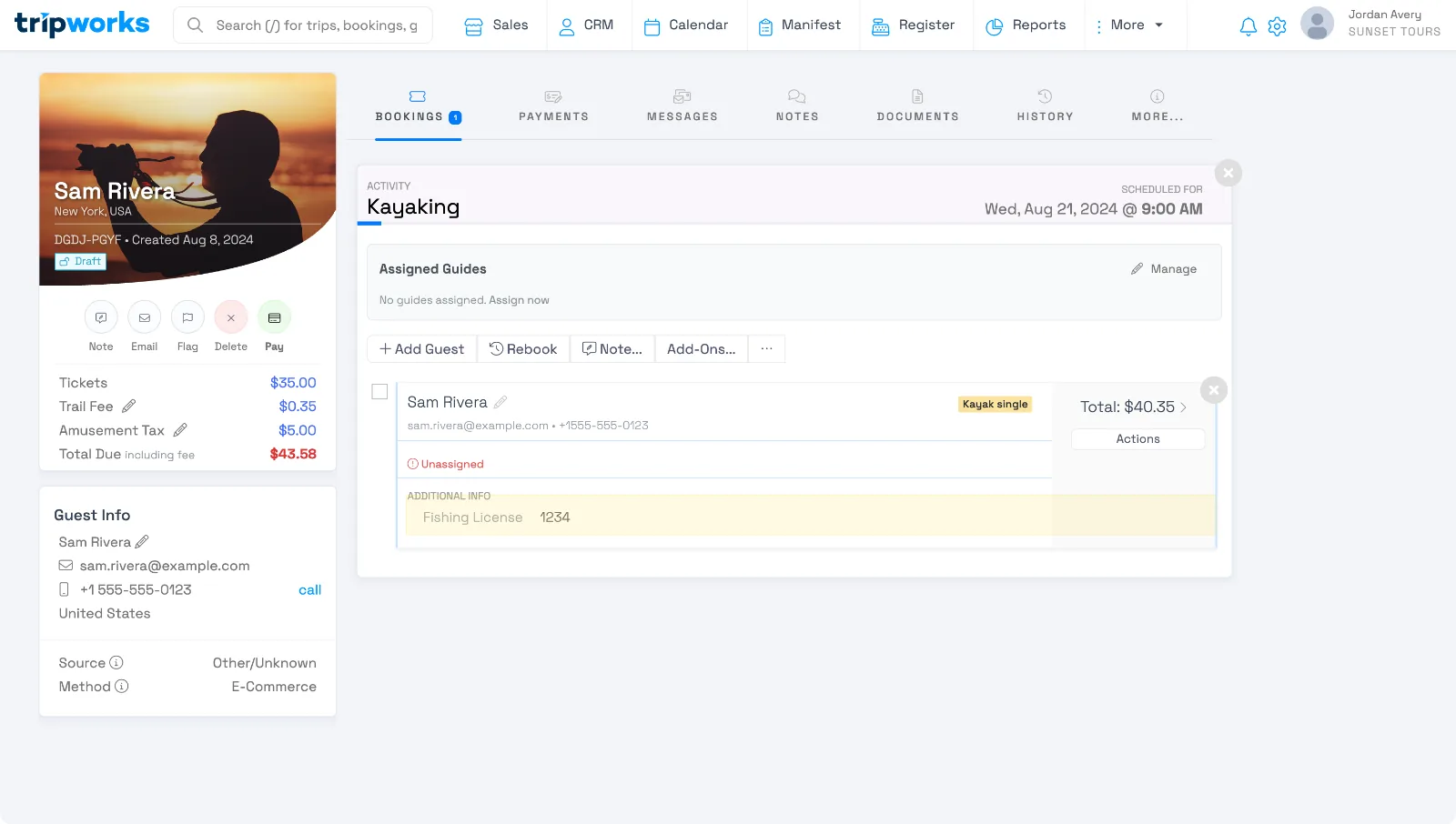
- Once per guest answers appear on the Bookings tab, under each guest's booking.
- Once per trip answers appear in the sidebar, and stay visible no matter which tab you're on (Bookings, Payments, or Messages).
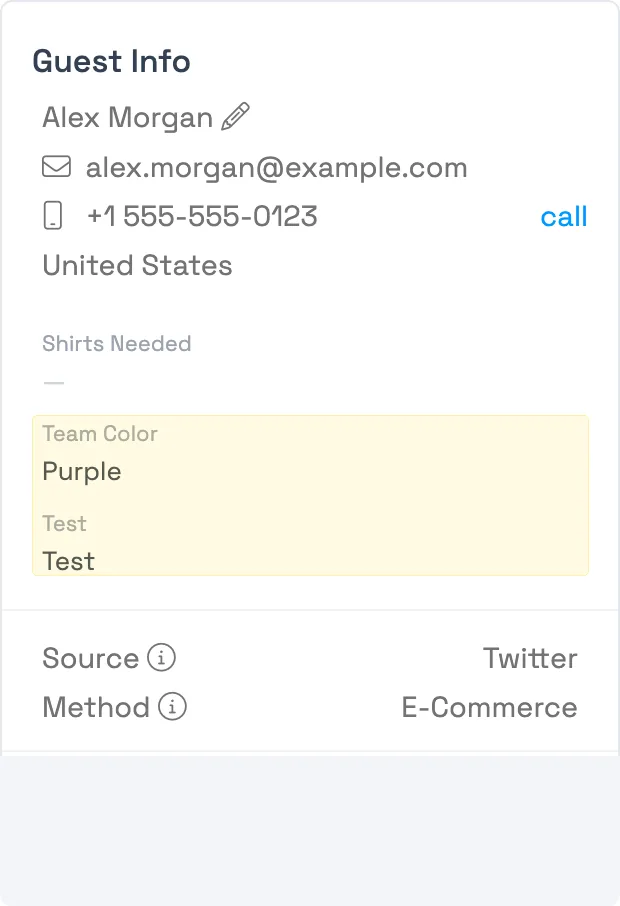
A once-per-guest answer lives in a different spot: under that specific guest's own booking card, on the Bookings tab.
Edit a response from the trip view
- Select the response you want to change, on the Bookings tab or in the sidebar.
- Update the value. For a text, number, or address field, type the new value and click elsewhere on the page to save it. For a dropdown, date, or time field, just select the new value; it saves as soon as you pick it.
View and edit from the manifest
The manifest shows custom field responses across every booking on a trip date, as columns you can turn on or off:
- Open the manifest for the date you want, then select Customize Columns (the + above the table, or the icon in the toolbar).
- Search for the field and turn it on. Both once-per-trip and once-per-guest fields are listed together under Custom Fields.
Once a once-per-guest field is added as a column, select its value (look for the pencil icon) to open an edit window listing every guest on that booking, so you can update everyone's answer in one place:
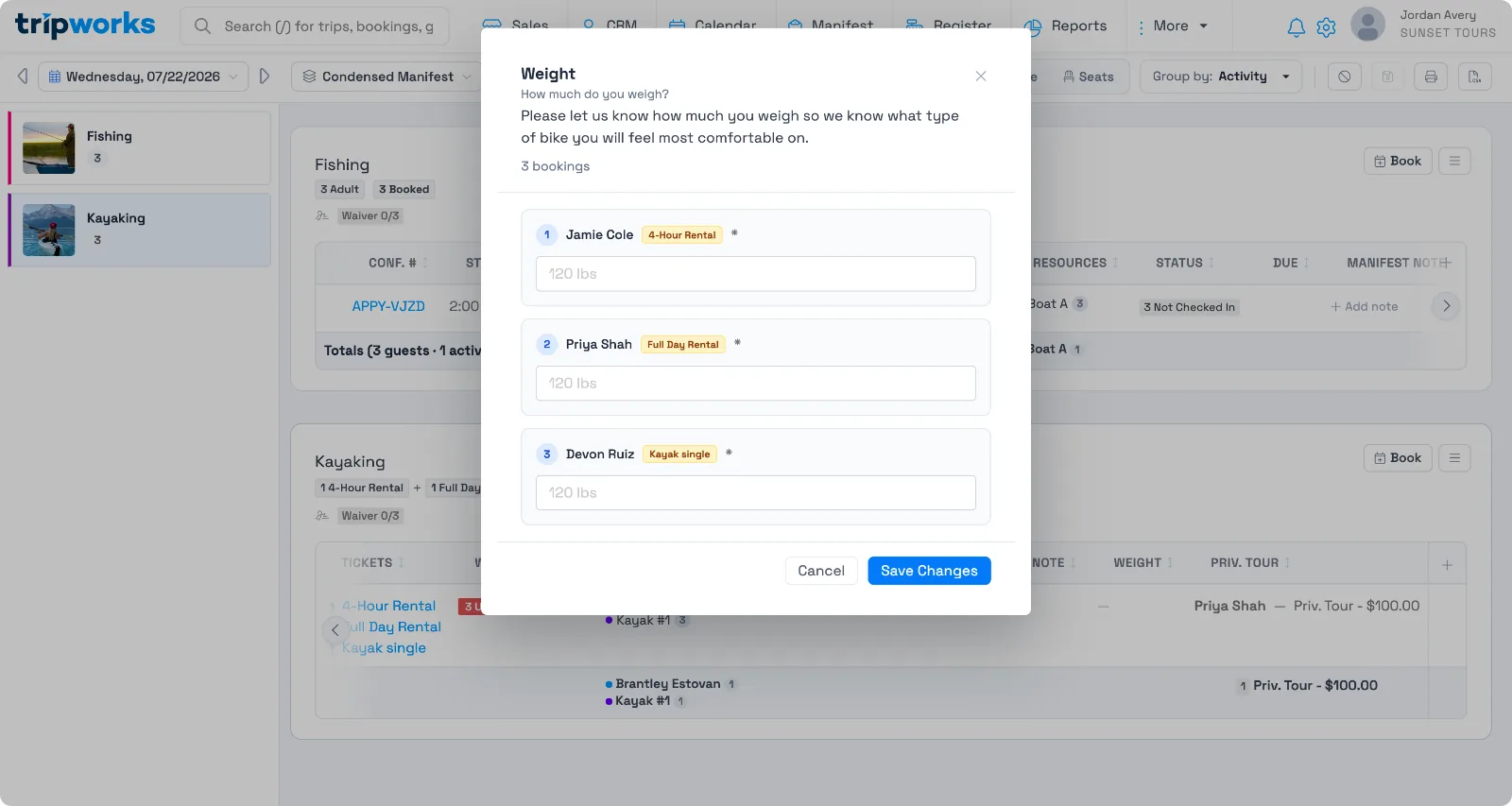
A once-per-trip field's column on the manifest is display-only. To change it, edit it from the trip's sidebar instead (see "Edit a response from the trip view" above).
Frequently asked questions
Why does a custom field answer show in the sidebar instead of the Bookings tab?
It's collected once per trip rather than once per guest, so it applies to the whole booking group rather than one guest. Once-per-trip answers live in the sidebar so they stay visible no matter which tab you're on.
Can I edit a custom field response after the trip has happened?
Yes. There's no time limit on editing a response from the trip view or the manifest, as long as you can still access the trip.
Why can't I edit a custom field's value directly from the manifest?
Once-per-guest fields are editable from the manifest, through the pencil icon on that column. Once-per-trip fields show on the manifest for reference only; edit those from the trip view's sidebar instead.
I don't see a custom field on the manifest — why?
Turn it on from Customize Columns on the manifest. A field also has to be assigned to the activity you're viewing; see add custom fields to an activity.
Related
- What are custom fields?
- Set up custom fields
- Add custom fields to an activity
- Conditional custom fields
Built for attractions, tours & activities
Every answer, right where your team needs it
See how attractions, tours, and activities keep guest answers visible on the trip and the manifest, editable in one click, on TripWorks. Book a demo and make the switch.