
A kiosk lets walk-up guests pick an activity, book it, and pay by card on an Android tablet, without staff. You design what the kiosk shows in the widget builder, then pair each tablet to it.
In this article
The kiosk is turned on per account. If you don't see Kiosks under Tools & hardware in Setup, contact TripWorks support to have it enabled. Your account may call it by another name, and the screens use that name.
What you need
- An Android tablet running the TripWorks Kiosk app. The kiosk can't take payments in a regular web browser, and there is no iPad version.
- A Stripe card reader registered to your account.
- A location in your account that is set up for card readers.
Learn how to manage permission groups
1. Register your card reader
Register the reader under Setup → Card Readers. See Set up card readers.
2. Build the kiosk display
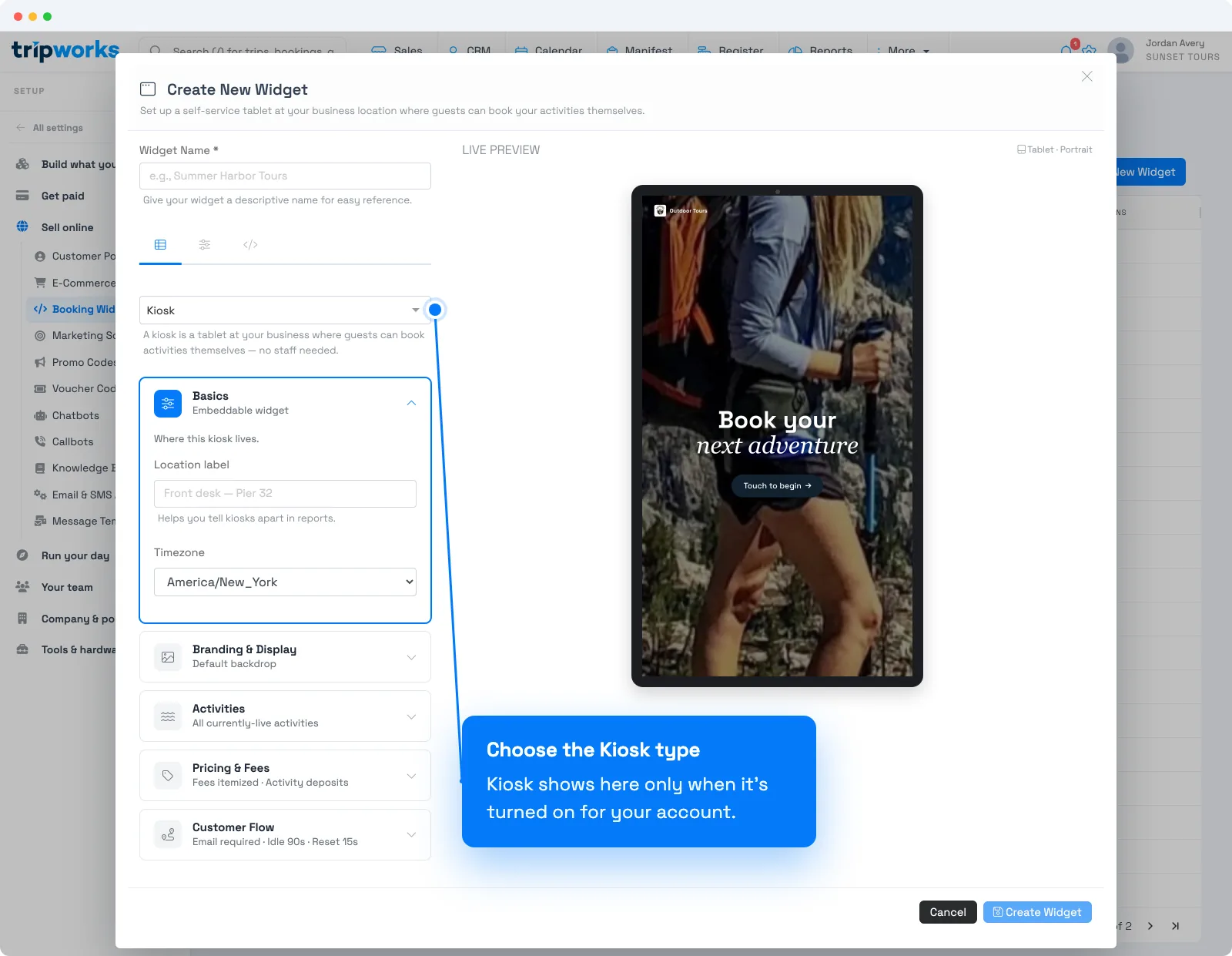
- In the widget builder, create a widget and choose Kiosk as the type.
- Name it, then set up its sections: Basics (a Location label that tells kiosks apart in reports, and a Timezone), Branding & Display, Activities, Pricing & Fees, and Customer Flow. See Create and manage booking widgets.
- In Activities, choose which activities the kiosk sells. All live activities are selected by default.
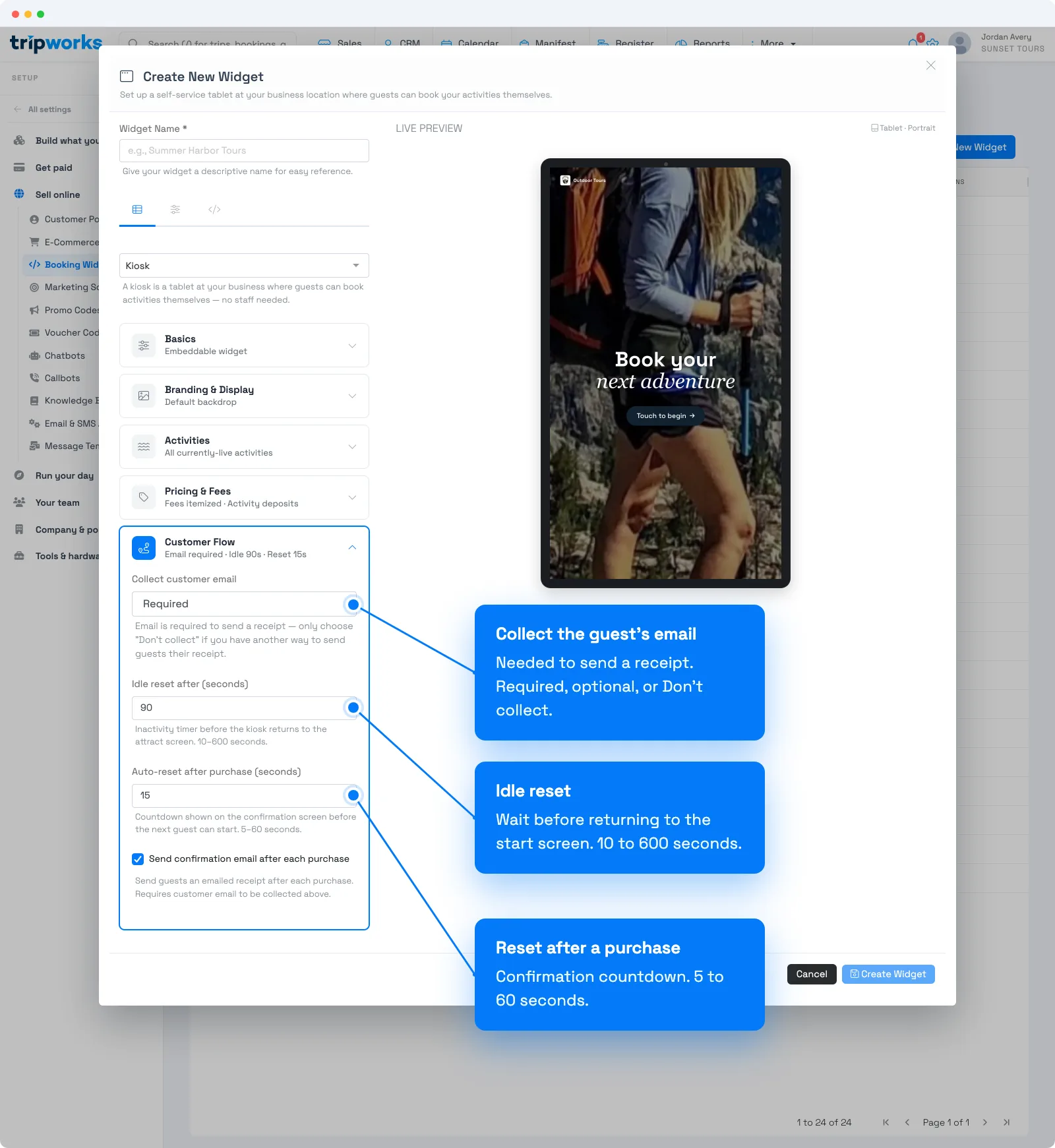
- Set Idle reset after (seconds), which is how long the kiosk waits before it returns to its start screen. The default is 90 seconds, and you can use 10 to 600.
- Set Auto-reset after purchase (seconds). The default is 15 seconds, and you can use 5 to 60.
- In Customer Flow, choose whether to collect the guest's email. Choose Required, optional, or Don't collect. Email is needed to send a receipt, and Send confirmation email after each purchase is on by default.
Your account logo is used for branding automatically. You can add a header tagline and a start-screen photo.
Add a short description for the kiosk
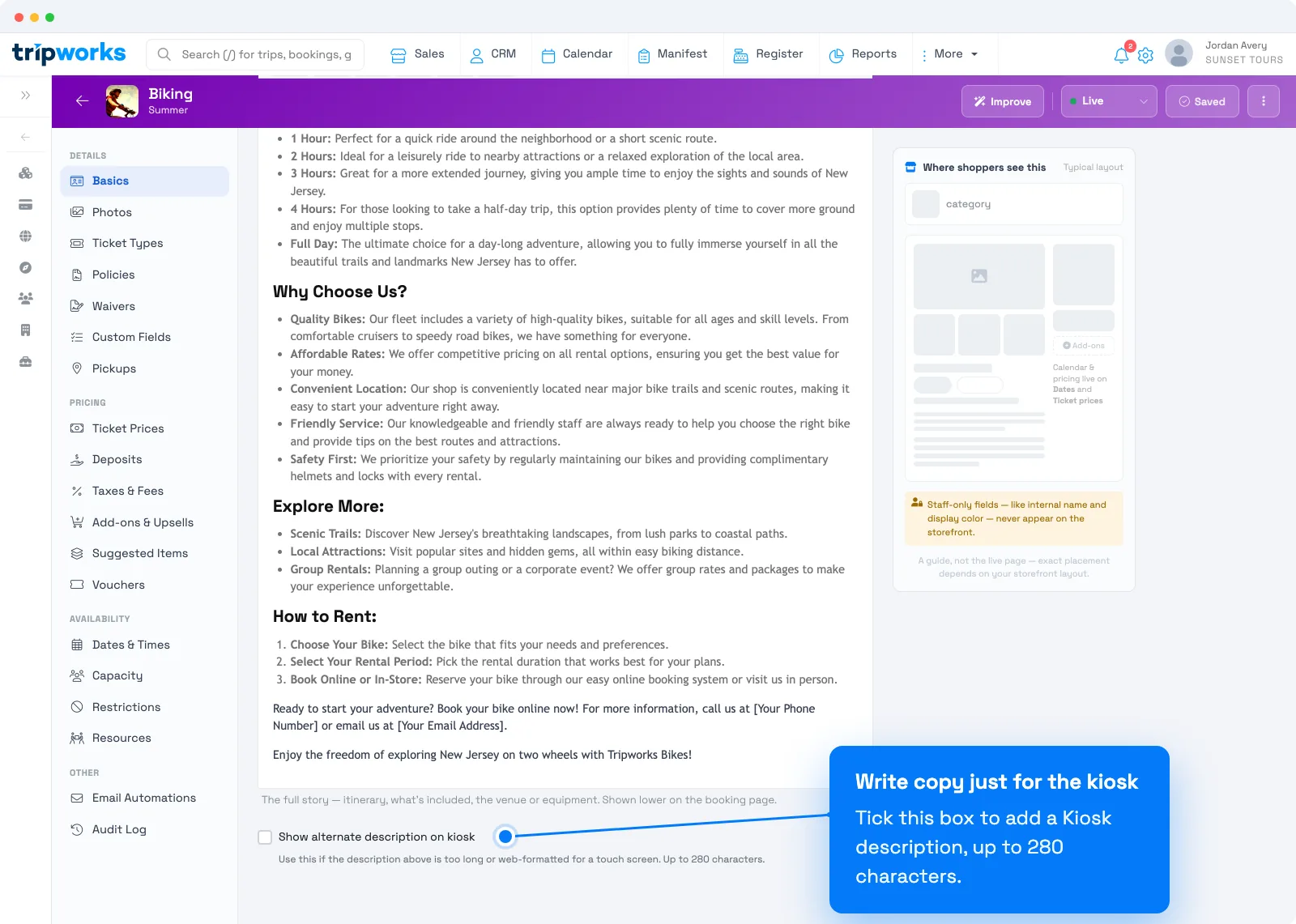
A kiosk can show shorter copy than your website. Open the activity, go to Basics, and choose the Description tab. Scroll to the bottom, tick Show alternate description on kiosk, and write a Kiosk description of up to 280 characters.
3. Pair a tablet
- Go to Setup → Tools & hardware → Kiosks and choose Register a kiosk.
- On the tablet, open the TripWorks Kiosk app and tap Pair device.
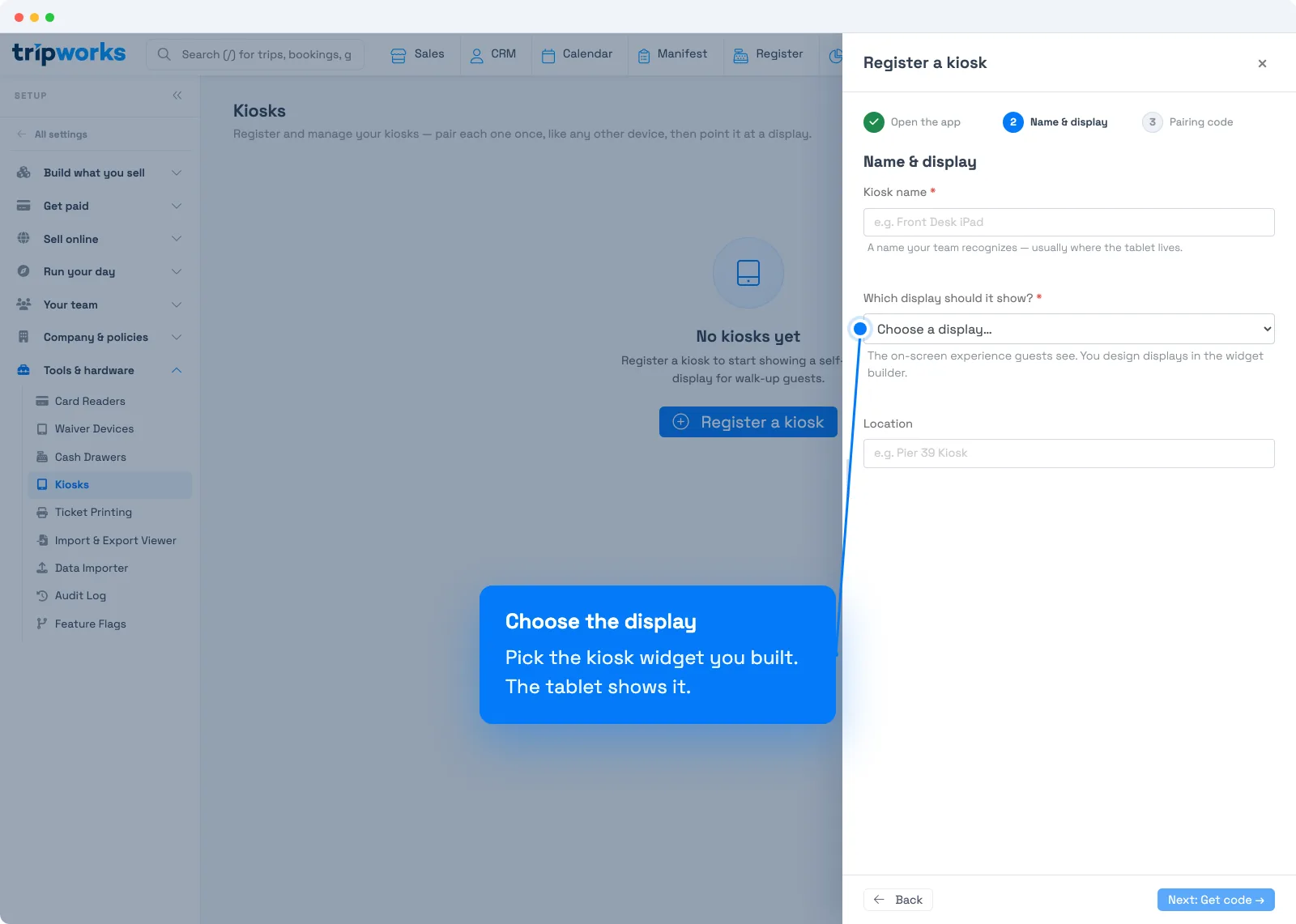
- In TripWorks, enter a Kiosk name, choose the display it should show, and optionally a location.
- Choose Next: Get code. TripWorks shows a four-character pairing code. Enter it in the app within 10 minutes. If it expires, choose Generate new code.
The code works once. The pairing code connects the tablet to the kiosk. It doesn't connect the card reader, which you registered in step 1.
4. Set an admin PIN
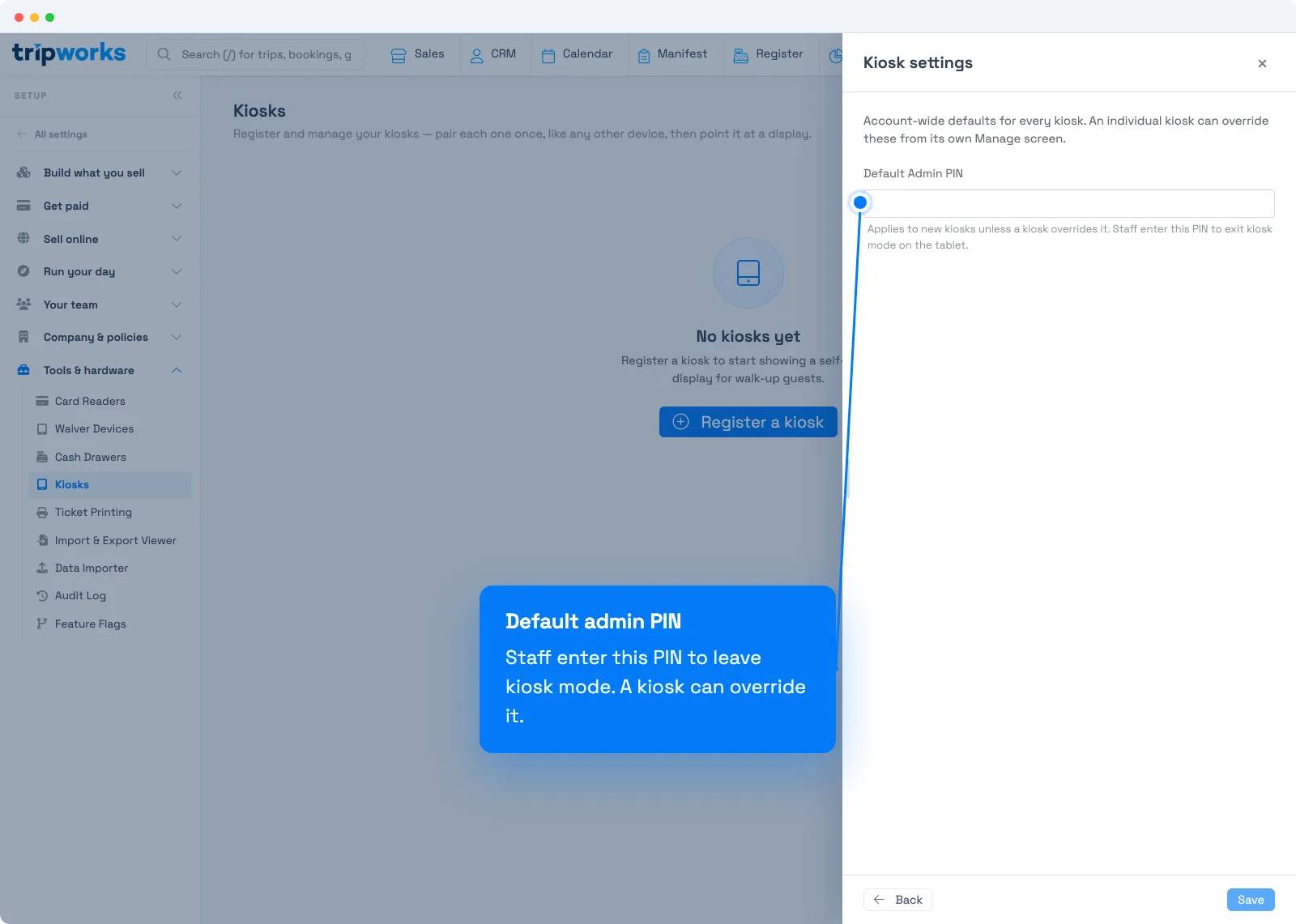
Staff use an admin PIN to leave kiosk mode on the tablet. Set a Default Admin PIN under Settings on the Kiosks page, or give one kiosk its own with Admin PIN override.
Manage a kiosk
On the Kiosks page, you can turn a kiosk off with Enabled, change its display, or choose Unpair to disconnect its tablet.
Frequently asked questions
Can I run the kiosk on an iPad?
No. The kiosk app is for Android tablets.
Is the pairing code for the card reader?
No. It pairs the tablet to the kiosk. Register the reader separately under Setup → Card Readers.
My pairing code stopped working. What now?
Codes expire after 10 minutes and work once. Choose Generate new code on the registration screen.
Why don't I see Kiosks in Setup?
The kiosk is turned on per account, and you also need the Manage iPad & Tablet Devices permission. Contact TripWorks support to have it enabled.
Related
Built for attractions, tours & activities
Let walk-ups book themselves
See how attractions, tours, and activities take walk-up bookings and card payments on a self-service kiosk with TripWorks. Book a demo and make the switch.