
A TripWorks card reader lets you take in-person card payments at your desk, dock, or gate — and it all flows into the same TripWorks account as your online bookings. One place for every sale, every refund, and your reporting. Card readers run on Stripe Terminal, so they meet the same security bar as the rest of TripWorks payments.
In this article
What a reader accepts
TripWorks card readers take every way guests pay today:
- Tap (contactless) — contactless cards and mobile wallets, including Apple Pay and Google Pay, over NFC.
- Chip (EMV) — insert the card and, where required, enter a PIN.
- Swipe (magstripe) — for older cards without a chip.
So whether a guest taps their phone, inserts a chip card, or hands you an old magstripe card, the reader handles it — no separate device or app.
Which readers TripWorks supports
You must use a reader provided and certified by TripWorks — you can't bring your own or buy one from a third party. That's what keeps every sale in one place and keeps PCI security TripWorks' responsibility, not yours. To order one, contact support@tripworks.com.
- BBPOS WisePOS E — a countertop reader with a touchscreen that connects over Wi-Fi. Best for a fixed front desk.
- Stripe Reader M2 — a smaller handheld reader that pairs with the TripWorks mobile app over Bluetooth. Best for taking payments on the move.
For the full hardware list, see Recommended devices & browsers.
Availability. Card readers use Stripe Terminal, which is available in many countries — including the US, Canada, the UK, most of Europe, Australia, and more. Your TripWorks account and the reader's location must be in the same supported country and use its local currency. Availability can vary by region, so if you're outside the US, check with TripWorks support to confirm.
Set up a WisePOS E
Setup takes about ten minutes. You'll need access to the same password-protected Wi-Fi network your TripWorks device uses.
- Install the battery in the compartment on the back of the reader.
- Power it on — hold the power button on the right side until the screen lights up (charge it first if the battery is flat; the charging port is on the right too).
- Connect to Wi-Fi — on first boot the reader prompts you to join a network. Choose the same password-protected network your TripWorks device uses — they must be on the same network. (If the prompt doesn't appear, swipe right on the screen, enter the admin PIN 07139, and open Network.)
Register the reader in TripWorks
Once the reader is online, register it so TripWorks can send payments to it:
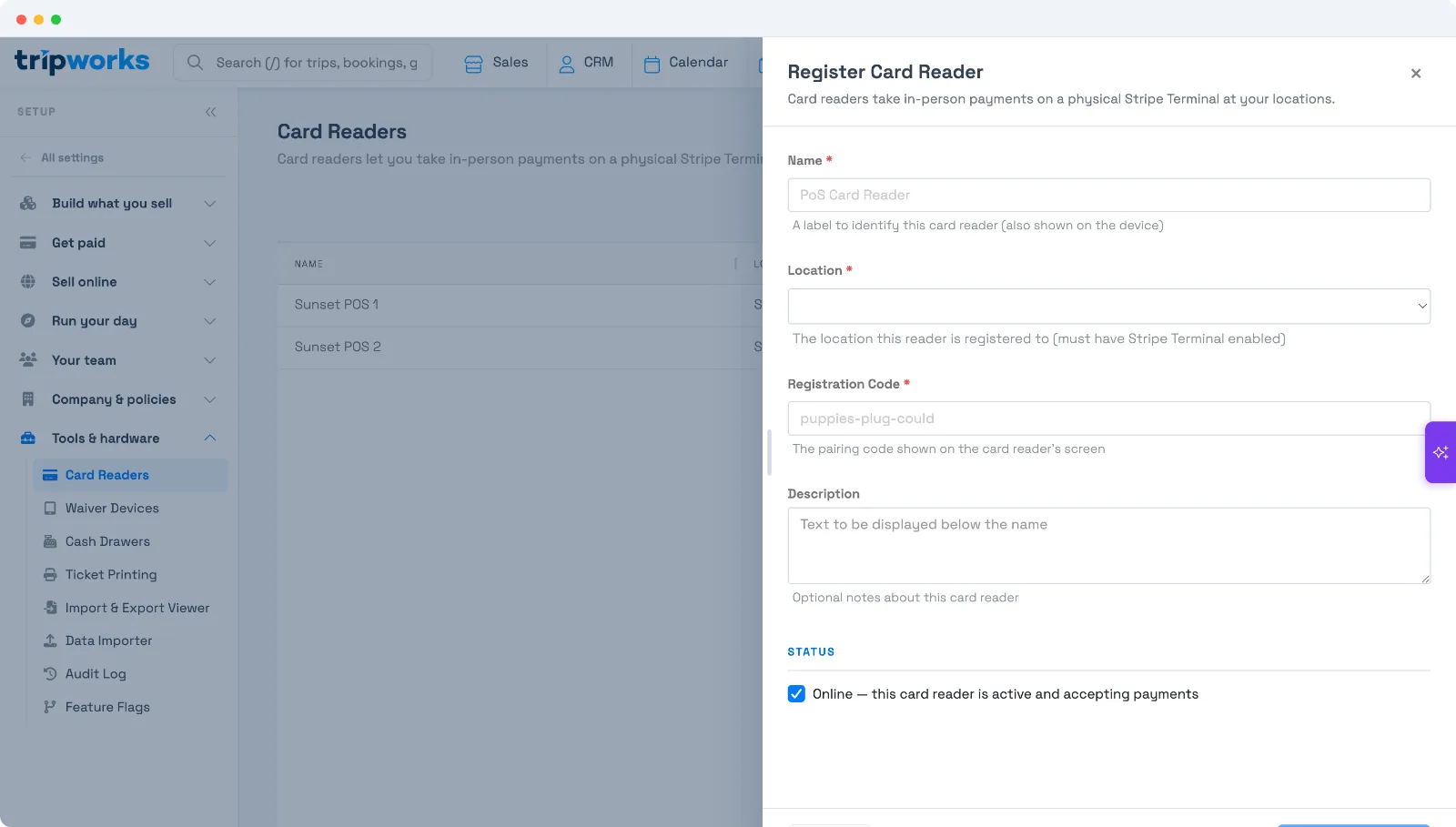
- Go to Setup Tools & hardware Card Readers and select New Card Reader.
- Name it — a label to identify the reader (it also shows on the device).
- Choose the Location it belongs to. The location must have Stripe Terminal enabled.
- Enter the Registration Code — the pairing code shown on the reader's own screen.
- Optionally add a Description, leave Online checked so it's active and accepting payments, and select Create Card Reader.
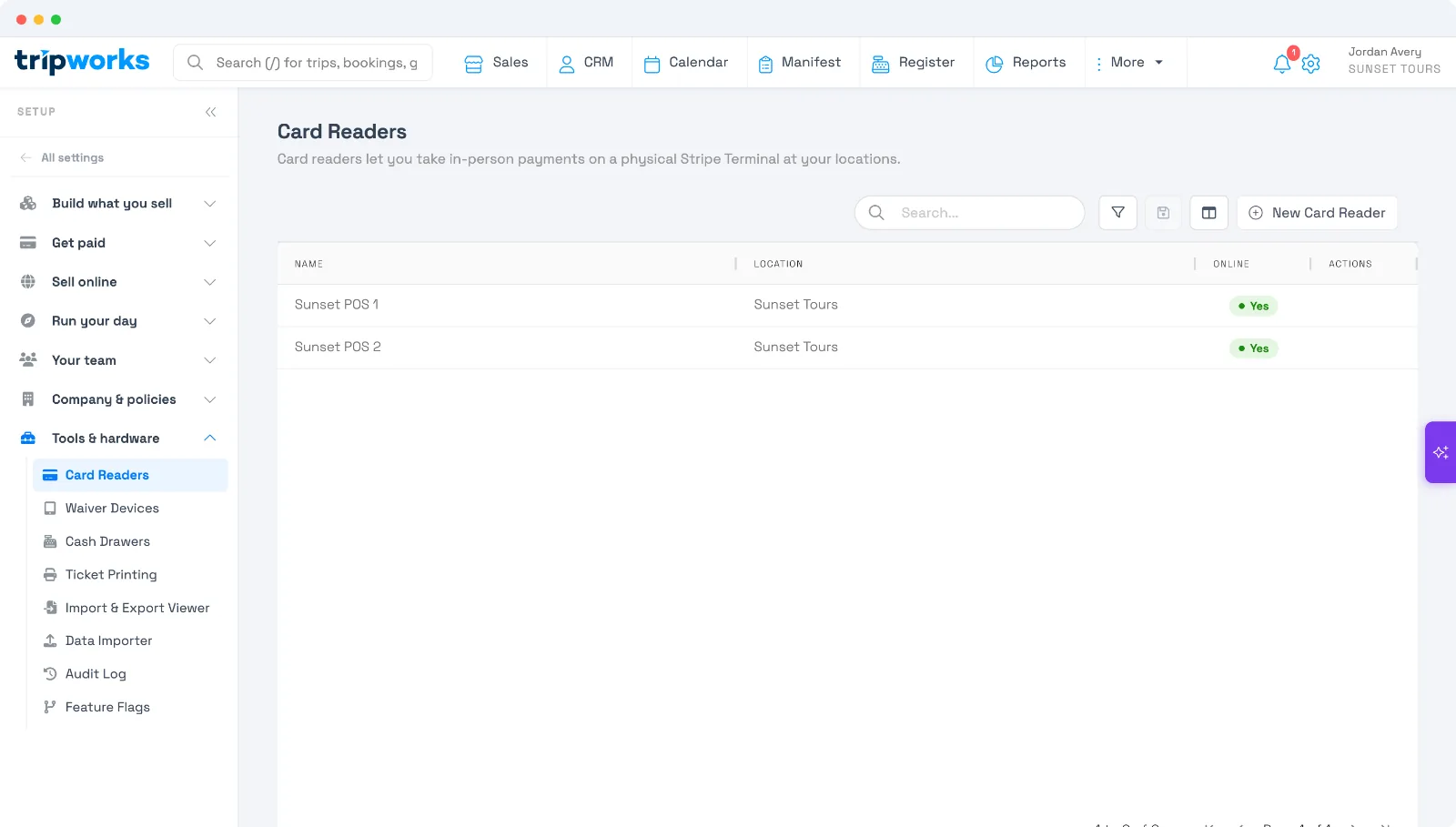
The reader now appears in your Card Readers list — with its location and an Online status — and is ready to charge from the Register / point of sale.
Share one reader across accounts
If you run more than one TripWorks account out of the same physical location, a single reader can serve all of them — register it once and it's available everywhere you've set up sharing, with payments still routing to the correct business's bank account. This works when your accounts share the same Stripe Terminal location: registering a reader on one account registers it on the others; removing it removes it everywhere. Setup is handled once by TripWorks — contact support@tripworks.com to enable it. If you only run one account, there's nothing to do.
Security & PCI
Card data is encrypted inside the reader the moment a card is tapped, inserted, or swiped, and TripWorks carries the PCI-compliance burden — so you get in-person payments without the security headaches.
Frequently asked questions
Can I use my own card reader?
No. Only readers provided and certified by TripWorks work with the platform. Order one from support@tripworks.com — this keeps every sale, refund, and tax record in one place and keeps PCI compliance on TripWorks.
Does the reader accept Apple Pay and Google Pay?
Yes. The reader takes contactless taps — including Apple Pay, Google Pay, and contactless cards — plus chip (EMV) and magstripe swipe.
Where do I find the registration code?
On the reader's own screen once it's powered on and online. Enter that pairing code in the Register Card Reader form in TripWorks.
Are card readers available in my country?
They use Stripe Terminal, which is available in many countries, but your account and the reader's location must be in the same supported country using local currency. If you're outside the US, check with support to confirm.
Related
Built for attractions, tours & activities
Take payment in person, the easy way
See how attractions, tours, and activities take in-person payments on TripWorks. Book a demo and make the switch.