
PicThrive helps you manage and share guest photos and videos. Connecting it to TripWorks syncs reservation details automatically, so PicThrive always knows which guest and activity a piece of media belongs to, with no manual matching.
In this article
Learn how to manage permission groups
The integration works over webhooks: every time an activity is created, reserved, or cancelled in TripWorks, guest names, contact details, and activity information (date, start and end time) are sent to PicThrive automatically. PicThrive uses that to auto-complete emails and texts so photos and videos reach the right guest without your team sharing anything by hand.
Step 1: Create a PicThrive account
If you don't have one yet, visit PicThrive or contact their team to get started.
Step 2: Connect PicThrive in TripWorks
- In TripWorks, go to Setup Integrations and select PicThrive.
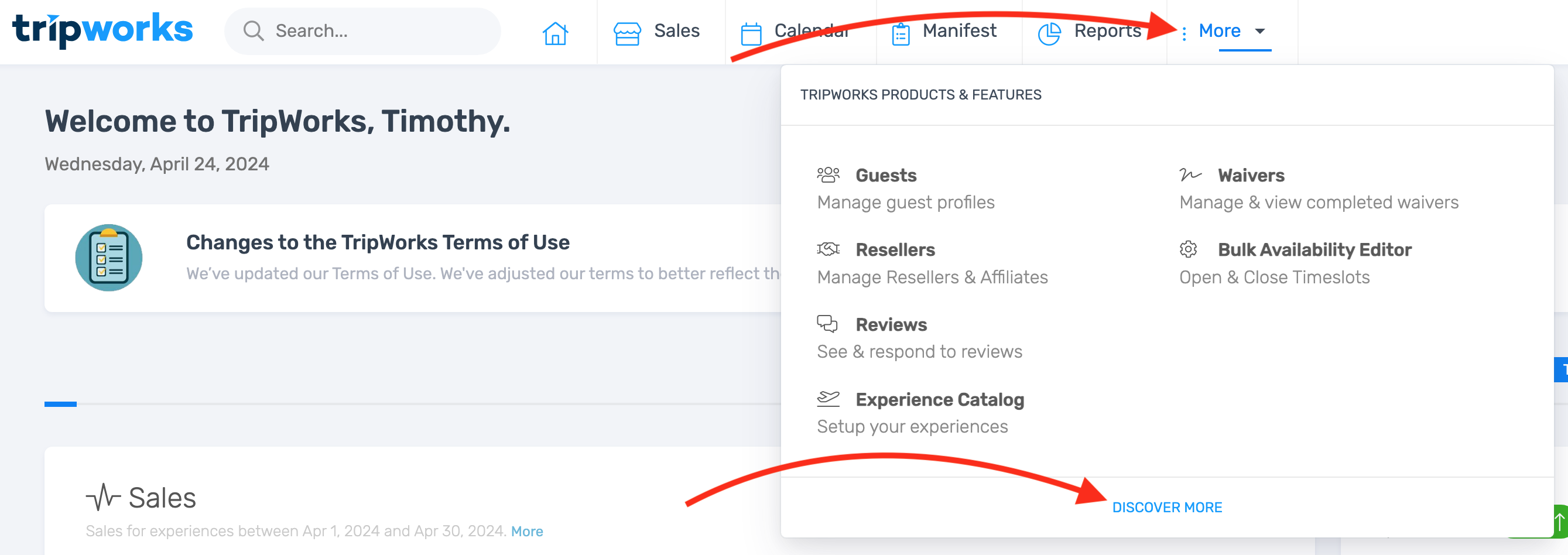
- TripWorks pre-fills the Operator ID and PicThrive Webhook URL fields for you — you don't need to edit either one. Copy the Operator ID.
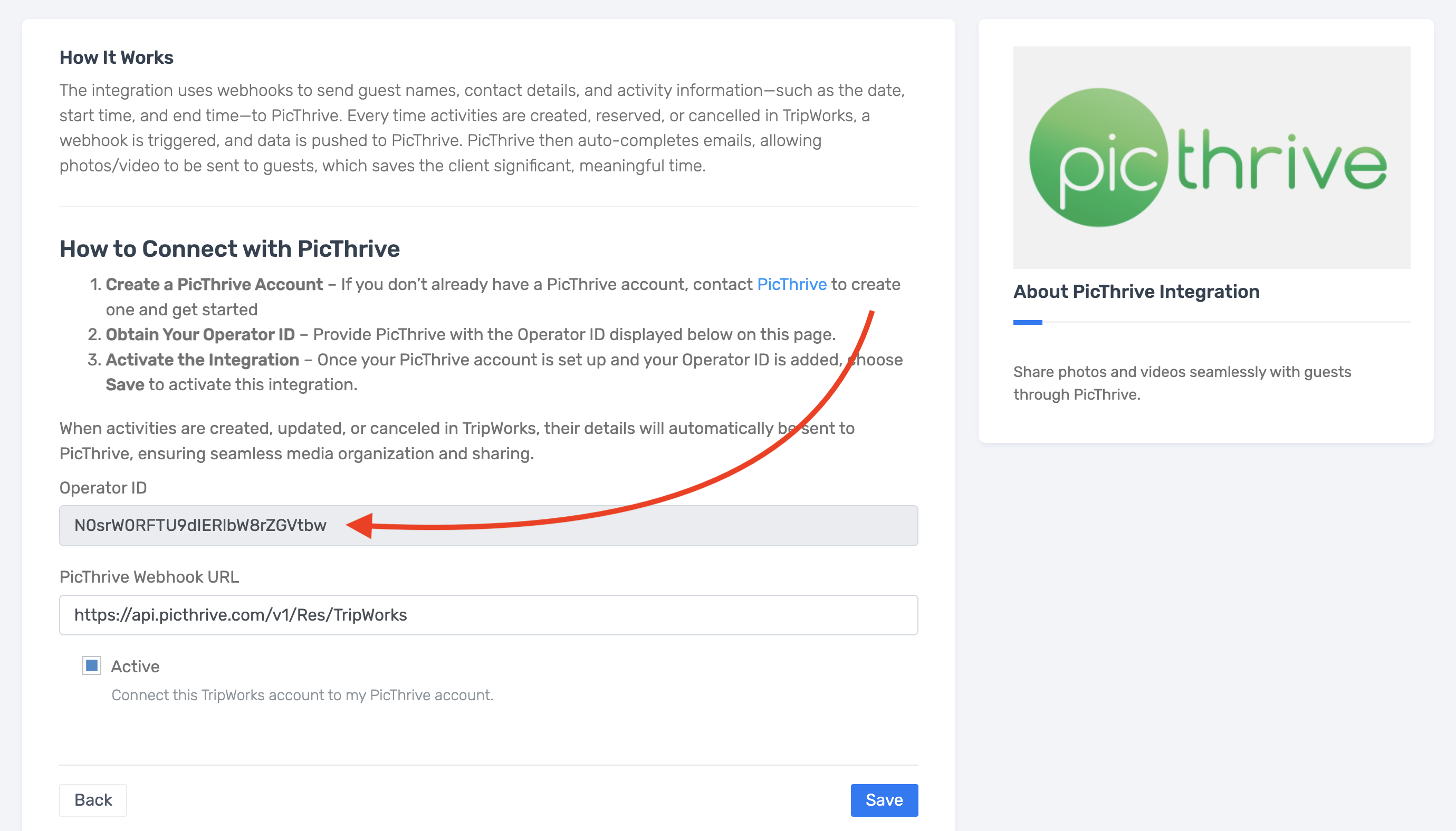
- Check Active and select Save.
- Send your Operator ID to PicThrive and ask them to add it to your account.
Once PicThrive has your Operator ID, the integration is active. TripWorks syncs reservation details to PicThrive automatically whenever a booking is created, updated, or cancelled.
Example: what this looks like in practice
- A guest gets their photos texted automatically — after a sunset cruise wraps up, PicThrive already has the guest's contact info and activity details, so their photos go out without your team looking anything up.
- A same-day cancellation doesn't leave orphaned media — if a booking is cancelled, that update reaches PicThrive too, instead of leaving a reservation on their side that no longer exists.
- Your team never manually re-enters guest details — names, contact info, and activity times all arrive from TripWorks, so nobody's retyping a guest list into PicThrive.
Frequently asked questions
Do I need to change the PicThrive Webhook URL field?
No. TripWorks pre-fills it for you. The only thing you need to copy out and hand to PicThrive is your Operator ID.
What happens after I send PicThrive my Operator ID?
Once PicThrive adds it to your account, the integration is active and reservation details start syncing automatically on every create, update, and cancellation.
What data does TripWorks send to PicThrive?
Guest names, contact details, and activity information like date, start time, and end time.
Related
Built for attractions, tours & activities
Guest media that finds the right reservation on its own
See how attractions, tours, and activities automate photo and video sharing on TripWorks. Book a demo and make the switch.