
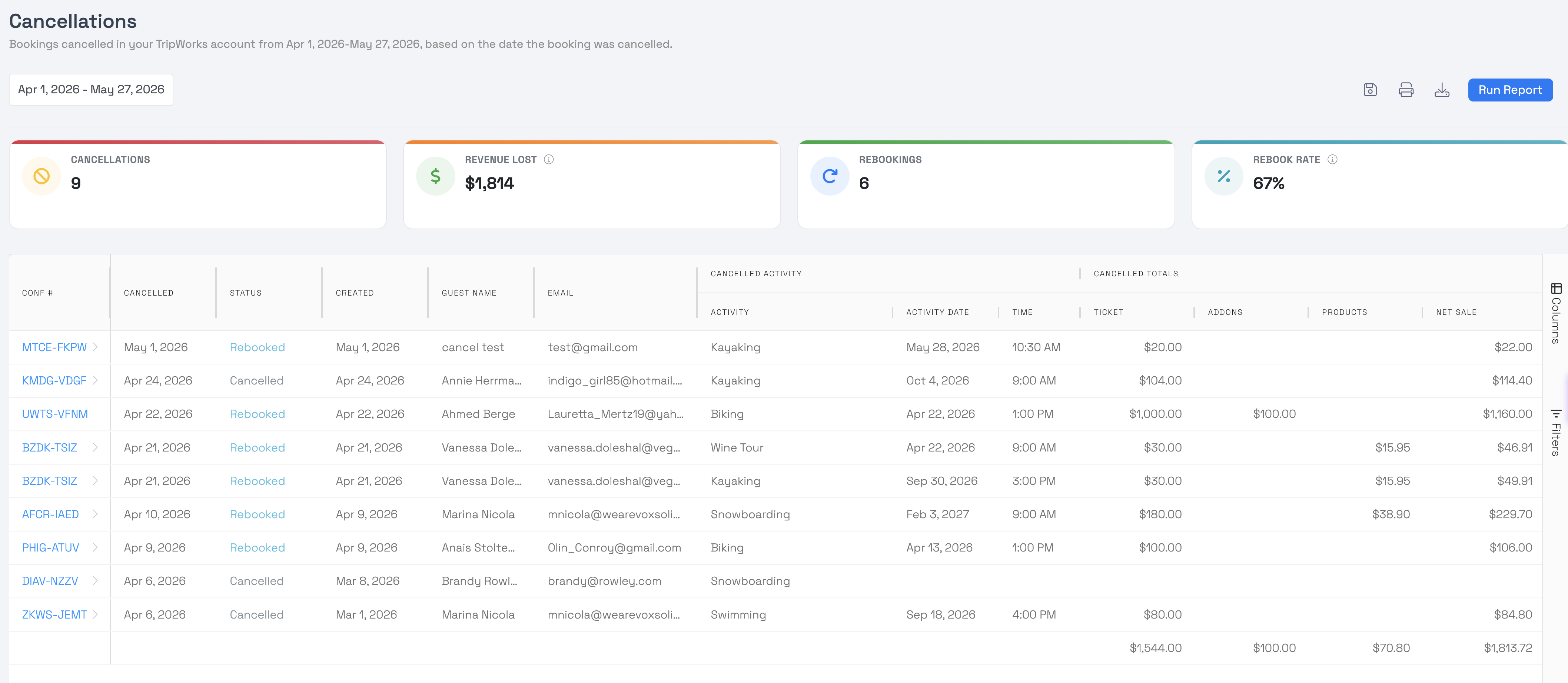
This report gives you a clear view of just your cancellations — how many you've had, what they represent in revenue, and whether those guests came back and rebooked. It's the difference between a guest who left for good and one who simply moved their plans.
What the report shows
Unlike the Unscheduled report (which also includes vouchers), this report focuses only on cancellations, so there's nothing to filter out. At the top you'll see summary metrics:
- Cancellation rate by bookings — the percentage of your bookings that were cancelled.
- Cancellation rate by revenue — the share of revenue tied to cancelled bookings.
Below the summary, each cancelled booking is listed with its details.
Seeing who rebooked
For each cancellation, the report shows whether that guest has since rebooked — so you can tell a guest who left from one who just moved their plans, and understand how much of your cancellation activity is truly lost business. For how cancellations and rebookings work on a trip, see Reschedule, unschedule & cancel a trip.
Rebookings are matched using the guest's name and email. If a guest cancels and rebooks under a different name or email, that rebooking may not be linked. For most accounts this is rare, and the report stays accurate overall.
How to open it
- Go to Reports.
- Under Activities, choose Cancellations.
- Set your date range to see cancellations for that period.
For the full set of reports, see the Reports overview.
Frequently asked questions
How is a rebooking matched to a cancellation?
By the guest's name and email. If they rebook under a different name or email, the link may be missed — uncommon for most accounts.
How is this different from the Unscheduled report?
The Unscheduled report also includes vouchers. This report focuses only on cancellations, so you don't have to filter anything out.
Related
Built for attractions, tours & activities
Know what's cancelled — and what came back
See how attractions, tours, and activities track cancellations on TripWorks. Book a demo and make the switch.