
There are five ways to get a waiver in front of a guest, and you can mix them to fit how you run: a link in an email or text before arrival, the guest's own customer portal, a paired iPad or tablet at check-in, a QR code the guest scans, and an unattended kiosk for walk-ups. This article covers each channel and the per-guest Waiver Actions menu you run them from.
In this article
Pick the channel that matches the moment — pre-arrival for booked guests, at-check-in for people standing in front of you, and the kiosk or generic QR code for walk-ups who don't have a booking yet.
Send a waiver link by email or SMS
The best way to collect from booked guests is a link they open before they arrive. Add the waiver-link variable to a message template, and every recipient gets a personal link to the waivers on their booking.
- Go to Setup Sell online Message Templates and open (or create) the confirmation or pre-arrival template.
- Place your cursor where the link should appear and insert the waiver-link variable.
- Save the template.
When the message sends, TripWorks replaces the variable with a unique link per guest, taking them straight to their waivers. You can also send the link on demand from a guest on the trip.
To chase down anyone who hasn't signed, use automatic waiver reminders rather than resending by hand — see Waiver reminder messages.
Let guests sign in the customer portal
Every booking has a customer portal. When waivers are outstanding, the portal shows a Complete your waivers banner with a Sign Waivers button, so a guest can sign without any link from you. One guest can also select Share waiver link to pass signing to the rest of their party.
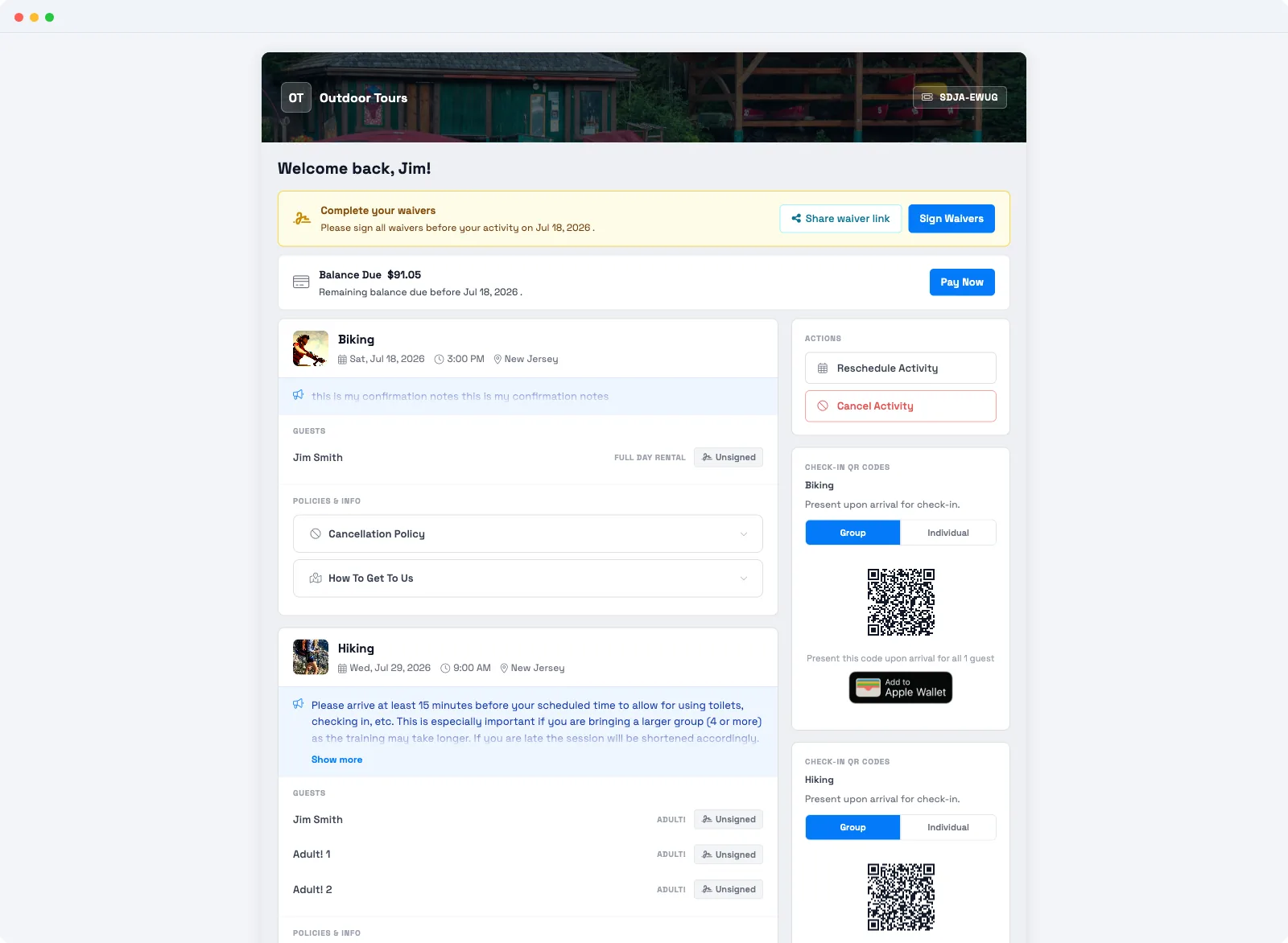
For what the guest sees and does from here, see How guests sign a waiver.
Push a waiver to an iPad or tablet
For in-person signing, pair a tablet as a signing station, then push a specific guest's waiver to it. The first time you open the waiver portal on a device, TripWorks prompts you to register it.
- Open the trip and find the guest's row.
- Select the guest's waiver status to open Waiver Actions.
- Choose Send to iPad or Tablet, then pick the device.
The tablet displays that guest's waiver, ready for them to review and sign. Manage your paired devices under Setup Company & Settings Waiver Devices.
Show a QR code
When the guest can see your screen but you don't have their phone number or email, show a QR code they scan to sign on their own phone.
- Open the trip and select the guest's waiver status.
- Choose View QR Code from Waiver Actions.
The guest scans the code and signs on their own device. The customer portal also carries a check-in QR code guests can scan for the same result.
Run a self-service kiosk for walk-ups
Set up an unattended tablet at your location as a kiosk so walk-up guests can sign on their own — even before they have a booking. A waiver signed with no ticket becomes an additional signer you can match to a booking later; see Multiple waivers, additional signers & bulk actions.
Keep the kiosk for walk-ups. For booked guests, use the pre-arrival link or one of the at-check-in options above so their signature lands on the right booking instead of piling up as unattached waivers.
The Waiver Actions menu
Most at-check-in channels start from the same place: select a guest's waiver status on a trip to open Waiver Actions. From there you can:
- Send to iPad or Tablet — push the waiver to a paired device.
- Browse Unassigned Waivers — find a waiver signed without a booking and attach it to this guest.
- Send a Reminder — email or text the guest their signing link.
- Change Status to Signed — mark a waiver signed for paper forms or an outside system.
- View QR Code — show a code the guest scans to sign on their phone.
- Preview Waiver Portal — open the guest's portal to see their tickets and waiver status.
- Download signed waiver — save the completed waiver as a PDF.
For assigning multiple waivers, per-guest status badges, and marking a whole group signed at once, see Multiple waivers, additional signers & bulk actions.
Frequently asked questions
How do I collect waivers before guests arrive?
Add the waiver-link variable to a confirmation or pre-arrival message template. Each guest gets a personal link straight to the waivers on their booking. Turn on waiver reminder messages to chase anyone who hasn't signed.
Can a guest sign without me sending them a link?
Yes. Their customer portal shows a Complete your waivers banner with a Sign Waivers button, so they can sign on their own. You can also show a QR code they scan, or point walk-ups at a self-service kiosk.
How do guests sign in person at check-in?
Open the guest on the trip, select their waiver status, and either Send to iPad or Tablet to push it to a paired signing station, or View QR Code so they scan and sign on their own phone.
Can a walk-up sign without a booking?
Yes. A self-service kiosk lets walk-ups sign with no booking. The signature is saved as an additional signer you can attach to a booking later — see Multiple waivers, additional signers & bulk actions.
Do guests who sign at a kiosk or generic QR code still get review or tip emails?
No. A waiver signed at a kiosk or generic QR code with no booking isn't tied to a guest record or a trip, so it doesn't trigger any automated follow-up — confirmations, review requests, or tip prompts. Those messages go out from the booking. Once you attach the waiver to a booking (from Browse Unassigned Waivers), that booking's normal messaging applies.
Do OTA / reseller-booked guests get waivers?
Yes — a booking made through an OTA still gets the same waiver requirement per guest as a direct booking; nothing about the booking source changes what's required. The catch is contact info: most OTAs only pass along the lead traveler's name and email/phone, so a waiver link can usually only be sent to the lead. For the rest of the party, collect signatures in person — send to a tablet, show a QR code, or use the kiosk — or have the lead use Share waiver link to pass it on.
TripWorks keeps opening the waiver portal instead of my dashboard — how do I switch back?
That device is set to waiver portal (kiosk) mode, which TripWorks remembers per browser. On the device that's stuck, open the mode chooser and switch it back to the full dashboard mode — the setting is stored on that browser, so change it there.
Related
- How guests sign a waiver
- Waiver reminder messages
- Multiple waivers, additional signers & bulk actions
Built for attractions, tours & activities
Every waiver signed before the trip starts
See how attractions, tours, and activities collect signatures on any device — pre-arrival, at check-in, or from a walk-up kiosk — on TripWorks. Book a demo and make the switch.