
When a guest opens their booking's customer portal, TripWorks walks them through signing in a few steps: pick the activity, fill in the guest fields, and sign by typing or drawing. Knowing what the guest sees helps you answer questions at check-in and set expectations before arrival.
Guests reach this flow however you send them — a link in an email or text, a QR code, a paired tablet, or the portal itself. For the operator's side of getting that link in front of them, see Collect & send waivers to guests.
Open the portal and start signing
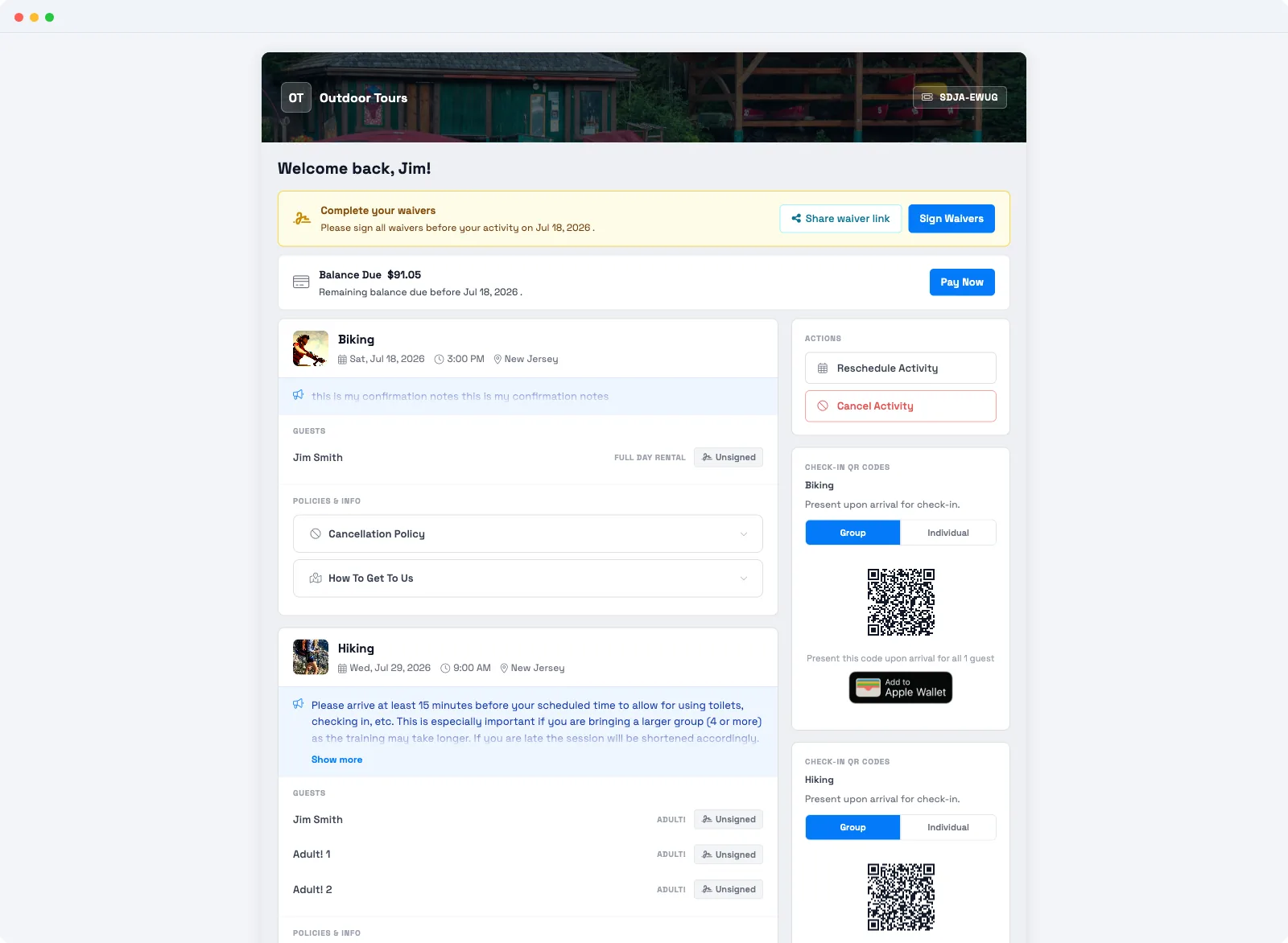
The guest opens their customer portal and sees a Complete your waivers prompt. Selecting Sign Waivers starts the flow.
Choose the activity
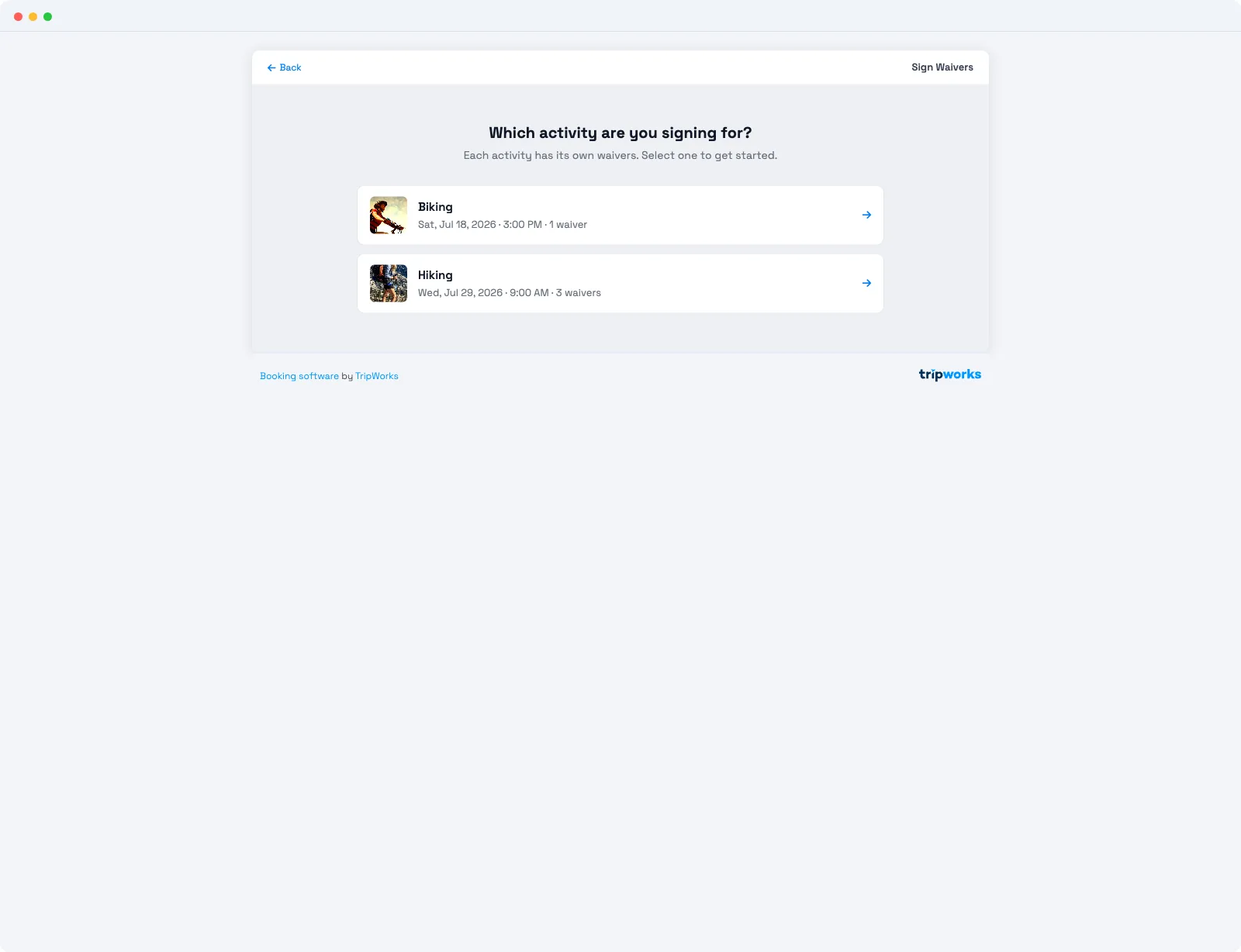
If the booking has more than one activity, the guest picks which one to sign for first. Each activity carries its own waivers and shows its own count — for example Biking · 1 waiver or Hiking · 3 waivers — so the guest signs the right set for each thing they're doing.
Complete the fields and sign
The guest fills in the guest fields on the waiver, then signs by typing their name or drawing a signature. Once every required waiver for the activity is complete, the waiver is saved and its status updates to signed. You can download the completed waiver as a PDF from the guest's row on the trip.
Signing for a minor or the whole group
Two common cases are built in:
- A minor: a parent or guardian completes and signs the waiver on the child's behalf.
- A whole party: one person can sign for everyone, and can select Share waiver link to send the remaining waivers to other guests so they sign on their own devices. A guest who signs without a ticket is saved as an additional signer you can attach to a booking later — see Multiple waivers, additional signers & bulk actions.
Frequently asked questions
How does a guest sign a waiver?
The guest opens their customer portal, selects Sign Waivers, chooses the activity, completes the guest fields, and signs by typing their name or drawing a signature. The signed waiver is saved and downloadable as a PDF.
Why is a guest asked to pick an activity before signing?
Each activity on a booking has its own waivers, so the guest chooses the activity first and signs the set that applies to it. A booking with two activities can require different waivers for each.
Can a parent sign a waiver for their child?
Yes. A parent or guardian completes and signs the waiver on the minor's behalf.
Can one person sign for the whole group?
Yes. One guest can sign for everyone and select Share waiver link to send the rest to other guests, who then sign on their own devices. Someone who signs without a ticket is saved as an additional signer.
What does a guest see if they've already signed and open the portal again?
They're not asked to sign again. The portal shows an All waivers signed — you're all set confirmation, and each guest in the party shows a green Signed badge. The signing prompt only appears while a waiver is still outstanding, so a guest who's done sees their signed status, not a repeat request.
Can I hide the balance due or the rebook button guests see in the portal?
These aren't waiver settings — they're customer-portal options under Setup → Company & Settings → Customer Portal. The balance-due amount only shows when Enable Balance Payments is on (turning it off hides the balance, but also removes the guest's ability to pay online), and the reschedule/rebook button is controlled by Allow Rescheduling. There's no separate switch to hide the balance while still taking payments.
Related
- Collect & send waivers to guests
- Multiple waivers, additional signers & bulk actions
- Viewing signed waivers
Built for attractions, tours & activities
A signing experience guests finish on the first try
See how attractions, tours, and activities give guests a clean, mobile-friendly way to sign waivers on TripWorks. Book a demo and make the switch.