
When someone shouldn't be signing in for a while — a seasonal guide between seasons, a partner whose engagement has paused, or an employee on extended leave — disable their login instead of removing them. They can no longer sign in, but their account and everything they've done stay on your account, so you can switch access back on later without re-inviting them.
In this article
Disable vs. remove
- Disable blocks sign-in but keeps the person on your account. Best when they'll likely return.
- Remove takes them off the account entirely. If they own records that can't be reassigned, TripWorks disables them instead of deleting — see Remove a team member.
Either way, someone who is disabled can't log in.
Before you begin
You need the Create and manage other users permission (see the User permissions reference). Without it, the Team Members screen is hidden.
Disable a login
- Go to Setup → Your team → Team Members.
- Select the team member.
- On the Profile tab, find the Access section and turn Can sign in to TripWorks off.
- Select Save changes.
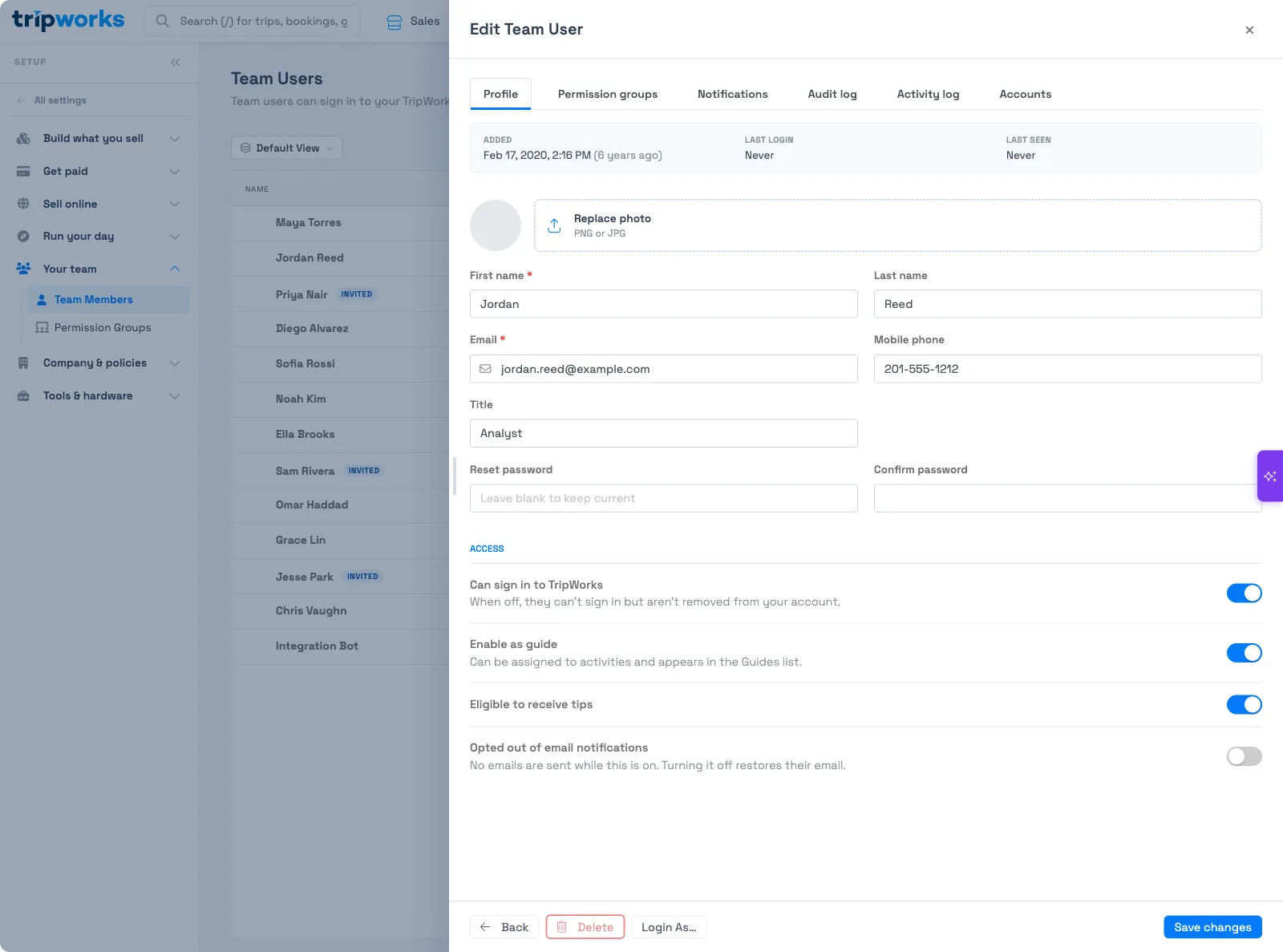
They can no longer sign in. Nothing they created — bookings, comments, audit-log entries — is affected.
Re-enable a login
Turn Can sign in to TripWorks back on and select Save changes. Their access returns immediately, with the same permission groups they had before.
Related
Built for attractions, tours & activities
Keep your account access tidy
See how attractions, tours, and activities manage team access on TripWorks — add, remove, and control who can sign in. Book a demo and make the switch.