
TripWorks gives Zapier a set of instant triggers — events that start a Zap the moment they happen in your account. This article lists every trigger, explains what data each one sends, and points out the fields worth mapping into your other apps.
In this article
New to Zapier? Start with Set up your Zapier integration to connect the two accounts first.
Available triggers
You'll pick one of these eight triggers when you create a Zap. Each is instant, so it fires within seconds of the event — no polling or delay.
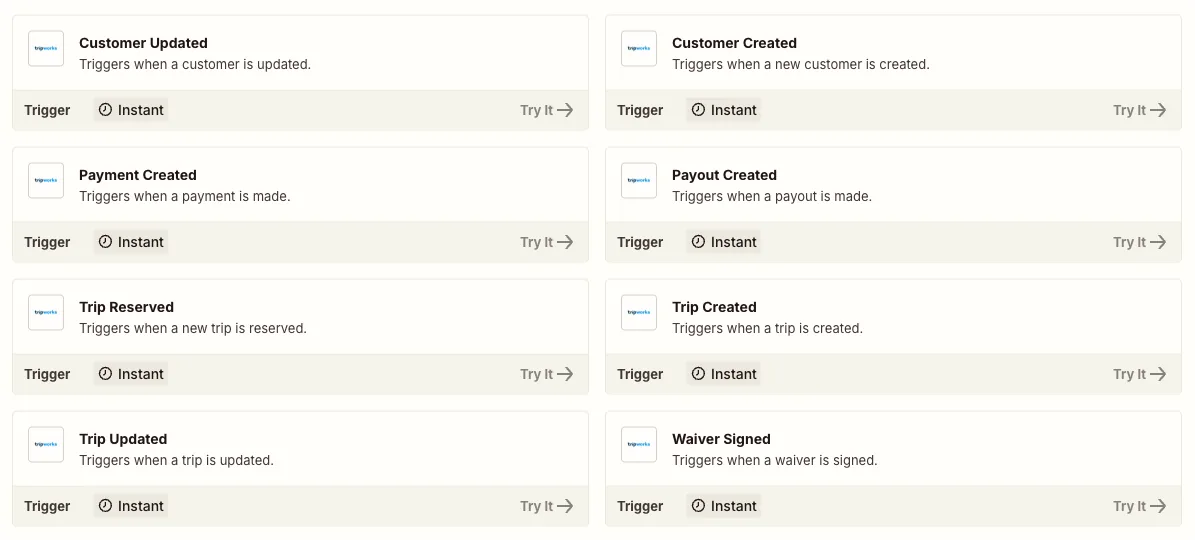
| Trigger | Fires when |
|---|---|
| New Customer Lead | A new customer with an email address is added |
| Customer Updated | An existing customer's details change |
| Payment Created | A payment (or refund) is processed |
| Payout Created | A payout is sent to your bank account |
| Trip Created | A new trip is created — including drafts and abandoned carts |
| Trip Reserved | A trip moves to Reserved (usually the first payment) |
| Trip Updated | An existing trip changes — see the note below |
| Waiver Signed | A guest signs a waiver |
Trip Updated is the catch-all for changes to an existing trip. It covers reschedules, guest-count and custom-field edits, and changes to the bookings, resources, and add-ons within the trip — including cancellations, which change the trip's status. If you only care about one case (say, cancellations), add a Filter step in your Zap on the field that matters — for example, only continue when the trip status is Cancelled.
The data each trigger sends
When a trigger fires, Zapier receives a structured record you can map field-by-field into your action app. The available fields depend on the trigger:
- Customer triggers send the customer's name, email, phone, location, VIP and opt-in flags, and their confirmation code.
- Payment / Payout triggers send the amount, type, direction (payment vs. refund), status, and the linked trip.
- Trip triggers send the whole reservation — the trip's totals and status, the customer, and each activity (trip order) with its guests (bookings), ticket types, add-ons, custom fields, and time slots.
- Waiver Signed sends the signer's details, the waiver type, the activity, and a link to the signed PDF.
A representative set of fields from a customer or trip event:
| Field | Example |
|---|---|
| Full Name | Jordan Avery |
| jordan@example.com | |
| Phone | +1 555-0100 |
| Customer is VIP | false |
| Customer is Opt In | true |
| Confirmation Code | BOOK-1234 |
| Trip Order Experience Name | Sunset Kayak Tour |
| Trip Method Name | Online |
| Trip Order Status | Booked |
| Ticket Type | Adult |
| Waiver Type Name | Liability Waiver |
| Custom Field Internal Name | Fishing License |
Money values are whole numbers in cents. A total of 24200 means $242.00 — divide by 100 in your Zap if you're writing amounts to a spreadsheet or invoice.
Customer portal links
Trip triggers include a customer portal URL — a direct, login-free link to a reservation in TripWorks — at three levels, so you can send guests exactly the right link:
| Link | Points to | Good for |
|---|---|---|
| Trip portal URL | The whole reservation — every activity and guest | A booking-confirmation email or SMS |
| Trip order portal URL | One activity within the reservation | Reminders for a specific tour when a booking has several |
| Booking portal URL | One individual guest's booking | Per-guest waiver links or check-in messages |
A popular setup: map the trip portal URL from the Trip Reserved trigger into a Twilio SMS or a Gmail step, so every guest automatically gets a link to manage their reservation right after they book.
Want the raw payload?
This article describes the data as friendly fields for no-code Zaps. If you're a developer who wants the exact JSON — field names, nesting, and types — the webhooks integration fires on the same events and documents the full payload for each one.
Frequently asked questions
Why don't I see a "Trip Cancelled" or "Booking Updated" trigger?
Zapier exposes eight triggers. Changes inside a trip — cancellations, per-guest booking changes, add-ons, and resource changes — come through as Trip Updated. Add a Filter step in your Zap to act only on the specific change you care about.
Why didn't a new customer trigger my Zap?
The New Customer Lead and Customer Updated triggers only fire for customers that have an email address. A customer added without an email won't start the Zap.
Can I use these triggers to send data back into TripWorks?
No — these are triggers only. TripWorks starts your Zap; the action happens in your other app. TripWorks can't be used as a Zapier action, so Zapier won't create or edit records inside TripWorks.
Related
Built for attractions, tours & activities
Automate the work after the booking
See how attractions, tours, and activities turn every booking, payment, and waiver into an automatic workflow with TripWorks and Zapier. Book a demo and make the switch.