
Zapier connects TripWorks to thousands of other apps without any code. When something happens in TripWorks — a trip is reserved, a payment lands, a waiver is signed — Zapier can automatically pass that data to the tools you already use: your email platform, CRM, Slack, Google Sheets, accounting software, and more.
In this article
You build these automations as Zaps. Every Zap starts with a trigger (an event in TripWorks) and runs one or more actions (what happens next in another app). TripWorks provides the triggers; your other apps do the work.
TripWorks is a trigger-only Zapier app. It starts Zaps when things happen in your account — it can't be used as an action, so Zapier can't create or change bookings inside TripWorks. Use it to send booking data out to your other tools. To push data into your own system as raw JSON instead, see Set up webhooks.
Before you start
- A free Zapier account. Zapier has a free tier; more advanced plans add more Zaps and faster runs.
- Permission to reach Setup → Integrations in TripWorks (the same access as your other integration settings). If you don't see it, ask an admin on your team.
Connect TripWorks to Zapier
You connect the two accounts with your TripWorks API key, which lives on the Zapier integration screen in TripWorks.
- In Zapier, select Create and start a new Zap.
- For the trigger, search for and select TripWorks.
- Choose the trigger event you want to start the Zap — for example, Trip Reserved or New Customer Lead. (See the full list of triggers.)
- When Zapier asks you to connect your TripWorks account, add a new connection. The account appears in Zapier as TripWorks 1.0.0.
- Zapier prompts you for an API key. In a separate tab, open TripWorks and go to Setup Integrations, find the Zapier card, and select Configure.
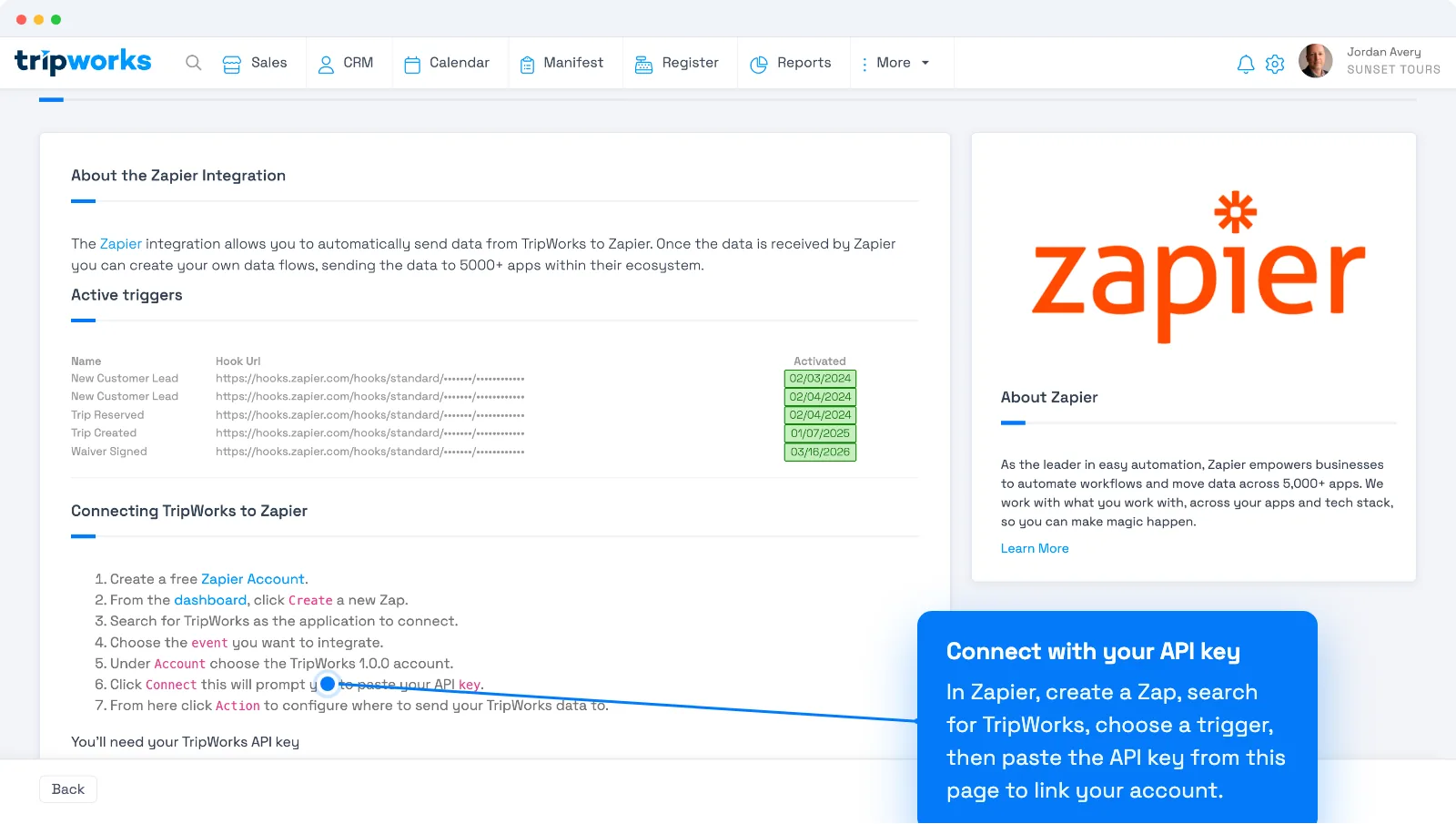
The Zapier screen in TripWorks holds the API key you paste into Zapier — and lists the triggers you've already connected. - Copy your API key from that screen, paste it into Zapier, and continue.
- Back in your Zap, add an action — the app where the data should go (Google Sheets, Slack, Gmail, your CRM, and so on) — and map the TripWorks fields into it.
- Turn the Zap on. It now runs automatically every time that TripWorks event happens.
Your API key is unique to your account and acts like a password — anyone who has it can read your account's data through the TripWorks API. Paste it only into Zapier, and don't share or publish it. If you believe it's been exposed, contact TripWorks support.
What you can automate
Because every TripWorks event can kick off a Zap, you can hand off the repetitive work that usually happens after a booking. A few ideas built for tour and activity operators:
Fill your calendar and keep guides in the loop
- When a trip is created, add an event to a shared Google Calendar so the assigned guide sees it on their schedule.
- When a trip is reserved, post to a Slack channel so your ops team and guides see new bookings in real time.
Market to guests automatically
- When a trip is reserved, add the guest to your Mailchimp or Constant Contact list so your know-before-you-go emails start on their own.
- When a new customer lead comes in, create or update a contact in your CRM (HubSpot, Salesforce, Pipedrive) so sales can follow up while interest is high.
- When a new customer lead comes in, send a personalized welcome email from Gmail.
Keep the books and reporting current
- When a payment is created, add a row to Google Sheets or QuickBooks Online for daily revenue reconciliation.
- When a payout is created, notify your finance team in Slack or log it to your accounting spreadsheet.
- When a new customer is added, record a conversion in Google Ads so you can measure ad spend against real bookings.
Streamline operations
- When a waiver is signed, send the guide an SMS via Twilio that the guest is cleared for the activity.
- When a trip is updated, keep an external manifest or Airtable base in sync with the latest guest count and details.
Zapier also offers ready-made templates for many of these — on the TripWorks app page, pick a trigger and Zapier suggests popular pairings to start from.
Frequently asked questions
Does the Zapier integration cost anything?
TripWorks doesn't charge for the integration. Zapier has its own plans, including a free tier; how many Zaps you can run and how often depends on your Zapier plan.
Where do I find my API key?
In TripWorks, go to Setup → Integrations, open the Zapier card with Configure, and copy the API key shown on that screen.
Can Zapier create or update bookings in TripWorks?
No. TripWorks is a trigger-only Zapier app — it starts Zaps when events happen, but it doesn't accept actions, so Zapier can't write data back into TripWorks. Use it to send booking data out to your other tools.
What's the difference between Zapier and webhooks?
They fire on the same events. Use Zapier for no-code connections to thousands of apps; use webhooks to POST raw JSON to your own system. Pick one path per event so a booking isn't processed twice downstream.
Related
Built for attractions, tours & activities
Put your booking data to work
See how attractions, tours, and activities automate the busywork — syncing bookings, leads, and payments to the tools they already use — with TripWorks and Zapier. Book a demo and make the switch.