
A TripWorks API key is the credential your code uses to talk to your account, and the permissions on the key decide exactly what that code can see and change. A key belongs to one account and isn't tied to a person, so it keeps working whoever is on your team. This article explains how access is decided, how to choose permissions for each integration, and how to manage keys over time. For the first request itself, see Get started with the REST API.
In this article
Learn how to manage permission groups
In this article
- How an API key differs from a login
- How to set permissions per object when you create a key
- How to choose the right access for each integration
- How to manage, rotate, and retire keys safely
What does an API key do?
An API key does two things. It tells TripWorks which account a request is for, because each key belongs to exactly one account. And it carries a set of permissions, so TripWorks knows which objects the request may read and which it may change.
You send the key with every request as a bearer token. TripWorks checks it before anything else. A request without a valid key is refused. A request with a valid key is allowed only if the key's permissions cover what it is asking for.
This is different from signing in as a person:
- An API key is for software. It isn't tied to any person, so its access is exactly the permissions you gave it.
- Your TripWorks login is for people. The web app, and AI assistants you connect, act as you and are limited by your permission group. See Connect TripWorks to your AI assistant (MCP).
- The Zapier connection uses an API key from the Zapier card to start Zaps from your events. See Set up your Zapier integration.
How do you create a key with the right permissions?
Go to Setup Integrations, open the REST API card, and select the Keys tab. Your existing keys are listed there, and Create key opens the New key panel.
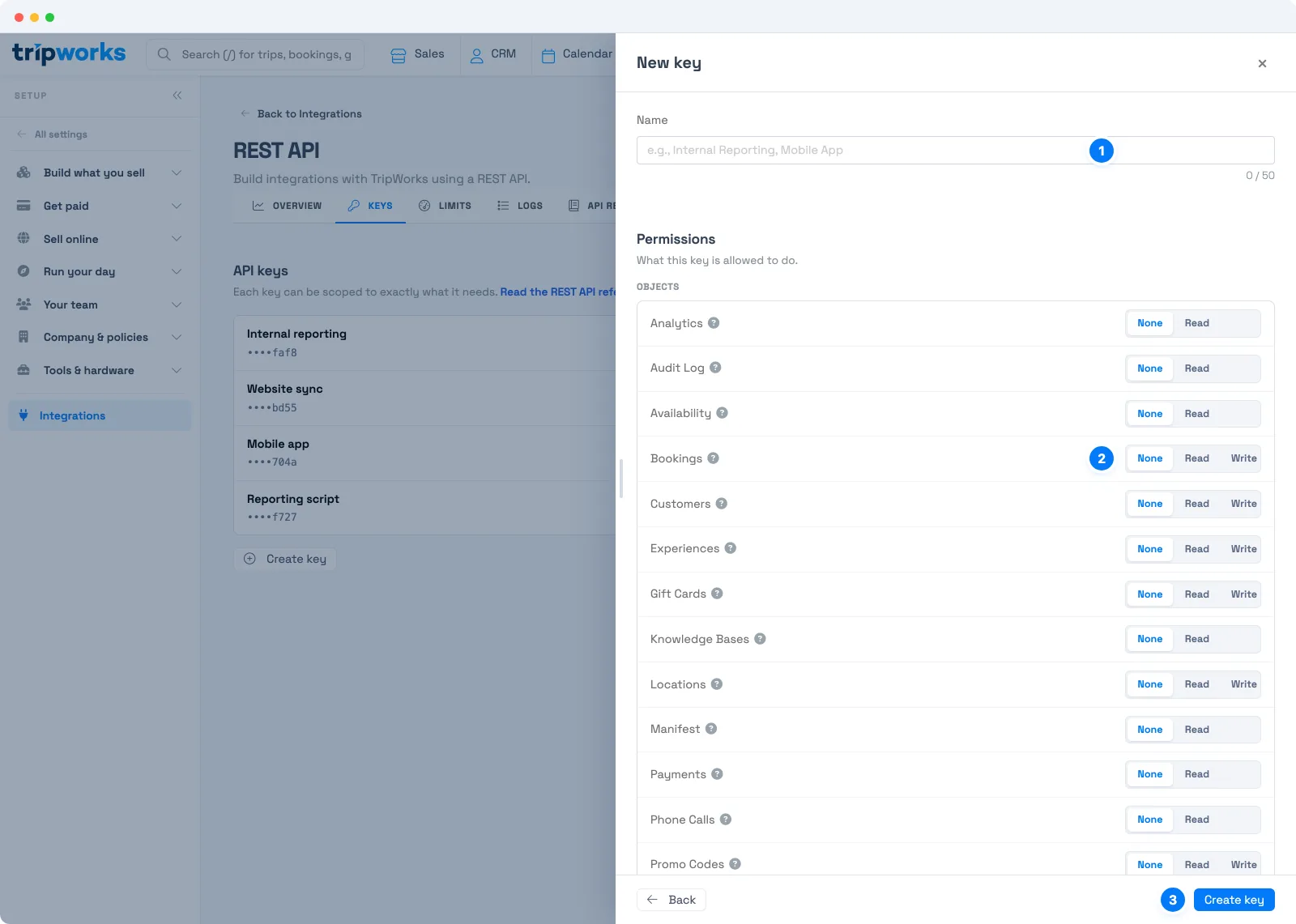
- Name. Say what the key is for, such as Internal reporting or Mobile app. The name is how you will recognize the key in lists and logs, so make it specific to one integration.
- Permissions. Each object has its own control. Choose None to give the key no access to that object, Read to let it see records, or Write (offered on objects you can change) to let it create and change them. Select the question mark beside an object to read exactly what each level allows.
- Create key. TripWorks creates the key and shows it once. Copy it straight into your secrets manager, because it can't be shown again.
Permissions are set per object, so one key can read bookings and write customers while having no access to anything else. For example:
- Bookings at Write lets the key create, reschedule, or cancel reservations.
- Customers at Write lets it add or update guest records.
- Gift Cards at Write lets it issue, reload, or adjust gift cards.
- Promo Codes at Write lets it create, edit, or delete promo codes.
How do you choose the right access?
Give each integration the smallest set of permissions that lets it do its job. A key that only reads can't change your data by accident, and a key that touches only one or two objects can't reach the rest.
- A reporting dashboard needs Read on the objects it charts, such as Bookings, Customers, and Analytics. It never needs Write.
- A website that issues gift cards needs Write on Gift Cards and nothing else.
- A nightly sync into your CRM needs Read on Customers, and Write only if it also pushes updates back.
- A script you are still testing should start with Read only. Add Write to the objects it needs once it behaves.
Use a separate key for each integration, even when they need the same access. Then you can see exactly which integration made a request, rotate one key without touching the others, and delete a key when its integration is retired.
How do you manage keys over time?
The Keys tab lists every key with its name, the last four characters of the key, when it was created, and when it was last used. Select a key to rename it, change its permissions, rotate it, or delete it.
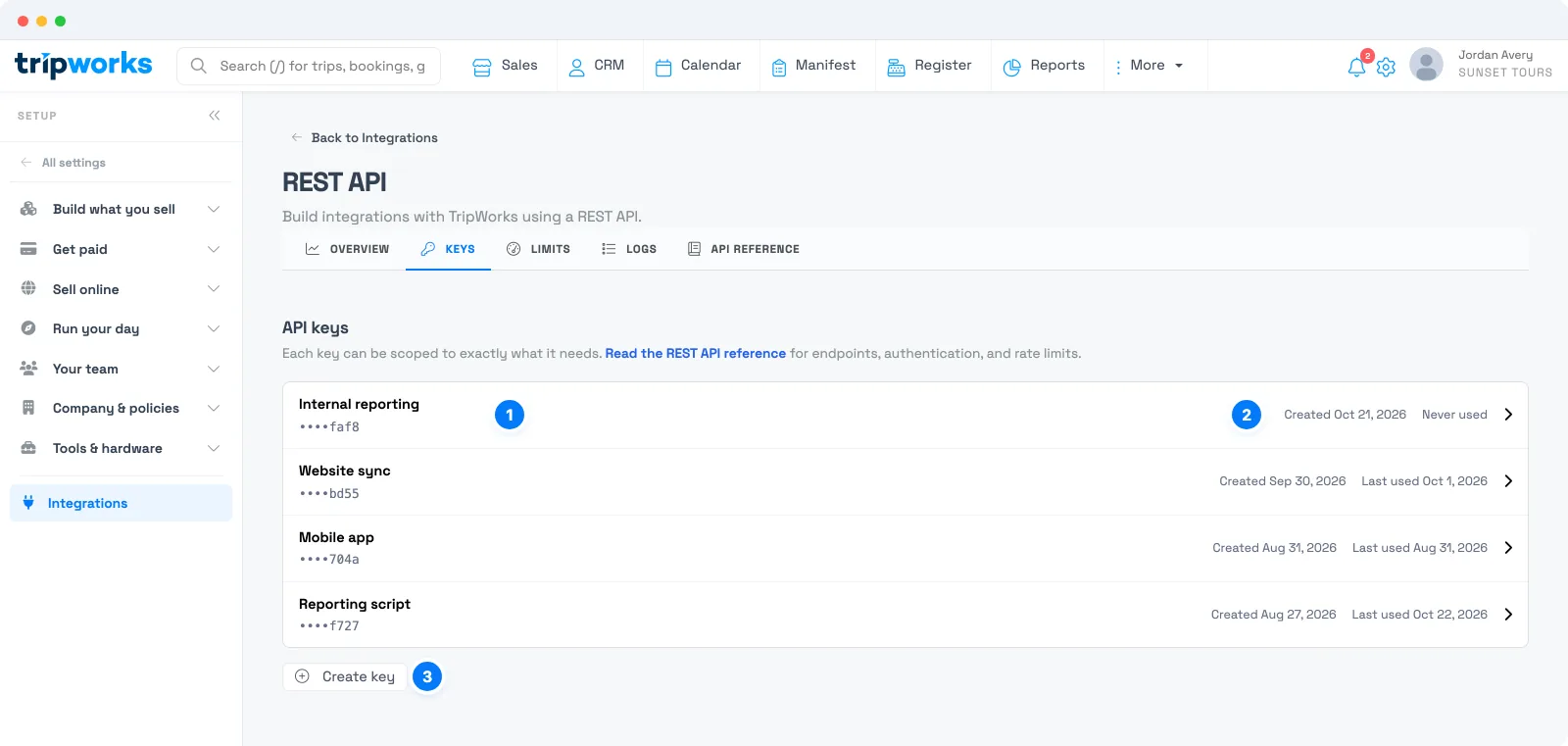
- Name and last four characters. Match a key in your secrets manager to a key here by its name and its last four characters.
- Created and last used. A key that says Never used, or hasn't been used in a long time, is a good candidate to delete.
-
Create key. Add a key for each new integration instead of sharing one.
-
Change access by opening the key, adjusting the permissions, and selecting Save changes.
- Rotate a key with Rotate key. Rotating replaces the token, and anything still using the old token stops working, so update your integration with the new key right after.
- Delete a key with Delete key when its integration is retired. Requests using it stop being accepted.
What do you do if a key is exposed?
Treat it as urgent, and work through these steps:
- Open the key on the Keys tab and select Rotate key. The old token stops working immediately.
- Copy the new key into your secrets manager and update the integration that uses it.
- Open the Logs tab, filter by that key under Credential, and review what it requested while it was exposed. See Monitor and troubleshoot API activity.
How do you keep keys safe?
- Store keys in a secrets manager or your host's protected environment settings, never in your source code.
- Keep keys out of anything a browser can see. A key placed in website code or a mobile app can be read by anyone who opens it. Call TripWorks from your own server instead.
- Never paste a key into a ticket, chat, or shared document. If you need help, share the request ID instead.
- Give each key the least access it needs, and revisit the permissions when an integration changes.
- Rotate keys when people who knew them leave, because a key isn't tied to a person and keeps working.
Frequently asked questions
Is an API key tied to a person on my team?
No. An API key belongs to your account, not to a user, and it keeps working when people join or leave your team. Its access is exactly the permissions you set when you created it. If someone who knew a key leaves, rotate it.
Can I see a key again after I create it?
No. A new key is shown exactly once, because TripWorks stores it securely and can't show it again. The Keys tab shows only a name and the last four characters. If you lose a key, create a new one, or select Rotate key to replace the token on an existing one.
What is the difference between None, Read, and Write?
None gives the key no access to that object. Read lets it see records. Write lets it create and change them, and it is offered on the objects you can change. Select the question mark next to an object to see what each level allows for it.
Should I use one key for everything or one per integration?
Use one per integration. Separate keys let you give each integration only the access it needs, see which one made a request, and rotate or delete one without breaking the others. Each key also has its own usage shown on the Limits tab.
What happens to an integration when I rotate its key?
Rotating replaces the token, so anything still sending the old one stops working. Copy the new key and update the integration straight after you rotate. If you only want to change what a key can do, edit its permissions instead of rotating it.
Does an AI assistant use an API key?
No. AI assistants sign in as the person who connects them and are limited by that person's permission group, with an option to connect read-only. See Connect TripWorks to your AI assistant (MCP).
How do I find out what a key has been used for?
Open the Logs tab on the REST API card and filter by the key under Credential. Each request shows its endpoint, outcome, and timing. See Monitor and troubleshoot API activity.
Related
- Get started with the REST API
- Monitor and troubleshoot API activity
- Does TripWorks have an API?
- Connect TripWorks to your AI assistant (MCP)
- Permission groups
Built for attractions, tours & activities
Build on top of your booking data
See how attractions, tours, and activities connect their booking data to the tools they already use with TripWorks. Book a demo and make the switch.