
TripWorks records every REST API request and every AI assistant call, and shows them in a set of screens you can read, filter, and search. You can see how many requests your integrations made, which ones failed and why, which key made each one, and exactly what was sent and returned. This article walks through each screen and shows how to use them to find and fix a problem.
In this article
Learn how to manage permission groups
In this article
- What the Overview shows about your API traffic
- How to search and filter the Logs
- What a single request tells you
- How to find a problem step by step
- Where to see what AI assistants have done
Where do you find API activity?
Go to Setup Integrations and open the REST API card. The tabs across the top are Overview, Keys, Limits, Logs, and API reference. Use Overview for the big picture and Logs for individual requests. AI assistant activity is on the AI Assistants card, covered at the end of this article.
What does the Overview show?
The Overview summarizes activity across all of your keys. Each chart has its own time range, which you change with the dropdown in its corner.
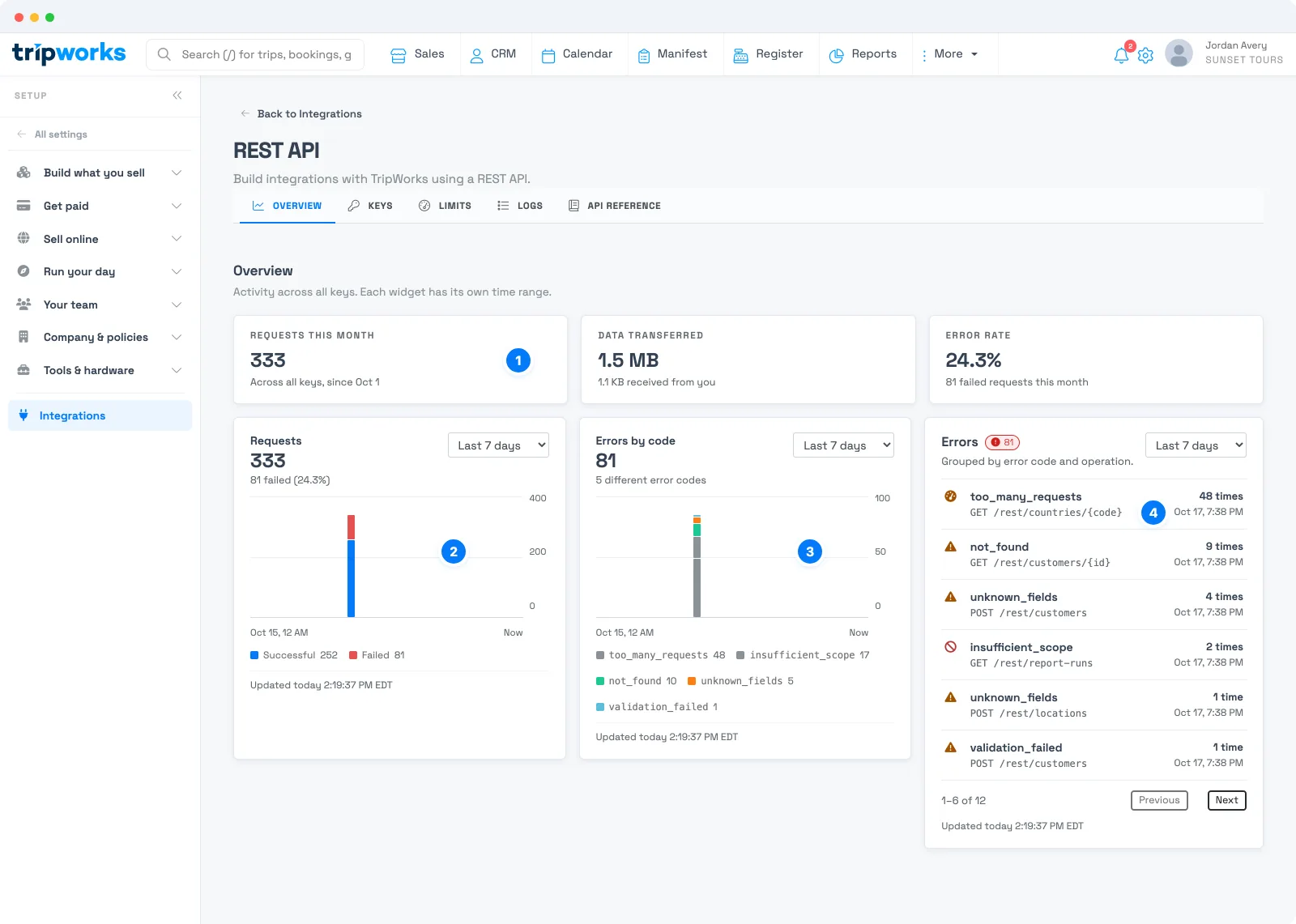
- Monthly totals. Requests this month across all keys, the data transferred, and your error rate, with the number of failed requests behind it.
- Requests. A chart of successful and failed requests over time, so you can see when traffic changed and whether failures spiked with it.
- Errors by code. How many failed requests had each error code, so the most common problem stands out.
- Errors list. The same failures grouped by error code and operation, with how many times each happened and when it last did. Use Previous and Next to move through the list.
How do you search the Logs?
Select the Logs tab to see individual requests, newest first, in pages. Each row shows the time, the status, the endpoint, the key that made the request, how long it took, and the size of the response.
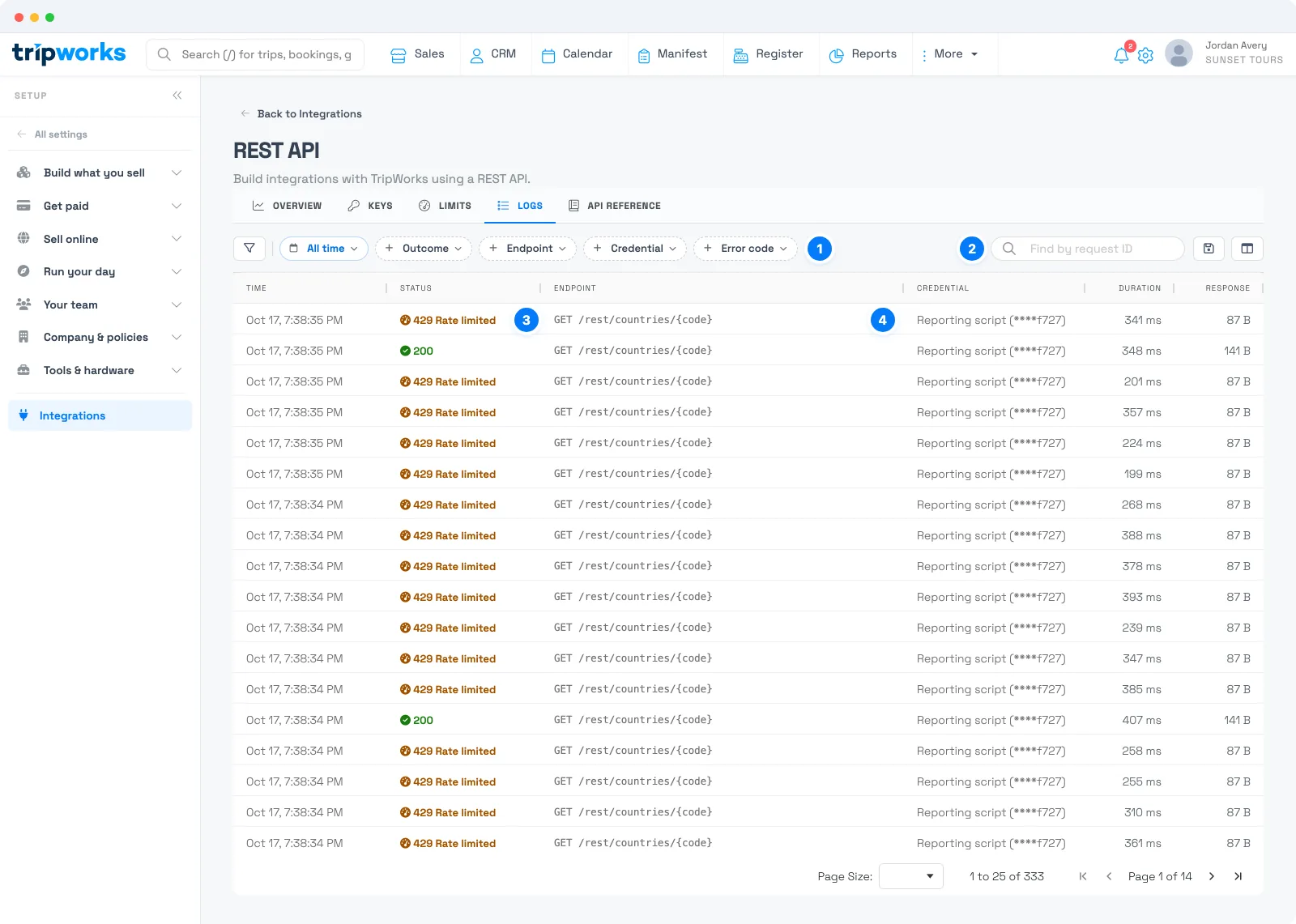
- Filters. Narrow the list by time, Outcome, Endpoint, Credential, or Error code. Combine them to answer a question such as which failures one key had on one endpoint last week.
- Find by request ID. Paste a request ID to jump straight to that request.
- Status. Each row shows the result, such as 200 for success or 429 Rate limited, so failures are easy to spot.
- Credential. The name of the key that made the request, with its last four characters. Name your keys after the integration so this column tells you what was running.
What does a single request tell you?
Select any row to open the request. It shows what was sent, what came back, and how long it took, and every request has its own address, so you can bookmark it or paste it into a ticket. The arrows at the top step to the previous or next request, and Copy buttons let you copy any section.
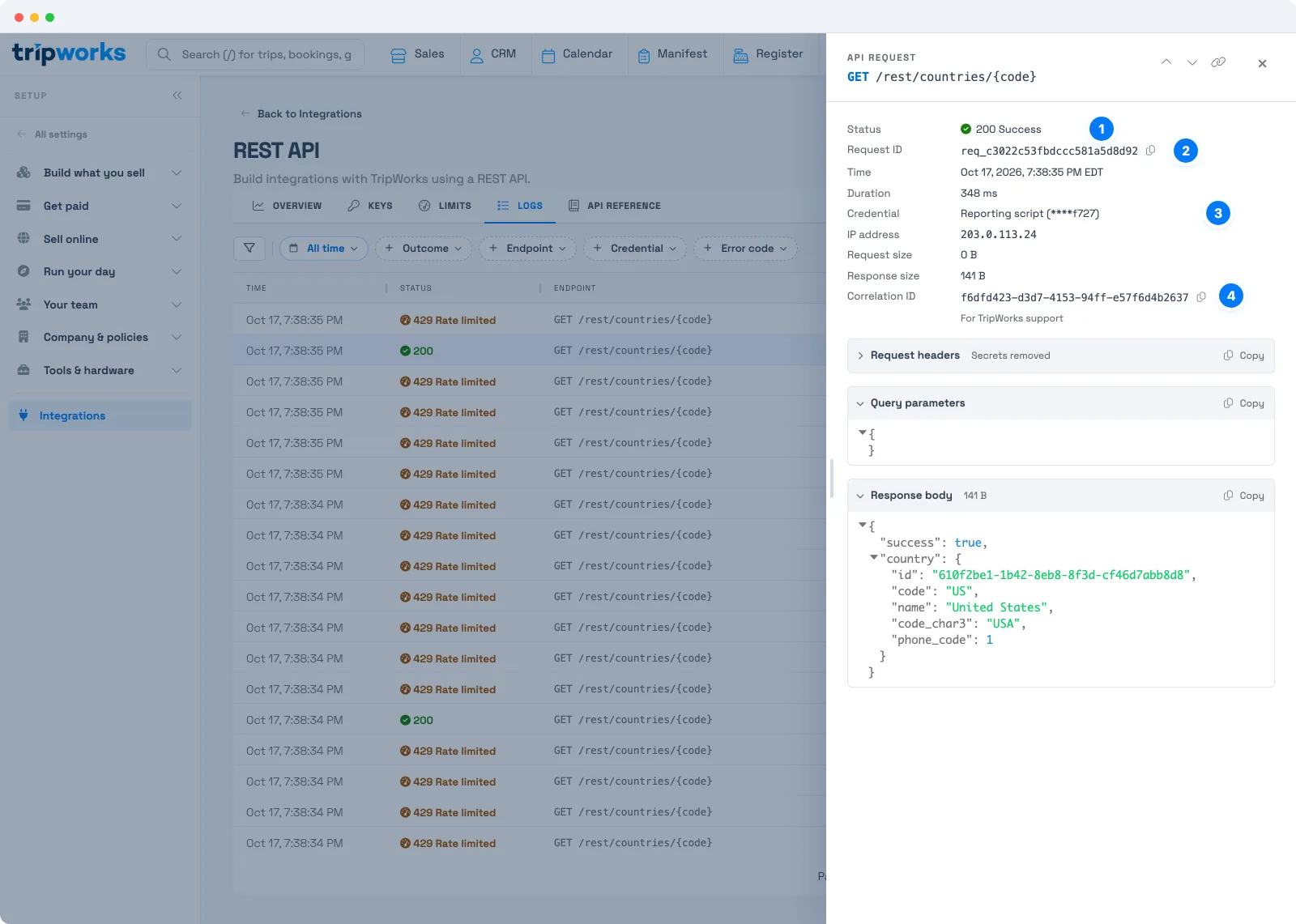
- Status. Whether the request succeeded, with its status code.
- Request ID. The unique ID for this request. Select the copy icon to copy it, and quote it when you ask for help.
- Credential. The key that made the request.
- Correlation ID. A second ID labelled For TripWorks support. Include it when you contact support so they can trace the request on their side.
Below those, you can also see the time, duration, IP address, and the request and response size. Request headers are shown with secrets removed, so a key never appears in the log. Query parameters shows what you filtered on, and Response body shows exactly what TripWorks returned.
How do you find and fix a problem?
- A request failed. On Logs, set Outcome to failed, open a row, and read the status and the response body. The error code tells you what to change. See Handle errors and decisions in the REST API.
- You don't know which integration is responsible. Look at the Credential column, or filter by a key. If every integration has its own named key, this answers the question straight away.
-
Requests are being rate limited. Filter Error code to
too_many_requests, and check the Limits tab for the key that is running hot. See Build integrations that stay fast and efficient. - A change looks wrong. Find the request that made it, open it, and compare the request with the response body to see what was sent and what TripWorks did with it.
- You need help from TripWorks. Open the request, copy the Request ID and the Correlation ID, and send both. Never send the key itself.
- A key may have been exposed. Filter Credential to that key and review everything it requested. Then rotate it. See How API keys and access work.
Where do you see what AI assistants have done?
When you connect Claude, ChatGPT, or Gemini, everything the assistant does is recorded too. Go to Setup Integrations, open the AI Assistants card, and select the Activity tab.
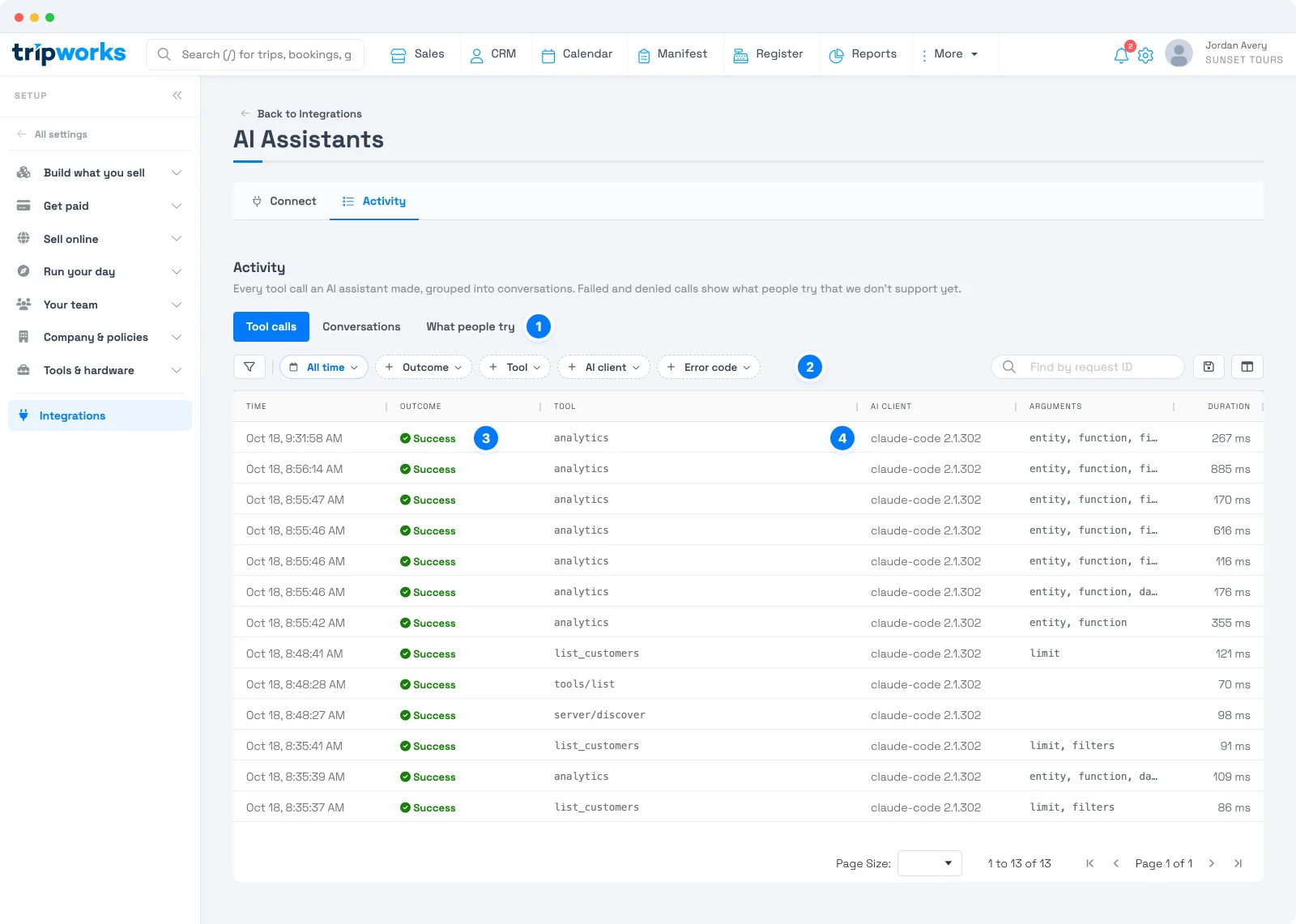
- Views. Tool calls lists every call. Conversations groups calls into the conversations they belong to. What people try lets you review failed or denied calls.
- Filters. Narrow by time, Outcome, Tool, AI client, or Error code, or search by request ID.
- Outcome and tool. Whether the call worked, and which tool the assistant used, such as looking up customers or running a report.
- AI client. Which assistant made the call.
Select a row to see the details of that call.
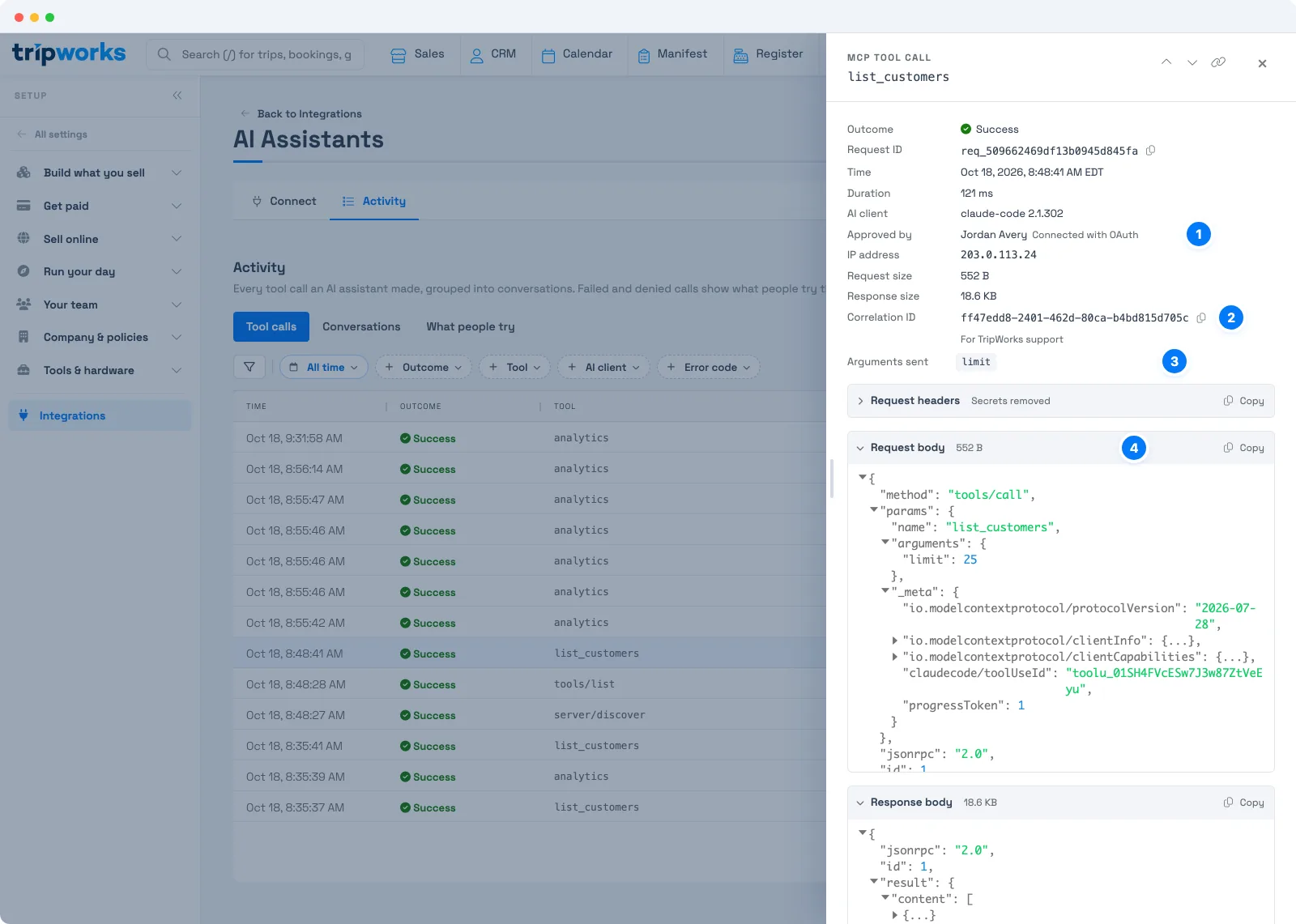
- Approved by. The person who connected the assistant. The assistant acts as that person, so the call is limited by their permissions and credited to their name.
- Correlation ID. The ID to give TripWorks support, as with an API request.
- Arguments sent. The details the assistant passed to the tool.
- Request body. The full request, so you can see exactly what was asked.
Changes an assistant makes also appear in your audit log under the name of the person who connected it, the same as a change they made in the web app.
Examples
- See what changed this week. Open Overview, set the Requests range to the last 7 days, and look for a spike in failed requests.
- Find the busiest error. In the Errors list on Overview, read the top entry to see which error code and operation fail most.
- Trace one failure. Paste a request ID into Find by request ID on Logs and read the response body.
- Check one integration. On Logs, filter Credential to your website's key and review its last requests.
- Ask support for help. Open the failed request and send the request ID and the correlation ID.
- Review an assistant. On the AI Assistants Activity tab, filter AI client to one assistant and open a call to see who approved it.
Frequently asked questions
Where can I see my API requests in TripWorks?
Go to Setup → Integrations, open the REST API card, and select Logs. Each row is one request, with its time, status, endpoint, key, and duration. Select a row to see the full request and response.
How do I find the request ID for a failed request?
Open the Logs tab, set Outcome to failed, and select the request. The request ID is at the top of the details, with a copy icon beside it. If you already have an ID, paste it into Find by request ID to jump straight to it.
What is the correlation ID for?
It is a second ID, labelled For TripWorks support, that lets TripWorks trace your request on their side. When you contact support about a request, send both the request ID and the correlation ID.
Are my API keys visible in the logs?
No. The log shows the key's name and its last four characters, and request headers are shown with secrets removed, so a key never appears in a request's details. That makes it safe to share a request ID or the request details with support.
How do I know which integration made a request?
Look at the Credential column, which shows the name of the key that made the request. If you give each integration its own key and name it after the integration, the column tells you straight away. See How API keys and access work.
Where can I see what an AI assistant did in my account?
Open the AI Assistants card and select Activity. It lists every call an assistant made, and selecting one shows who approved it, the arguments, and the full request. Changes an assistant makes also appear in your audit log under the name of the person who connected it.
What does the error rate on the Overview mean?
It is the share of this month's requests that failed, shown with the number of failed requests. Use the Errors by code chart and the Errors list below it to see which error codes and operations account for the failures.
Related
- Get started with the REST API
- How API keys and access work
- Handle errors and decisions in the REST API
- Build integrations that stay fast and efficient
- Connect TripWorks to your AI assistant (MCP)
Built for attractions, tours & activities
Build on top of your booking data
See how attractions, tours, and activities connect their booking data to the tools they already use with TripWorks. Book a demo and make the switch.