
Dynamic pricing in TripWorks means layering rate sheets on top of a base rate so the price changes with the booking. A rate sheet is a pricing rule that charges a different price by date, season, day of the week, time of day, group size, how far ahead the guest books, how many spots are left, or sales channel. You set the rules and the prices. TripWorks applies the right one automatically when each booking is made, and your base rate always stays underneath as the fallback.
In this article
Rate sheets are rules you define, with fixed prices you enter for each ticket type. TripWorks doesn't change your prices on its own based on demand.
Using Dynamic Pricing Effectively: why demand-based pricing matters, how to build a rate sheet, how priority decides the winner, and how to check a price before it goes live.
How TripWorks decides which price applies
TripWorks prices each booking top-down: the highest-priority live rate sheet that matches the booking wins, and the base rate applies when none match. Only Live rate sheets are considered. On the Ticket prices tab your rate sheets form a numbered list, so you can drag to reorder them. Each rate sheet also has a Priority number on its Criteria tab, and the lowest number wins when several match.
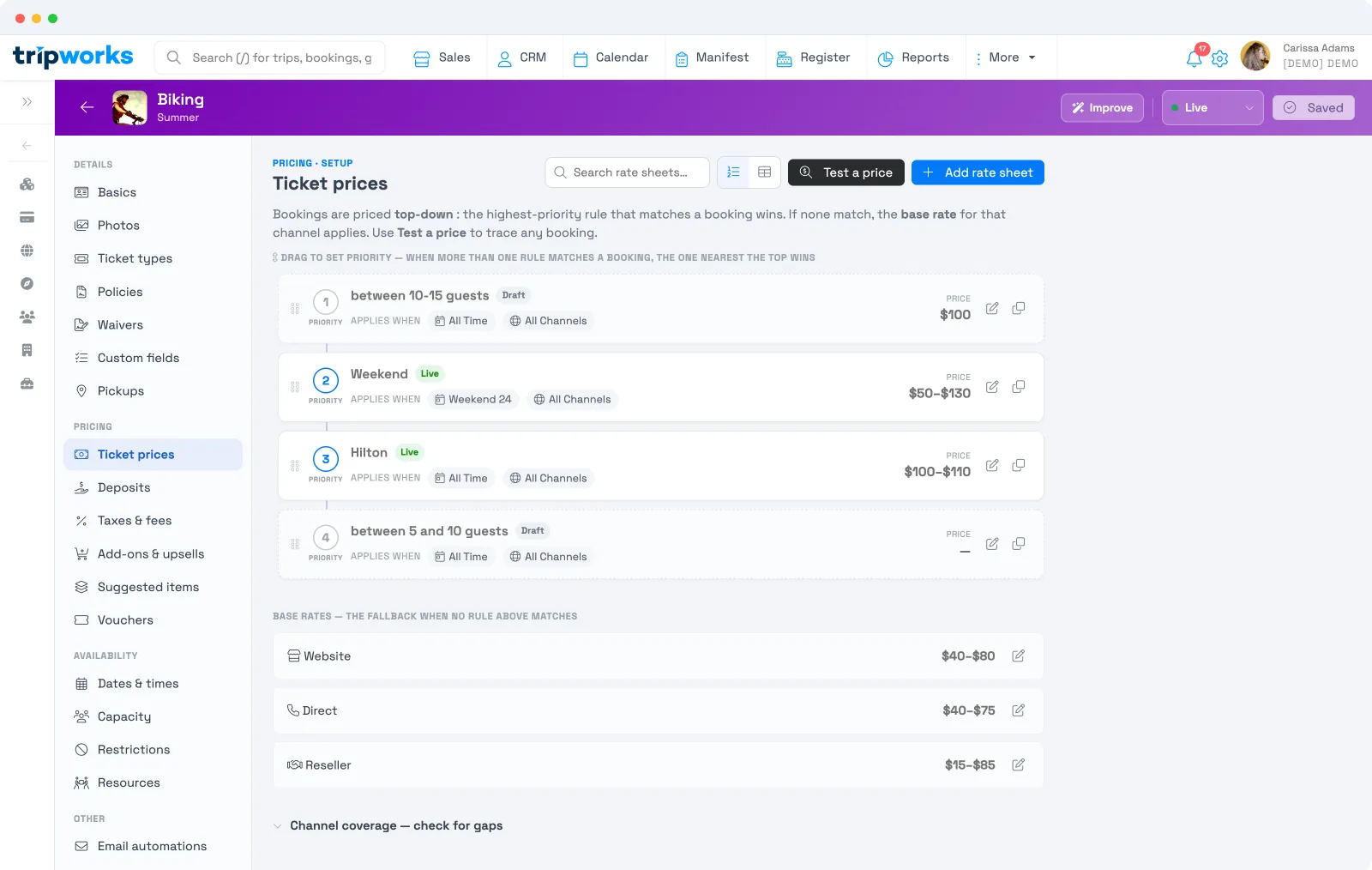
Put your most specific rule above broader ones. A single holiday rate sheet belongs above a broad peak-season one, so the holiday price wins on that date.
What a rate sheet can price by
Each rate sheet is built across three tabs: Settings, Criteria, and Channels. These are the conditions you can combine:
- Season or schedule (Criteria, During seasons): applies only on the dates, weekdays, or hours in a saved season.
- Day of week and time of day (set inside the season): limits a season to weekends, weekdays, or a window such as a happy hour.
- Group size (Criteria, Limit by guest count): applies only when the party is between a minimum and maximum number of guests.
- Advance window (Criteria, Advance window): applies only when booked more than, or less than, a set number of hours ahead.
- Availability (Criteria, Availability limits): applies only when fewer than, or more than, a set number of spots remain.
- Sales channel (Channels tab): applies to Ecommerce (your website), Direct (walk-up and call-in), and any or all Resellers.
The price on each rate sheet is a fixed amount for each ticket type. Group ticket types are priced per group.
Start from a preset
When an experience still uses only its base rate, the Ticket prices tab offers six presets. Each one fills in a name, a priority, and its criteria, so you only enter the prices.
- Weekend & holiday uplift: a higher price on weekends and holidays, using your weekend season if you have one.
- Seasonal pricing: a peak-season rate, using your season if you have one.
- Group / large-party rate: a price for parties of 6 to 100 guests.
- Channel or reseller net rate: a rate for resellers only.
- Last-minute / fill the gap: a price for bookings made less than 48 hours ahead.
- Advance-purchase discount: an early-bird price for bookings made more than a week ahead.
Edit any of these values after you pick a preset.
Add a rate sheet
- Open the experience and go to the Ticket prices tab.
- Select Add rate sheet, or pick a preset.
- On Settings, name the rate sheet and enter the price for each ticket type.
- On Criteria, set when it applies: a season, a guest-count range, an advance window, or an availability limit.
- On Channels, choose Ecommerce, Direct, Resellers, or any combination.
- Check it with Test a price, then set its Status to Live.
A new rate sheet starts as a Draft, so it doesn't affect real bookings until you set it Live. You can Archive one you no longer want without deleting it.
Watch the dynamic pricing video series
TripWorks University walks through dynamic pricing step by step, from the basics to measuring results.
Introduction to Dynamic Pricing: how rate sheets update prices for seasonality, demand, and availability so you earn more at peak times and stay competitive in slow periods.
What is Dynamic Pricing?: setting base ecommerce rates, then adding rate sheets with availability limits, passenger counts, and advance booking windows, and seeing the result in the booking widget.
Setting Up Seasonal Pricing: creating a season with date periods and days of the week, then applying it to an experience with a rate sheet.
Analyzing Dynamic Pricing Results: using your reports to find your busiest and slowest months, then fine-tuning your pricing rules. See [Reports overview](/reports-insights/reports-overview).
Dynamic pricing examples
- Charge more on weekends: add a rate sheet tied to a Weekends season and set it above your base rate. Weekend bookings get the higher price and weekdays stay at the base rate.
- Raise prices over a holiday: create a single-day season for July 4, attach it to a rate sheet, and drag it above your broader peak-season rate sheet.
- Discount large groups: use a guest-count range of 10 to 40 guests and enter a lower per-person price.
- Reward early bookers: use an advance window of more than 168 hours ahead and enter an early-bird price.
- Fill the last seats: use an availability limit of fewer than 5 spots remaining, or a last-minute window, to move a price for a departure that's close to full or about to start.
- Give resellers a net rate: limit a rate sheet to your Resellers channel, or to one reseller, and enter the wholesale price.
Check your work before and after
- Test a price shows which rate sheet wins for any date, channel, and party size, and why every other rate sheet lost. See Test a price.
- Channel coverage: check for gaps shows which channels each rate sheet covers, so you can spot a channel left unpriced.
- Pricing breakdown on a booking shows the price that was applied to it. See Pricing breakdown on a trip.
Rate sheets apply at the moment a booking is made. Changing a rate sheet doesn't reprice trips that are already booked. To adjust one of those, see Comp, uncomp, and reprice tickets.
Frequently asked questions
What is dynamic pricing in TripWorks?
Dynamic pricing is a set of prioritized rate sheets layered on your base rate. Each rate sheet charges a different price when its conditions match, such as a season, weekend, group size, advance window, availability, or channel. TripWorks applies the winning price automatically when a booking is made.
Does TripWorks change my prices automatically based on demand?
No. You define the rules and enter the prices. Conditions such as remaining spots or booking window let a rule respond to demand, but the price it charges is always the one you set.
What happens when two rate sheets match the same booking?
The higher-priority one wins, which is the one nearest the top of the list or with the lowest Priority number. If none match, the base rate for that channel applies.
Will adding a rate sheet break my existing prices?
No. Your base rate is always the fallback, and a new rate sheet stays a Draft until you set it Live. Use Test a price to confirm the result first.
Will a new or changed rate sheet reprice bookings I already have?
No. Rate sheets apply when a booking is made. Bookings already on the books keep the price they were given. You can reprice an individual trip from the trip itself.
How do I price differently for weekends or my busy season?
Create a season for those dates under Seasons & Schedules, then add a rate sheet that uses it under During seasons. Start from the Weekend & holiday uplift or Seasonal pricing preset. See Seasonal pricing.
Can I charge a different price for large groups?
Yes. Use Limit by guest count on the Criteria tab to apply a rate sheet only to parties between a minimum and maximum size. The Group / large-party rate preset starts at 6 guests.
Can I offer a last-minute or early-bird price?
Yes. The Advance window setting applies a rate sheet only to bookings made more than, or less than, a set number of hours ahead. The Last-minute and Advance-purchase discount presets use 48 hours and 168 hours as starting points.
Can I raise the price when a departure is nearly full?
Yes. Use Availability limits to apply a rate sheet only when fewer than a set number of spots remain. It counts spots left, not a percentage of capacity.
Can I give resellers a different rate?
Yes. Set a rate sheet's Channels to Resellers, either all of them or specific ones, and enter the net price. The Channel or reseller net rate preset is a starting point.
Can I change the base rate's priority?
No. The base rate isn't part of the prioritized list. It's the catch-all that applies whenever no rate sheet matches, and rate sheets always take precedence over it when their criteria match.
Why isn't my rate sheet's price showing up?
Check that its Status is Live and not Draft, that the booking's date, channel, party size, and timing match its Criteria, and that no higher rate sheet also matches. Test a price lists every rate sheet and the reason each one didn't apply.
Can a rate sheet adjust the price by a percentage?
Not today. Each rate sheet holds a fixed price per ticket type. To raise prices now or schedule an increase, see Raise your prices.
Related
- Set your ticket prices
- Seasonal pricing
- Test a price
- Pricing breakdown on a trip
- Using Dynamic Pricing Effectively (TripWorks University lesson)
Built for attractions, tours & activities
Charge the right price for every booking
See how attractions, tours, and activities run dynamic pricing without spreadsheets on TripWorks. Book a demo and make the switch.