
Gift card styles are the design templates a customer chooses from when buying a gift card. You can offer several — a holiday look, one per activity, a plain one — and control which are available. Manage them under Setup Get paid Gift Cards.
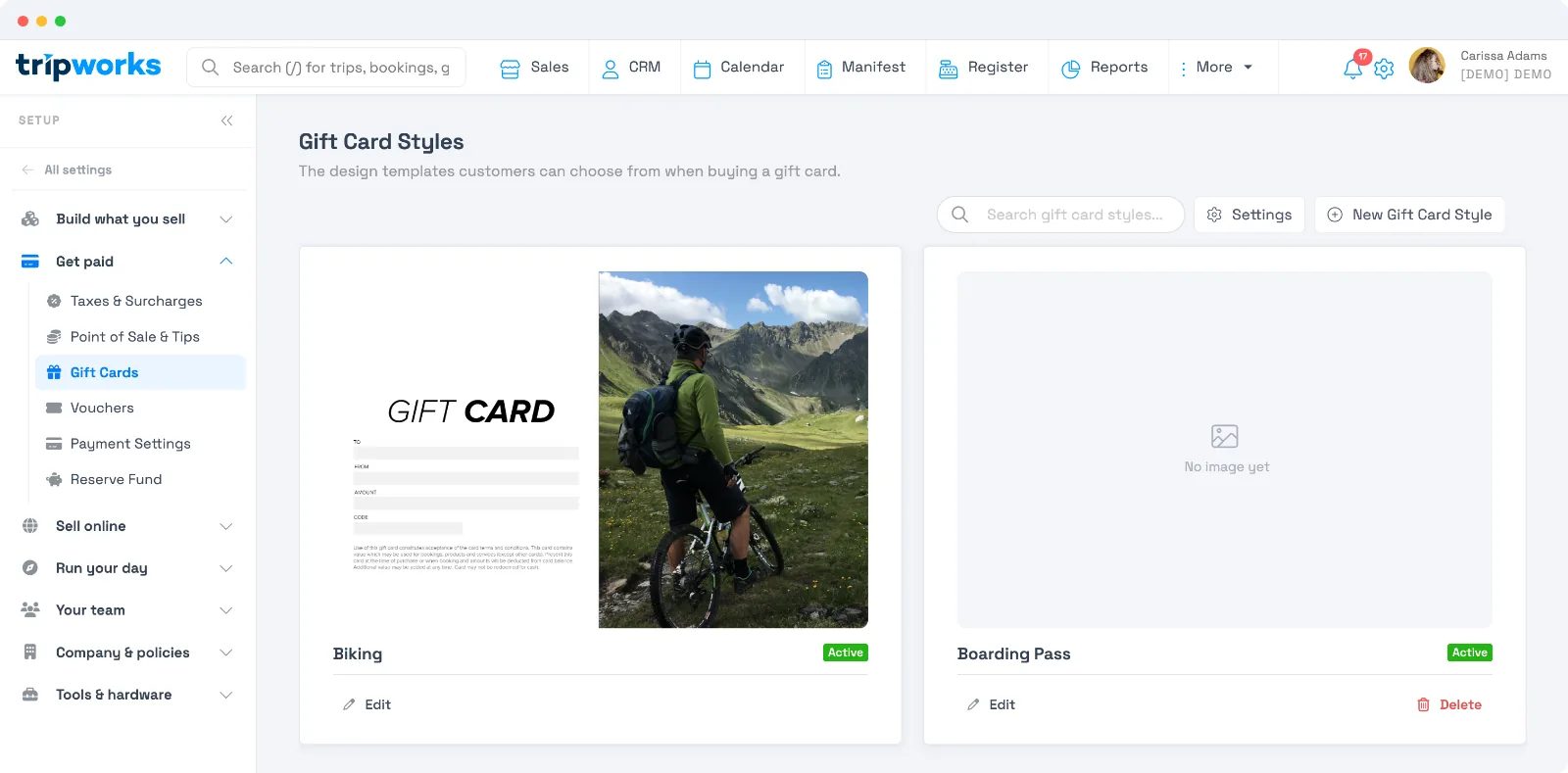
Add or edit a design
- Select New Gift Card Style (or Edit on an existing one).
- Give it a Name — for example, "Holiday Gift Card."
- Upload your artwork. Customers see this image on their gift card; you crop it to a 3:2 card shape.
- Set it Active to offer it, or inactive to hide it without deleting.
Pick which design shows first with the Default / featured gift card design setting — see Set up gift cards.
Deleting a design
Editing a design is always safe, but deleting one has two rules worth knowing:
- You can't delete your default (featured) design. Make another design the default first, then delete the old one.
- Deleting a design that gift cards already use requires moving those cards to another design — TripWorks reassigns them so no card is left without a design. If you're on the older setup screen and a delete won't go through, that's why: the design is still in use. The simplest path in that case is to set the design inactive (below) instead of deleting it.
Frequently asked questions
Can I offer more than one gift card design?
Yes. Add as many as you like; guests pick from the active ones at checkout. Set one as the default/featured design.
How do I stop offering a design without losing it?
Set it to inactive instead of deleting it. It stays available to re-activate later but won't appear at checkout.
Why can't I delete a design?
Two reasons: it's your default/featured design (set a different default first), or gift cards are still using it (those cards must be moved to another design first). If you just want it off checkout, set it inactive instead.
Related
Built for attractions, tours & activities
Gift cards that look like your brand
See how attractions, tours, and activities sell branded gift cards on TripWorks. Book a demo and make the switch.