
Gift cards sell two ways: guests buy them online from your store, or you sell one directly from the dashboard. Both use the same flow.
In this article
Guests buying online
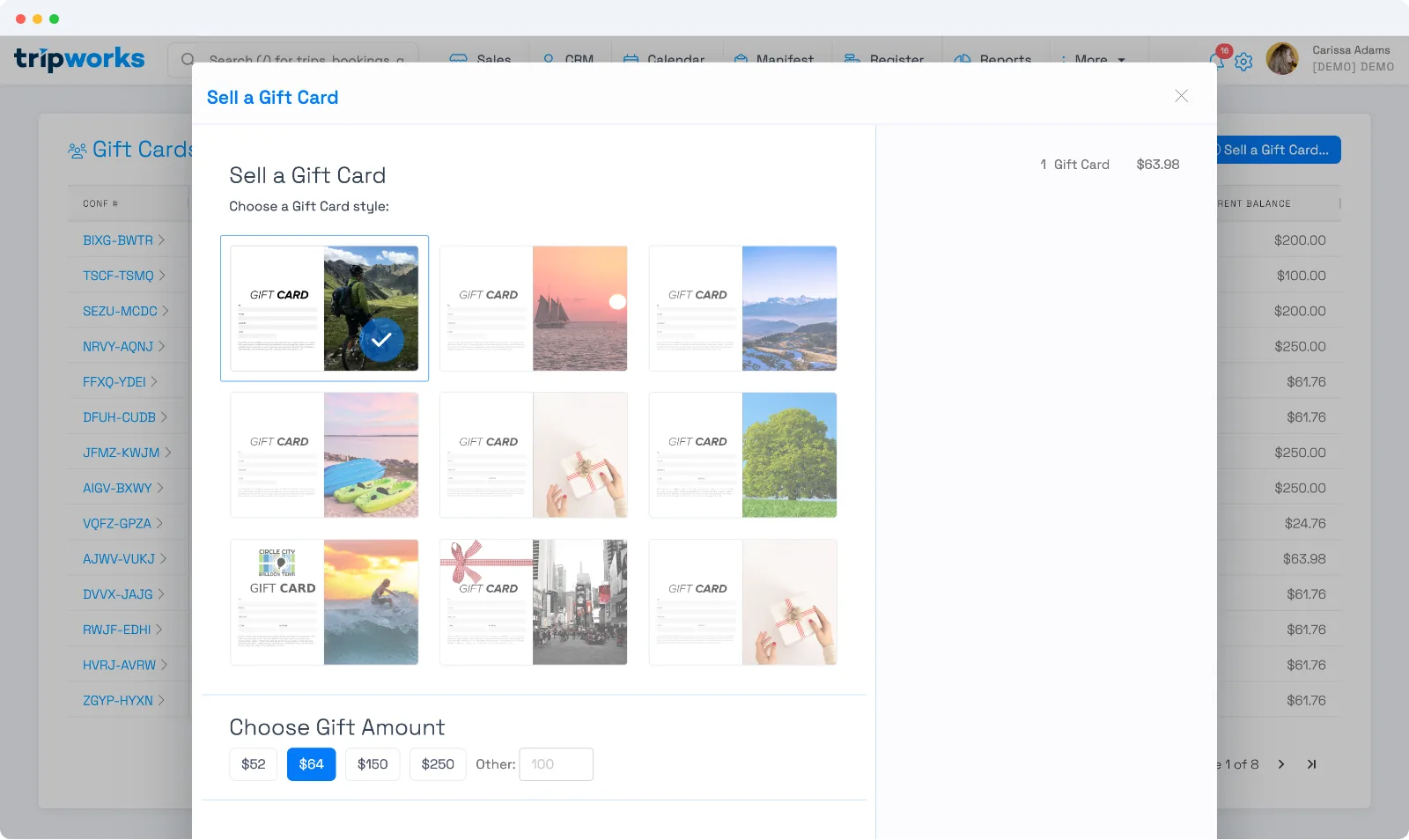
When your gift card program is enabled and shown in the catalog, a Gift Card option appears on your online store. The guest:
- Chooses a design.
- Picks an amount — one of your preset options or a custom amount (from $10 up to $5,000).
- Enters their own contact details and the recipient's name, with an optional personal note.
- Pays at checkout.
The gift card is delivered by email as a Gift Card Purchase confirmation, and you can attach a printable PDF of the card — set that up in Gift card confirmation messages.
Selling one yourself
To sell a gift card over the phone or at the counter, go to Gift Cards and select Sell a Gift Card. It's the same steps — design, amount, buyer, recipient — and you take payment as usual.
Frequently asked questions
Can I hide gift cards from my online checkout?
Yes. In Gift Card Settings, turn off Show Gift Card tile in the e-commerce catalog. Gift cards then stay available for your team to sell in the dashboard but won't appear on your storefront.
Does TripWorks support physical (hard) gift cards?
Yes. When you sell a card you can either let TripWorks auto-generate a code (for digital cards) or enter a code manually — so you can stock pre-printed physical cards, type the printed code in at the sale, and TripWorks tracks that card's balance and redemptions like any other.
Is there a limit on the gift card amount?
Custom amounts range from $10 to $5,000. Your four preset options can be any values within that range.
Related
Built for attractions, tours & activities
Sell gift cards online and in person
See how attractions, tours, and activities sell gift cards on any channel with TripWorks. Book a demo and make the switch.