
Linking TripWorks with GetYourGuide keeps your activities, ticket types, and availability in sync across both platforms, so GetYourGuide bookings land in TripWorks alongside your direct sales. Once connected, you map your offerings in both systems and TripWorks pushes each activity's live availability to GetYourGuide in real time.
In this article
Because GetYourGuide sells against the availability TripWorks sends it, the settings that matter most are your ticket types and your capacity. The single most important choice: use per-person ticket types on GetYourGuide, not group tickets, so availability maps to real seats. Spend a few minutes confirming this and your capacity model before you turn the sync on, and the seats shown on GetYourGuide will match the boats, seats, or guides you can actually deliver. Confirm your capacity before you connect covers exactly what to check.
How to connect GetYourGuide
Step 1: Open the connection settings in TripWorks
- Go to More > Resellers.
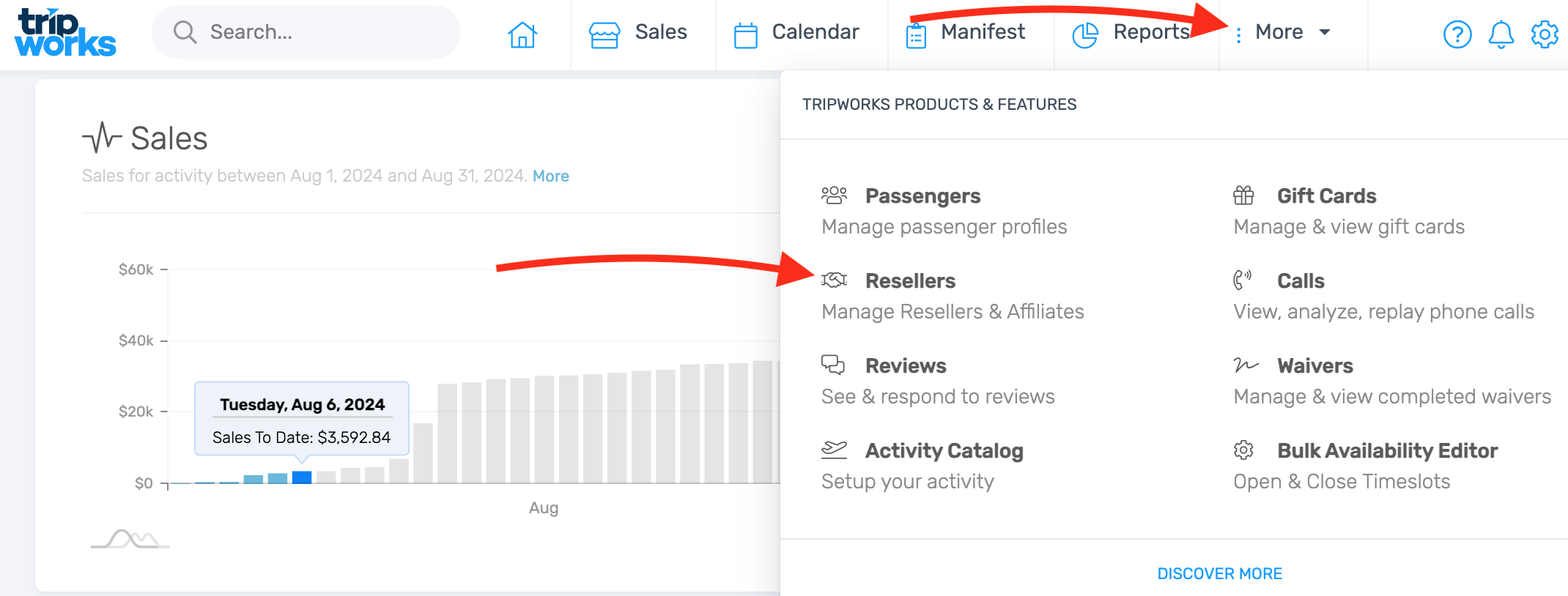
- Search for GetYourGuide and open its reseller profile.
- Open the Settings tab, then select Connection.
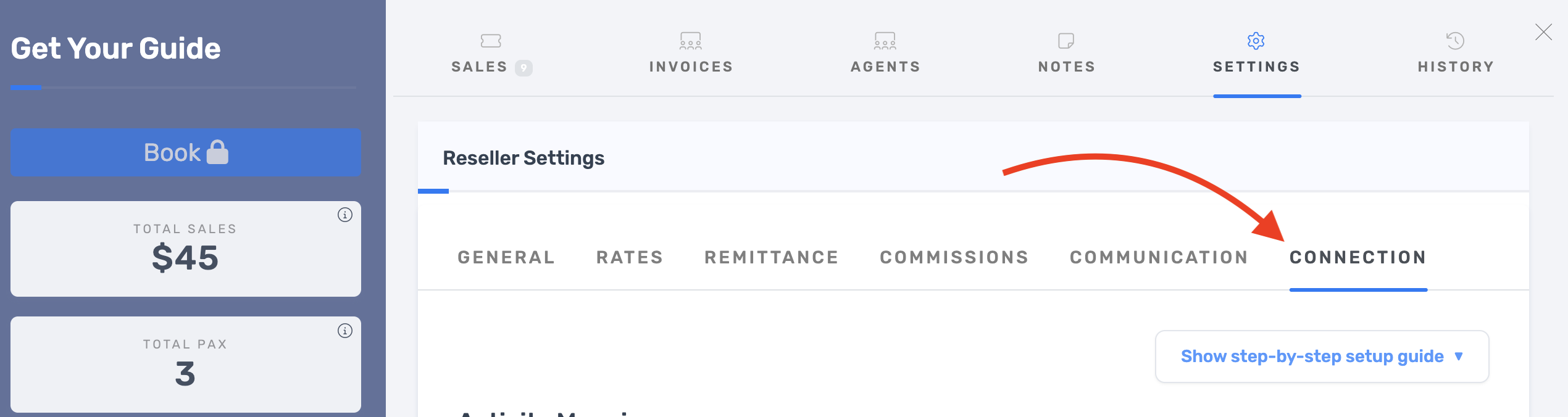
You'll see expandable steps and an Activity Mapping table below.
Step 2: Turn on the sync for each activity
Use the toggle sliders to enable sync for every activity you want to connect.
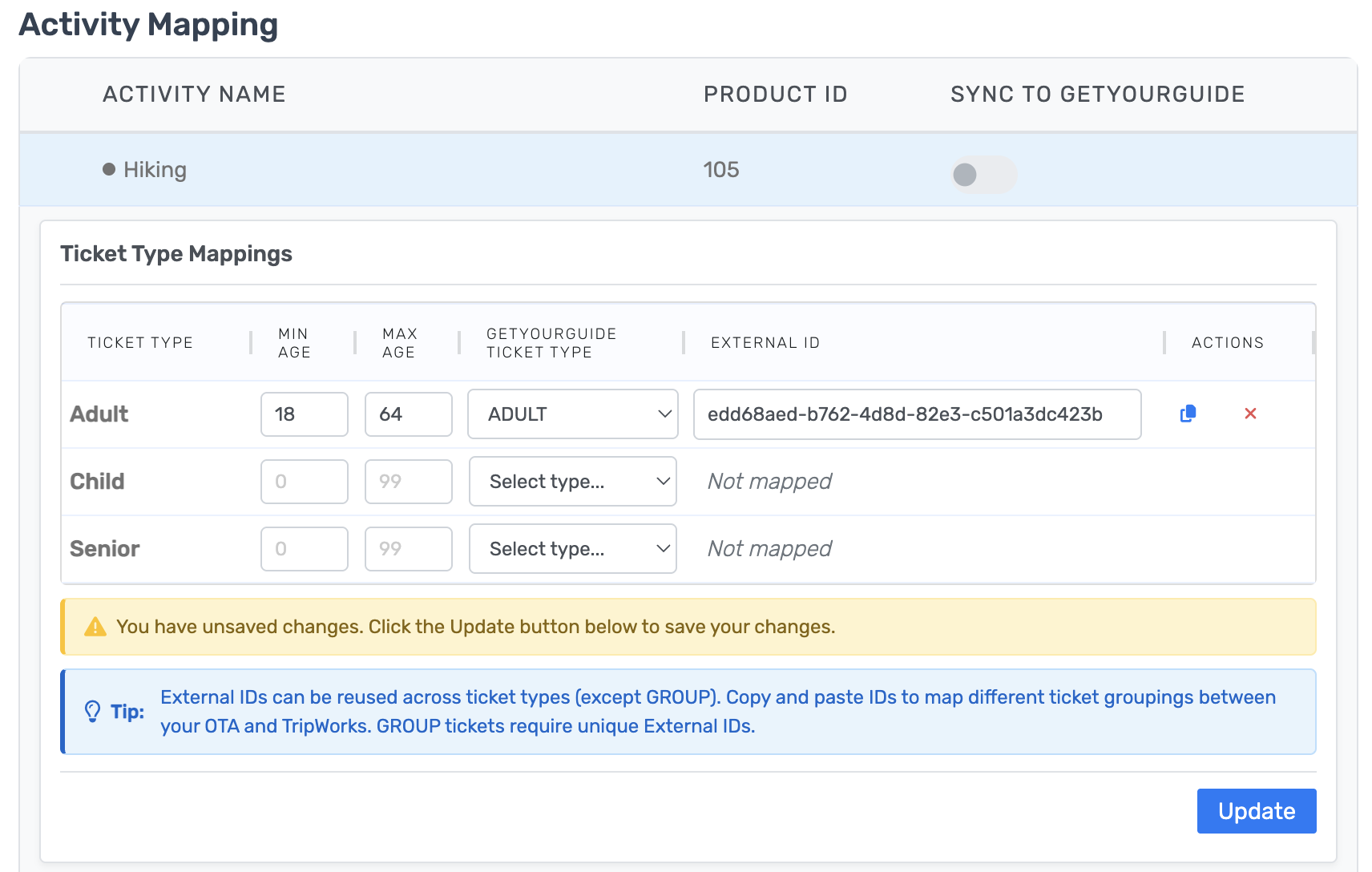
Once toggled, a mapping panel appears for each ticket type. GetYourGuide requires:
- Minimum Age
- Maximum Age
As you fill these in, TripWorks populates an External Product ID automatically.
Step 3: Map your ticket types
- Confirm the ticket types in TripWorks match the ticket types in GetYourGuide.
- Use the External Product ID field, copying it across ticket types where needed.
After mapping each ticket type, select Update to activate the sync for that activity.
Step 4: Finish setup in GetYourGuide
- Open your Product List in GetYourGuide.
- Choose the activity you're connecting.
- Go to Connectivity Settings.
- Under "I use a system", select TripWorks.
- Paste the External Product ID from TripWorks.
- Save to finalize the connection.
Your product goes live once GetYourGuide confirms the connection. Before you finish, review each connected activity so pricing and schedules match on both sides.
Confirm your capacity before you connect
This is the step that's easiest to skip and the one that makes the biggest difference. GetYourGuide sells against the availability TripWorks calculates, so the availability number on a timeslot is exactly what GetYourGuide is allowed to sell. If that number is higher than the spots you can deliver, GetYourGuide keeps selling past your real limit. The usual sign is more guests coming through than a departure holds, sometimes with a guest who isn't matched to a boat, seat, or guide.
Getting this right comes down to a few settings on each activity.
Use per-person ticket types, not group tickets
Set your GetYourGuide ticket types to per-person pricing rather than group tickets. GetYourGuide counts a timeslot's availability in the unit your ticket type uses. With per-person tickets, each available spot is one person, so what GetYourGuide sells against matches your real seats. With a group ticket, each available spot is a whole group, so GetYourGuide can let a traveler add more people to a group than your seats allow, or sell more groups than you have room for. The result is more guests than the departure holds, sometimes with a guest left without a resource.
If your standard pricing is per group (for example, a base price for the first few guests plus a charge per additional guest), set up a per-person equivalent for the GetYourGuide channel so each traveler counts as one seat.
Before you change the ticket structure on an activity that's already connected, check with your GetYourGuide account manager. If they've set custom pricing or commission terms against your current ticket types, they may need to adjust those first.
Choose a capacity model that reflects your real limit
Open the activity's Capacity tab (Setup > Build what you sell > Activity Settings > Availability > Capacity) and make sure it isn't left on Unlimited. An Unlimited activity tells GetYourGuide there's no cap, so it keeps selling. Pick the model that matches how you operate:
- Per timeslot: one shared pool of seats per timeslot, such as a 12-seat van.
- Per ticket type, per timeslot: a separate pool for each ticket type.
- By resources: capacity follows the boats, rafts, seats, or guides you assign.
See Set activity capacity limits for how each model works.
Check how availability adds up across ticket types and options
When an activity has several ticket types, or several time options, the Availability calculations setting decides how their seats combine:
- Use the default ticket type (shared pool): every ticket type draws from one pool. List 6 Adult and 6 Child on a 6-seat boat, and selling one Adult leaves 5 for anyone. Choose this when your ticket types or options share the same physical seats.
- Sum all: each ticket type adds to the total, so 6 Adult and 6 Child would show 12 seats.
Here is the part worth double-checking. If your options (for example, several three-and-a-half-hour departures) actually run on the same boat or the same set of seats, but the activity is set to Sum all, TripWorks adds each option's capacity together and sends that combined total to GetYourGuide. The channel can then sell beyond what a single departure holds. When your options or ticket types share the same inventory, choose the shared pool. Reserve Sum all for options that are genuinely separate inventory.
For "By resources," confirm your resource requirements are set
When capacity is set By resources, TripWorks builds availability from the resources each booking uses, but only if you've told it how many resources each ticket type reserves. Without those requirements, a booking can be taken without a resource attached, which is what leaves a guest unmatched to a boat or seat. Confirm each ticket type has a resource requirement, and that the sharing setting matches how groups fill, so everyone on a shared departure fills the same boat before a second one opens. See Capacity by resources.
Map ticket types to what really exists
Every ticket type you map to GetYourGuide should match a real ticket type on the TripWorks activity, and the set you expose should reflect your true seat mix. Extra or duplicated ticket types on the GetYourGuide side widen how much the channel believes it can sell.
Before you go live: a quick capacity check
Run this on each activity right before turning its sync on:
- Capacity model is not Unlimited, unless the activity truly has no limit.
- Availability is set to the shared pool when options or ticket types share the same seats, and to Sum all only when they are separate inventory.
- For By resources activities, each ticket type has a resource requirement and the sharing settings match how groups fill.
- The ticket types mapped to GetYourGuide match the activity's real ticket types.
- Open a live timeslot and confirm the Available number equals the seats you can deliver. That same number is what GetYourGuide sells against.
If a slot's Available count reads higher than your real capacity after these checks, revisit the capacity model and availability settings above before turning on the sync. To change capacity for specific dates, see Edit capacity for a single date or multiple dates.
Frequently asked questions
Why is GetYourGuide selling more spots than my activity has?
The most common cause is a group ticket type. GetYourGuide counts availability by the ticket's unit, so a group ticket treats each spot as a whole party and can let a traveler book more people than your seats allow. Switch the activity's GetYourGuide ticket types to per-person pricing. Also confirm the capacity model isn't Unlimited, and that Availability calculations uses the shared pool when ticket types or time options share the same seats.
Should I use group tickets with GetYourGuide?
No. Use per-person pricing for GetYourGuide. GetYourGuide handles a group ticket differently from a per-person one: it treats each available spot as a whole group, which can let a party book more people than your seats allow and leave a guest without a resource. If your standard pricing is per group, set up a per-person equivalent for the GetYourGuide channel. Coordinate with your GetYourGuide account manager first if they've set custom pricing or commission terms on your current ticket types.
Do I set capacity in TripWorks or in GetYourGuide?
In TripWorks. TripWorks calculates each timeslot's availability and pushes it to GetYourGuide in real time, so the seats travelers see on GetYourGuide come from your TripWorks capacity settings.
Why did a GetYourGuide booking come through without a resource assigned?
When an activity's capacity is set By resources, TripWorks needs a resource requirement on each ticket type to reserve the right resource per booking. If a ticket type has no requirement, a booking can be accepted without a resource attached. Add a resource requirement to every ticket type on the activity. See Capacity by resources.
My ticket types don't match between the two systems. What happens?
Ticket types need to line up for the sync to map bookings correctly. Confirm the ticket types on the TripWorks activity match those in GetYourGuide, then map each one and select Update. A mismatch can send a booking to the wrong ticket type or keep it from appearing.
Does changing capacity after I connect update GetYourGuide?
Yes. TripWorks pushes availability in real time, so capacity changes and new bookings on any channel update what GetYourGuide can sell. Changes to a capacity model apply to timeslots created after the change; to adjust dates that already exist, edit capacity for those dates.
Related
- How OTA and reseller bookings connect
- Set activity capacity limits
- Capacity by resources
- Edit capacity for a single date or multiple dates
Built for attractions, tours & activities
Reach more travelers, oversell none
See how attractions, tours, and activities connect the OTAs and keep availability accurate on TripWorks. Book a demo and make the switch.