
A device mode controls what a shared computer or tablet shows every time TripWorks opens on it. Set the right mode once, and staff or guests always land on the right screen, without navigating there themselves.
In this article
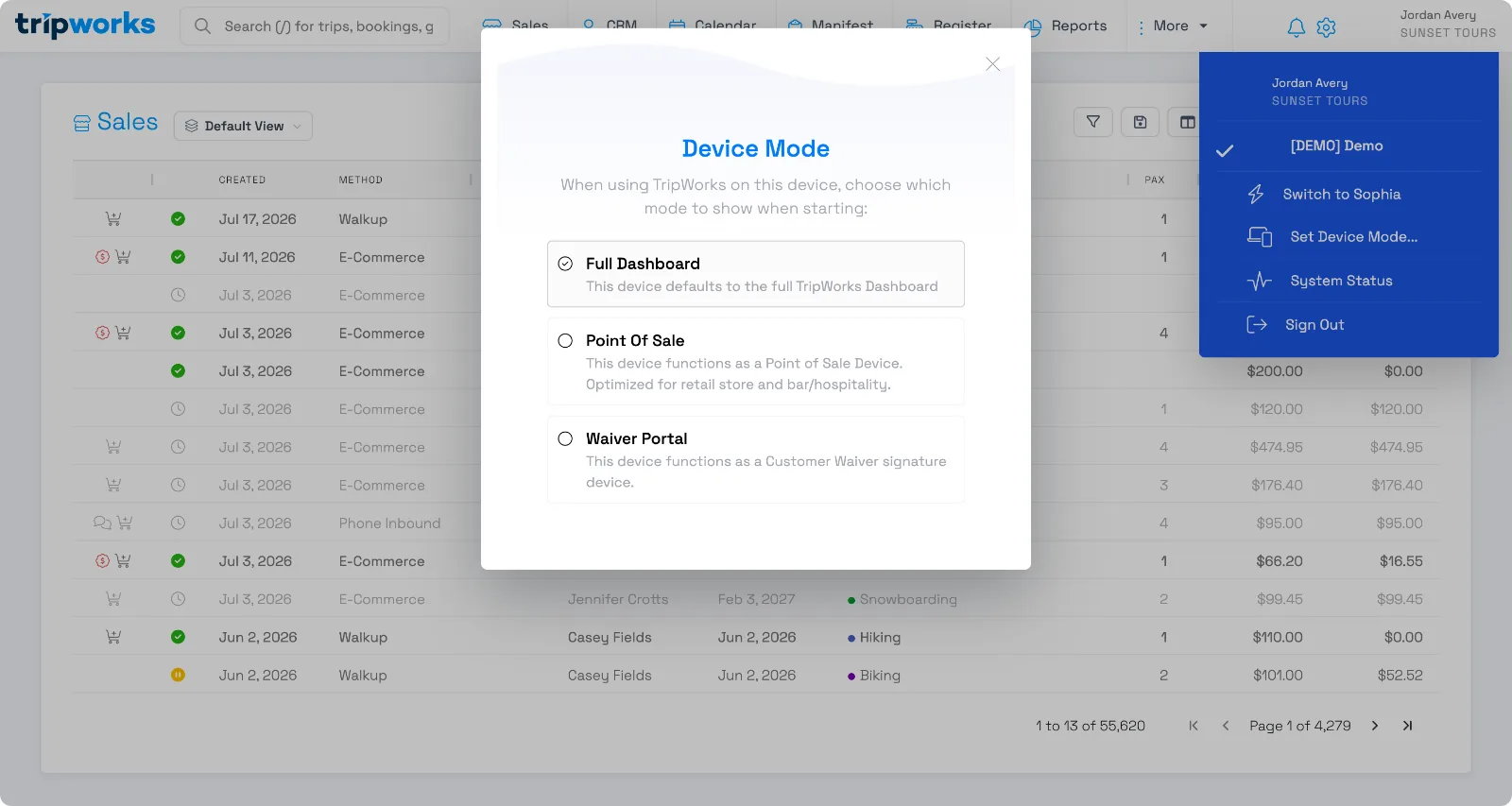
The three modes
- Full Dashboard. The default view, with access to reports, sales, the manifest, calendar, and everything else your permissions allow. Use this for day-to-day account management.
- Point of Sale. Shows only your products available for sale, so staff can tap through transactions quickly without reports or manifests in the way. Use this on a device dedicated to retail, bar, or hospitality checkout.
- Waiver Portal. Turns the device into a signature station showing only the waiver, so guests can sign directly on it. Use this on a device you hand to guests before an activity; see collecting guest waivers. The first time a device switches into this mode, it needs to be registered (see below) before it will show the waiver.
Switch a device's mode
- From Full Dashboard mode, select your name in the upper right corner, then Set Device Mode… from the dropdown.
- From Point of Sale mode, select the gear icon in the upper right.
- From Waiver Portal mode, double-tap or double-click the logo at the top of the page.
- Select the mode you want. The device updates immediately.
Registering a device for Waiver Portal mode
The first time you switch a device into Waiver Portal mode, it isn't registered yet, so it shows a Register This Device screen instead of a waiver. You have two options:
- Assign the device to a profile you've already registered elsewhere, or
- Register it as a new device: give it a name and confirm to finish setup.
Once a device is registered, it stays that way — it won't ask again unless someone resets it or a login passcode is used to unlock and re-register it under a different name.
Frequently asked questions
Does a device mode change what other devices show?
No. Device mode is set per device, not per account. Changing it on one tablet or computer doesn't affect any other device signed into the same account.
Will I lose access to features in Point of Sale or Waiver Portal mode?
No, nothing is disabled account-wide. Those modes just simplify what that specific device shows. Switch back to Full Dashboard mode on that device any time to see everything again.
Do guests need to sign in to use Waiver Portal mode?
No. Waiver Portal mode is designed to hand directly to a guest — it shows only the waiver, with no other account access.
The device is stuck on a "Register This Device" screen instead of the waiver — what's going on?
That's the normal first-time setup for Waiver Portal mode. Register the device once (or assign it to a profile you've already registered) and it will show the waiver from then on. See registering a device for Waiver Portal mode.
Related
Built for attractions, tours & activities
One device, the right screen for the job
See how attractions, tours, and activities set up shared devices for point of sale and waivers, on TripWorks. Book a demo and make the switch.