
Lead Center gathers your near-misses into one pipeline; this article is about what to do with them. The habit is simple: find the leads worth your time, act on them, and let each action record itself so the pipeline always reflects reality. A few minutes a day spent here is some of the highest-return work you can do, because every lead is a guest who already chose you and stopped one step short.
In this article
Find the leads worth your time
Open Lead Center and you'll see your pipeline — every lead, its source, its status, and what the guest was after. You don't have to work it top to bottom. Narrow it down to what matters right now:
- Filter by status to focus a session — for example, everything still at New (nobody's reached them yet) or everything stuck at Contacted (nudged once, still not booked).
- Filter by source to prioritize your warmest channel. Abandoned carts are usually the strongest: those guests picked a date and party size and were one step from paying.
- Search for a specific guest by name when you're following up on a call or email you remember.
Working from a filtered list beats scrolling the whole pipeline — you spend your time on a focused batch of real opportunities instead of hunting.
Review a lead before you reach out
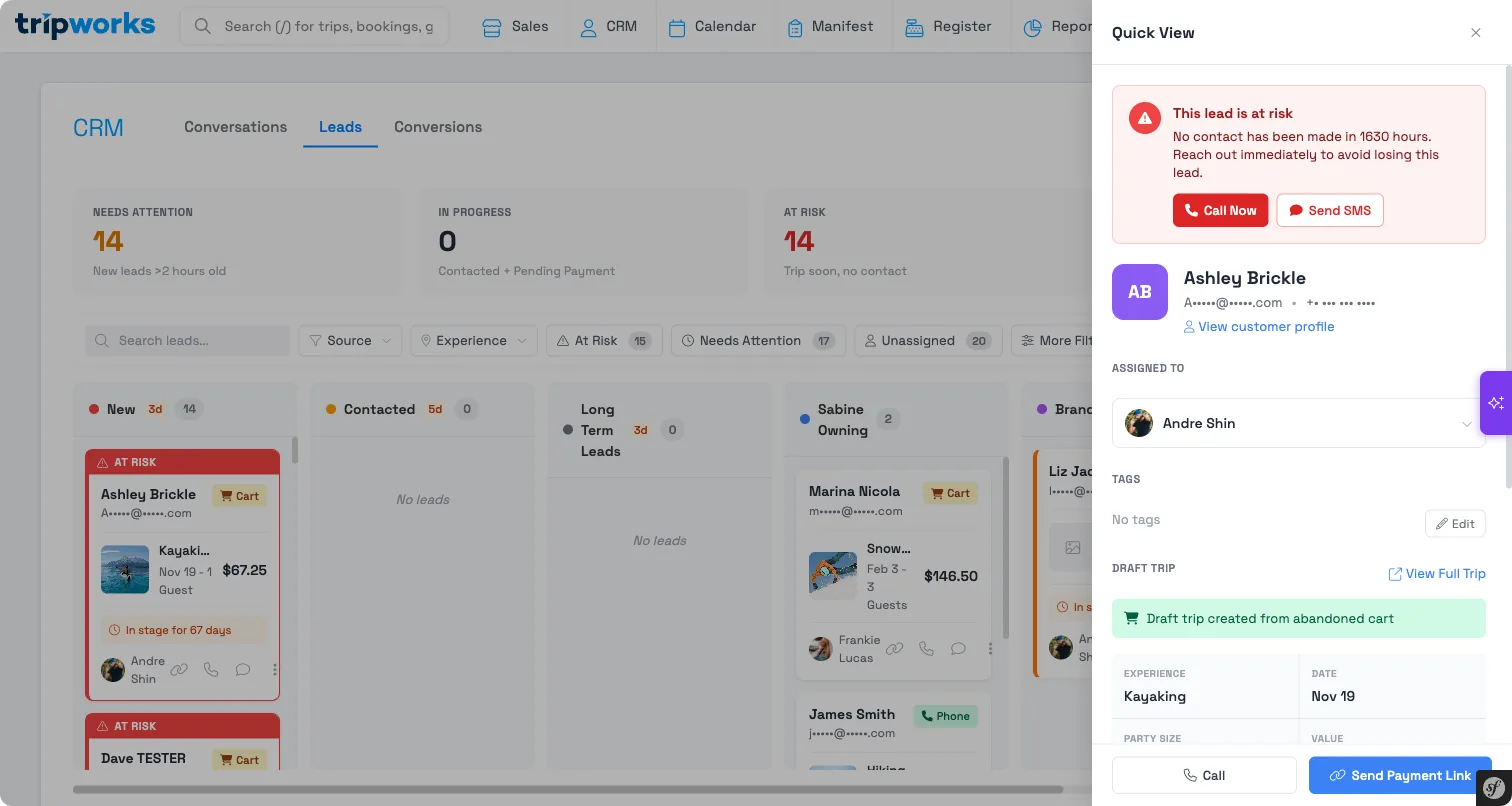
Open a lead and you get the context to follow up warm, not cold: the source it came from, the tour, date, and party size the guest had selected, and a timeline of everything that's happened — every automatic email, call, email, meeting, note, and status change. Before you pick up the phone, you already know what they wanted and what's been tried, so your follow-up picks up where the guest left off instead of starting over.
Log what you do
When you contact a guest, record it on the lead. You can log a call, an email, a meeting, or a note:
- Logging a call, email, or meeting on a New lead automatically advances it to Contacted — so simply doing the work keeps your pipeline accurate. (See How lead statuses work.)
- A note captures anything else worth remembering — "left voicemail," "wants to bring the whole family in July" — without changing the status.
Every entry lands on the lead's timeline with a timestamp, so anyone on your team can pick up the thread later.
Send a payment link
When a guest is ready to pay, send them a payment link straight from the lead. TripWorks moves the lead to Pending Payment and logs the link on the timeline, so you can see exactly who's been asked to pay and is still deciding. When they pay, the lead flips to Converted on its own.
Assign and set follow-ups
For teams, a lead can be assigned to a specific person, so it's always clear who owns the next step and nothing falls through the cracks. You can also set a follow-up reminder on a lead — the date you plan to reach out again — so the ones that need a second or third touch resurface at the right time instead of drifting to the bottom of the list.
Leads that have gone quiet after being contacted are the ones most worth a reminder. A lead sitting at Contacted got its automatic nudge and still hasn't booked — that's your cue to add a human touch with a call or a tailored email.
Add a lead by hand
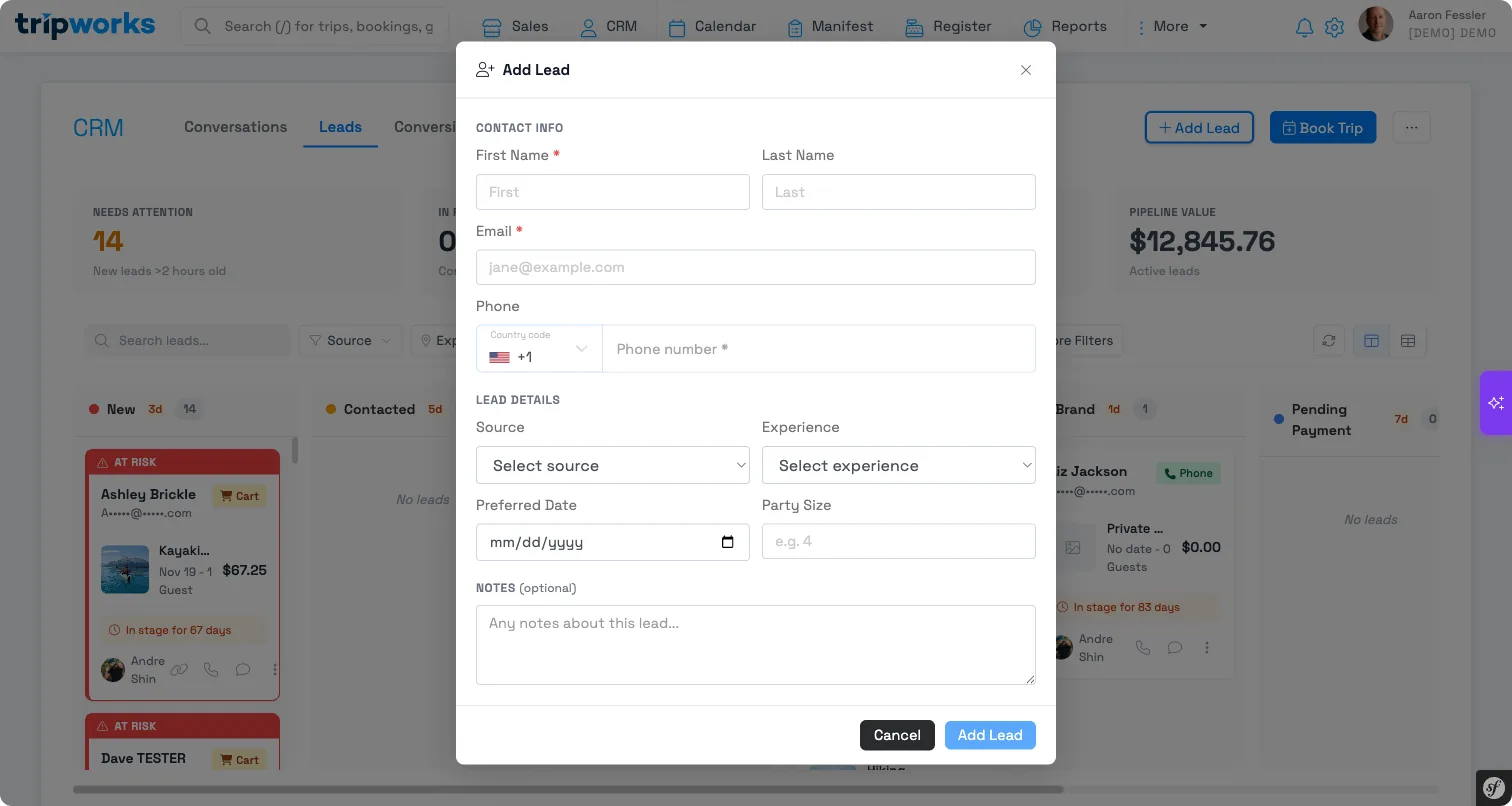
Not every opportunity comes in through checkout, chat, or a form. When someone calls or walks up and you want to follow up later, add a lead manually so it joins the same pipeline as the rest. It gets a status, a timeline, and everything else — so a phone conversation you'd otherwise forget becomes a tracked opportunity.
Let the pipeline close its own leads
You don't have to tidy up after leads that don't pan out. When a lead never converts and the tour date passes, TripWorks marks it Lost automatically, and completed bookings flip to Converted on their own. That means the leads still showing as active are genuinely worth your attention — the pipeline keeps itself current so you can trust what you're looking at.
Frequently asked questions
Which leads should I work first?
Start with your warmest, highest-value opportunities: recent abandoned carts (they picked a date and were one step from paying), large groups or private tours, and leads that came in with a real question from AI chat or the CallBot. Filter by status to focus a session — the leads at New need a first touch, and the ones stuck at Contacted are ready for a personal follow-up.
Do I have to update a lead's status manually?
Usually not. Logging a call, email, or meeting moves a New lead to Contacted; sending a payment link moves it to Pending Payment; a completed booking converts it; and an expired, unfinished lead is marked Lost automatically. You can always set a status by hand when you need to, but the normal work of following up keeps the pipeline current on its own.
Can I assign leads to different team members?
Yes. Assign a lead to a specific person so it's clear who owns the next step. You can also set a follow-up reminder so leads that need another touch resurface on the right day instead of getting buried.
How do I follow up on a phone call or walk-up?
Add the lead manually. It joins the same pipeline as your automatic leads, with a status and a timeline, so a phone conversation or walk-up you want to chase becomes a tracked opportunity instead of a note you'll lose.