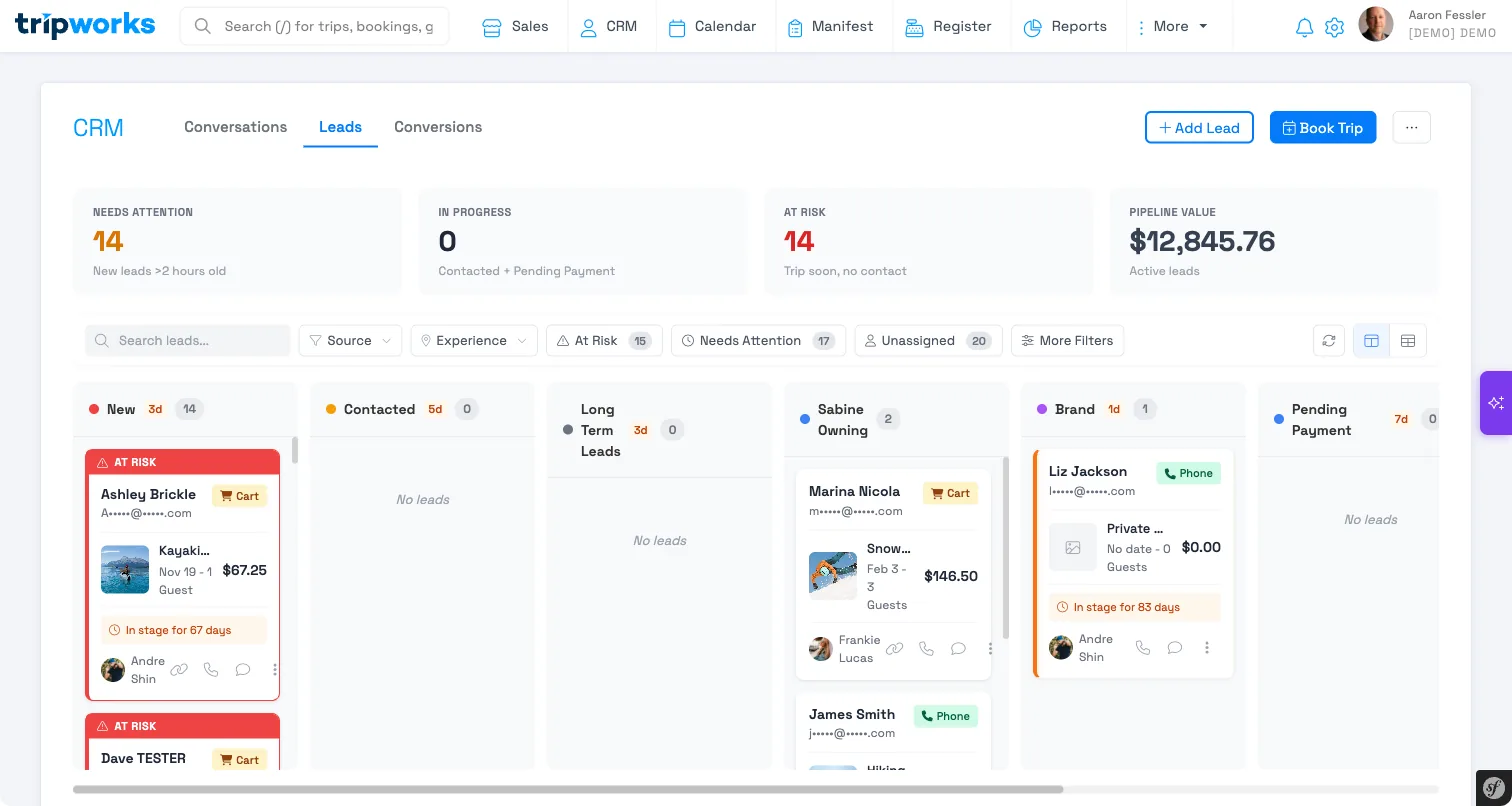
Lead Center is your built-in CRM for managing inbound inquiries. Whether a lead comes in from a phone call, a walk-in, or you add one manually, Lead Center gives you a single place to track every prospect from first contact to booking — with pipeline views, lead scoring, payment links, and conversion tracking built right in.
Getting Started
Lead Center lives under the CRM section in your main navigation. Click CRM to open it — you'll land on the Leads tab by default.

CRM is organized into three tabs:
- Conversations — A unified inbox for all customer communications (calls, messages) with lead scoring
- Leads — Your pipeline for tracking and managing leads through stages
- Conversions — Metrics and history for leads that converted to bookings
Header Stats
At the top of the Leads tab, four stat cards give you an at-a-glance view of your pipeline health:
| Card | What It Shows |
|---|---|
| Needs Attention | New leads that have been sitting for more than 2 hours without contact (orange) |
| In Progress | Leads in the Contacted or Pending Payment stages |
| At Risk | Leads with an upcoming trip date but no recent contact (red) |
| Pipeline Value | Total dollar value of all active (non-converted) leads |
These values update dynamically as leads move through your pipeline.
Adding a Lead
Click + Add Lead in the Lead Center header to open the Add Lead modal.


| Field | Required? | Description |
|---|---|---|
| Customer Name | First name required | Contact's name (last name optional) |
| Email or Phone | At least one | You need either an email or phone number to create the lead |
| Experience | Optional | Which tour or activity they're interested in |
| Preferred Date | Optional | When they'd like to go |
| Party Size | Optional | Number of guests |
| Notes | Optional | Internal notes — not visible to the customer (e.g., "interested in sunset tour, flexible on dates") |
| Source | Optional | How the lead came in: Phone, Manual, Walk-in, Referral, Event, or Other |
| Assign To | Optional | Team member to own this lead (defaults to you) |
When you create a lead, TripWorks automatically creates a Draft Trip in the background. If no experience is selected, the trip is created as a general product — you can attach a specific activity later when sending a payment link.
Pipeline Views
Lead Center offers two ways to view your pipeline. Toggle between them using the segmented control at the top of the page.
Kanban View
The default view. Each column represents a stage in your pipeline, and leads appear as draggable cards. Cards show the customer name, experience, estimated value, days in the current stage, source icon, and assigned team member.

Drag a card to a new column to change its stage. Column headers show how many leads are in each stage.
Table View
A list-style view with sortable columns: Customer, Experience, Value, Stage, Source, Assigned To, Days in Stage, and Last Activity.

You can change a lead's stage directly from the table using the inline Stage dropdown — the dropdown is color-coded to match your pipeline stages. Select rows with checkboxes to perform bulk actions.
Quick View Panel
Click any lead card (Kanban) or row (Table) to open the Quick View Panel, which slides in from the right side of the screen.

From here you can:
- Contact info — Click phone to call, click email to compose. Link to full customer profile.
- Experience details — Experience name, requested date, party size, and estimated value.
- Lead source — Displayed with an icon matching the source type.
- Activity timeline — Full history of all interactions (calls, messages, stage changes, reminders).
- Add Activity — Log a call, email, meeting, or note from the dropdown.
- Reminders — View, add, complete, or delete follow-up reminders.
- Quick actions — Send Payment Link, Send Message, Create Trip, and Flag.
Lead Stages and Transitions
Your pipeline has four default stages plus a "Not Converted" stage for expired leads:
| Stage | Color | Description |
|---|---|---|
| New | Red | Just came in, hasn't been contacted yet |
| Contacted | Orange | You've reached out and are working the lead |
| Pending Payment | Blue | Payment link sent, waiting for the customer to pay |
| Converted | Green | Booking confirmed — the lead became a trip |
| Not Converted | Gray | The activity date passed without a booking (auto-assigned by the system) |
You can also add custom stages between Contacted and Pending Payment from Preferences (see below).


Automatic Transitions
TripWorks moves leads between stages automatically based on your actions:
- Send a message to a lead in "New" → automatically moves to Contacted
- Send a payment link to a lead in "New" or "Contacted" → automatically moves to Pending Payment
- Payment is processed (trip status changes to Reserved) → automatically moves to Converted
- Activity date passes with the trip still in Draft → automatically moves to Not Converted
All automatic transitions are logged in the lead's activity timeline.
Filtering and Searching
The filter bar at the top of the Leads tab lets you find leads quickly. Filters apply to both Kanban and Table views and persist during your session.

Quick Filters
Click a chip to instantly filter your pipeline:
- My Leads — Only leads assigned to you
- At Risk — Leads that have exceeded stage time thresholds (shows count)
- Has Reminders — Leads with active reminders
- Unassigned — Leads not assigned to anyone
Advanced Filters
Click More Filters to open the advanced filter modal with options for: Stage, Source, Experience, Assigned To, Value Range, Date Range, Tags, At Risk status, and Is Flagged. Active filters appear as removable chips — click Clear All to reset.
Bulk Actions
In Table view, select multiple leads using the checkboxes. A floating action bar slides up from the bottom of the screen showing how many leads are selected.
Available bulk actions:
- Send Payment Link — Send payment links to all selected leads
- Assign — Assign all selected leads to a team member
- Add Tag — Apply a tag to all selected leads
- Change Stage — Move all selected leads to a different stage
- Flag / Unflag — Flag or unflag selected leads for priority attention
- Archive — Archive selected leads (confirmation required)
Click the X button on the floating bar to clear your selection.

Conversations Tab
The Conversations tab gives you a read-only view of all communications tied to your leads — phone call transcripts, outbound emails, and SMS messages — in one place. It's designed to help you see the full picture before you follow up.

Conversation List (Left Panel)
Each conversation shows the customer name, contact info, last message preview, a lead score badge, and a source badge (Phone, Lead, SMS, Email, CallRail). Filter by All, Active, Waiting for Response, or Converted using the chips at the top. Use the search bar to find conversations by name, email, or phone.
Conversation Detail (Right Panel)
Click a conversation to see the full thread. You'll see:
- Phone call transcripts (pulled automatically from CallRail)
- Outbound emails and SMS messages that were sent through TripWorks
- The customer's contact info and lead score
- A Convert to Trip button when enough information has been captured
Lead Score Badges
Each conversation is automatically scored from 0 to 100:
| Badge | Score | What It Means |
|---|---|---|
| Hot | 80–100 | High priority — ready to convert |
| Warm | 50–79 | Interested but needs nurturing |
| Cold | 0–49 | Early stage or low engagement |
Scores factor in information completeness (name, email, phone, activity, date), intent signals (words like "book" or "reserve"), value signals (group size, premium activities), and engagement quality.
Auto-Conversion
When a conversation captures five key fields — first name, last name, email, phone, and activity of interest — TripWorks automatically creates a draft trip and enables the Convert to Trip button.
Note: The Conversations tab is currently view-only. To follow up with a lead, use the Quick View Panel on the Leads tab to send a payment link, log a call, or add a note. Two-way messaging from the Conversations tab is planned for a future release.
Send Payment Link
Send a payment link to a lead so they can complete their booking online. You can send payment links from:
- The Quick View Panel quick actions
- A lead card's three-dot menu in Kanban view
- The floating action bar when selecting multiple leads in Table view
The payment link modal shows:
- Booking summary — Experience, date, guests, and total (read-only)
- Send via — SMS, Email, or Both
- Link expires — 24 hours, 48 hours, 72 hours, or 7 days
- Custom message — Optional note to include with the link
When you send a payment link, the lead automatically moves to the Pending Payment stage and the action is logged in the activity timeline.
Reminders
Set follow-up reminders on any lead so you never forget to reach out. From the Quick View Panel, click Set Reminder and choose a preset time or set a custom date:
- 1 Hour — Now + 1 hour
- Tomorrow — Next day at 9:00 AM (experience timezone)
- 1 Week — Now + 7 days
- 1 Month — Now + 30 days
- 3 Months — Now + 90 days
- Custom — Pick any date and time
Active reminders appear in the Quick View Panel with options to dismiss, complete, or delete. Completed reminders show strikethrough styling. When a reminder comes due, you'll see it in the Notifications Panel (bell icon) under the Reminders tab.
You can also create reminders directly from the Notifications Panel — just click Add Reminder in the Reminders tab and associate it with a lead.
At-Risk Lead Indicators
Leads that have been sitting in a stage longer than expected are flagged as At Risk with a visual indicator — an orange left border and clock icon on the card.
Default thresholds:
- New — 3 days without contact
- Contacted — 5 days since last activity
- Pending Payment — 7 days waiting for payment
Use the At Risk quick filter chip to see only at-risk leads. The chip shows a count so you always know how many leads need attention. You can toggle at-risk indicators on or off in Preferences.
Lead Flags
Flag leads that need priority attention. You can flag or unflag from the Quick View Panel, the three-dot menu on a card, the Table view row actions, or in bulk using the floating action bar.
Flagged leads show a visual indicator in both Kanban and Table views. They also appear in the Notifications Panel under the Flagged Trips tab, so your whole team can see what's been marked as a priority.
Use the Is Flagged filter in More Filters to see only flagged leads.
Notifications Panel
Click the bell icon in the top navigation to open the Notifications Panel. It has four tabs:
| Tab | What It Shows |
|---|---|
| What's New | Platform announcements and feature updates |
| Flagged Trips | Leads and trips your team has flagged for priority attention |
| Alerts | Bookings, cancellations, refund requests, and system alerts |
| Reminders | Follow-up reminders you've set on leads |
The bell icon shows a badge count for unread items. Click any item to jump to the associated lead or trip. Each item can be marked as read or dismissed.
Conversions Tab
The Conversions tab tracks leads that have successfully converted to bookings, with performance metrics at the top:
- Total Conversions — Number of leads that converted in the selected date range
- Conversion Rate — Percentage of leads that converted
- Total Value — Combined revenue from converted leads
- Avg. Time to Convert — How long it takes on average from lead creation to booking
Below the metrics is a table of converted leads showing Customer, Experience, Value, Conversion Date, Time to Convert, and Assigned To. Columns are sortable, and you can click any row to view the trip details. Use the date range selector to adjust the reporting period, and export the data for further analysis.
Preferences
Open Preferences from the three-dot menu (next to the Book Trip button) in the Lead Center header. The Preferences modal has three sections:
Lead Stage Columns
Customize your pipeline stages with drag-and-drop reordering. The four default stages (New, Contacted, Pending Payment, Converted) are locked and can't be deleted. You can add custom stages between Contacted and Pending Payment — each with a custom name and color from an 18-color palette.
Lead Assignment
Configure how new leads are assigned:
- Assign to me (default) — All new leads go to you
- Round-robin — Distribute leads evenly across selected team members
- Unassigned — New leads are not assigned to anyone
At Risk Indicators
Toggle the at-risk visual indicators on or off. When enabled, leads exceeding stage time thresholds show a red border and banner.
The three-dot menu also gives you quick access to Export Leads and View Archived leads.
Lead Sources
Every lead has a source that tracks how they found you. Sources are displayed as icons on lead cards and in the Quick View Panel, and you can filter by source.
Supported sources: Website, Phone, Email, Walk-in, Referral, Social Media, Partner, OTA, and Other.
Frequently Asked Questions
Can my whole team access Lead Center?
Yes. All staff users with access to the booking dashboard can view and update leads. Activity is logged by user so you can see who made changes.
What happens when a lead's activity date passes?
If the activity date passes and the trip is still in Draft status (not booked), the system automatically moves the lead to the "Not Converted" stage. These leads are still viewable and filterable for reporting.
Can I delete a lead?
You can archive leads using the Archive action (from bulk actions or the lead menu). Archived leads can be viewed from the three-dot menu > View Archived.
How does round-robin assignment work?
When you enable round-robin in Preferences, new leads are automatically distributed evenly across the team members you've selected. Each new lead goes to the next person in the rotation.
Can I customize the pipeline stages?
Yes. Open Preferences from the three-dot menu in the Lead Center header. You can add custom stages with custom names and colors. The four default stages (New, Contacted, Pending Payment, Converted) can't be removed.