
A request-for-payment message is a template that carries a secure payment link, so a guest can settle a balance or deposit online instead of calling in a card. It's built on the Payment Request category and uses the payment-link variable (#payment_url#), which points each guest to their own booking's payment page.
In this article
Build the template
- Go to Setup Sell online Message Templates and select New Template.
- Name it something like "Request for payment" and choose the Payment Request category. This category is what makes the payment link resolve, so it has to be set here — and it can't be changed later.
- Select Create to open the template in the Studio.
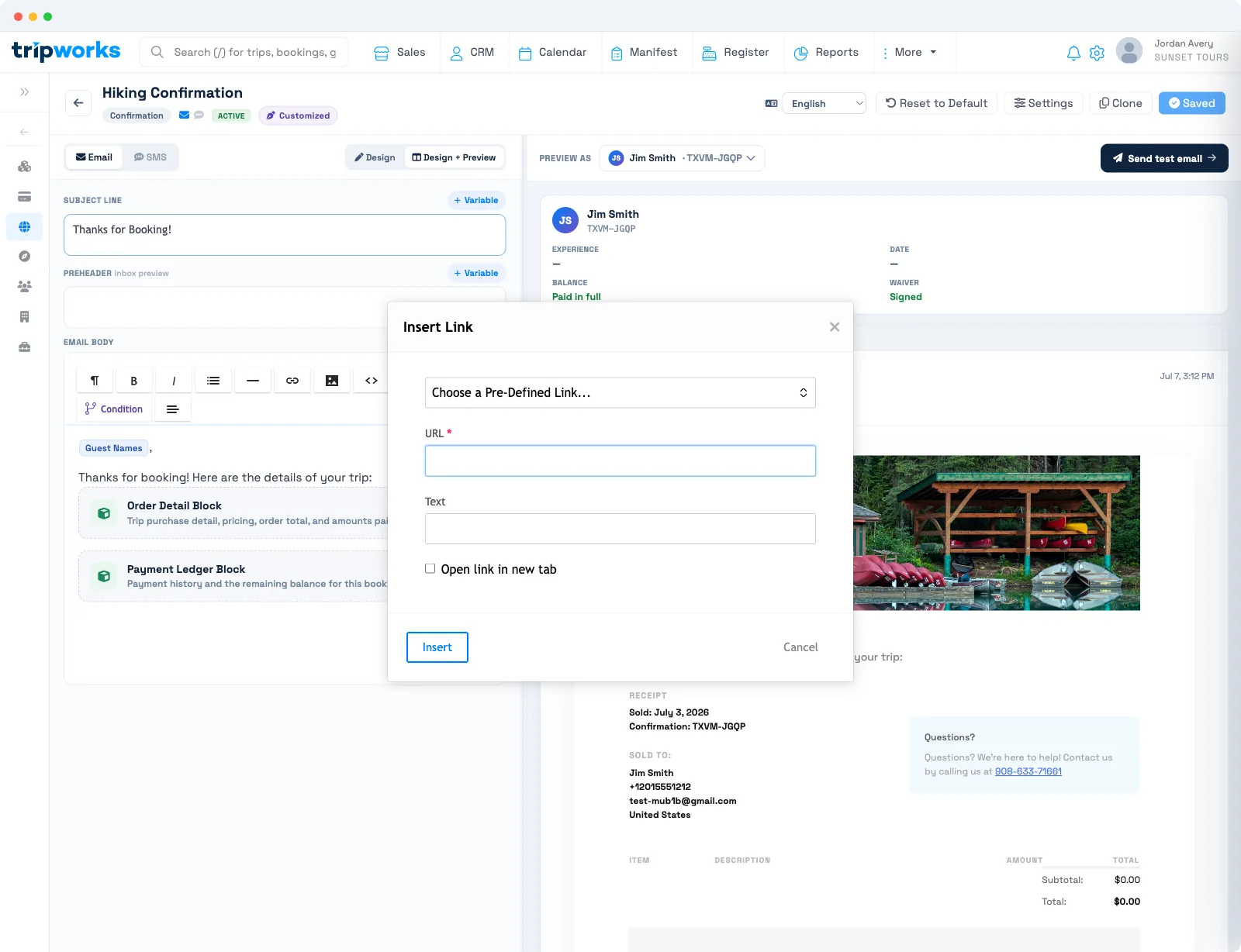
- Write your message, then add the pay action: type the link text you want (such as "Pay now"), highlight it, and use the link tool to set the destination to the Payment Request URL (the
#payment_url#variable).
When the message sends, TripWorks replaces the link with that guest's own payment page. The Studio saves your changes on its own.
Make the pay action stand out by styling it as a button rather than a plain link. See create, edit & manage message templates for the toolbar.
Send a payment request from a trip
Once the template exists, collecting a balance takes seconds — no phone call, no keying in a card:
- Open the trip with an outstanding balance and select Email.
- From the template dropdown, choose Request for Payment/Deposit (or your custom payment-request template). Add an optional note for context.
- Select Send.
The guest gets a secure link to pay their deposit, remaining balance, added tickets, or products online — and the payment applies to the booking automatically.
How the payment link works
The #payment_url# variable is guest-specific: each recipient gets a link to their booking's balance, so you send one template to many guests and each pays the right amount. The page accepts payment online and applies it to the booking, so you don't have to key in a card by hand.
Because the template is in the Payment Request category, you can send it manually to any booking with a balance — see how to send manual emails. Turn on SMS in the template's Settings drawer if you want guests to get the pay link by text as well as email.
Frequently asked questions
Which category does a payment-request template need?
Payment Request. That category is what lets the payment link resolve to each guest's balance. Set it when you create the template — it can't be changed afterward.
What link do I use for the pay button?
The Payment Request URL — the #payment_url# variable. Highlight your button text, open the link tool, and set the destination to that predefined link. TripWorks fills in each guest's own payment page at send time.
Can guests pay a deposit or partial balance this way?
Yes. The link opens the booking's payment page, so it works for a deposit, a remaining balance, added tickets, or products — whatever the guest owes on that booking.
Can I send the payment request by text?
Yes. Turn SMS on in the template's Settings drawer and add SMS content with the payment link. Guests can then get the pay link by text as well as email.
Related
Built for attractions, tours & activities
Collect balances without the phone call
See how attractions, tours, and activities send secure payment links and get paid faster on TripWorks. Book a demo and make the switch.