
You decide what guests can do for themselves in the customer portal. Go to Setup Sell online Customer Portal, turn on the self-service actions you want, and set the time limits — then Save.
In this article
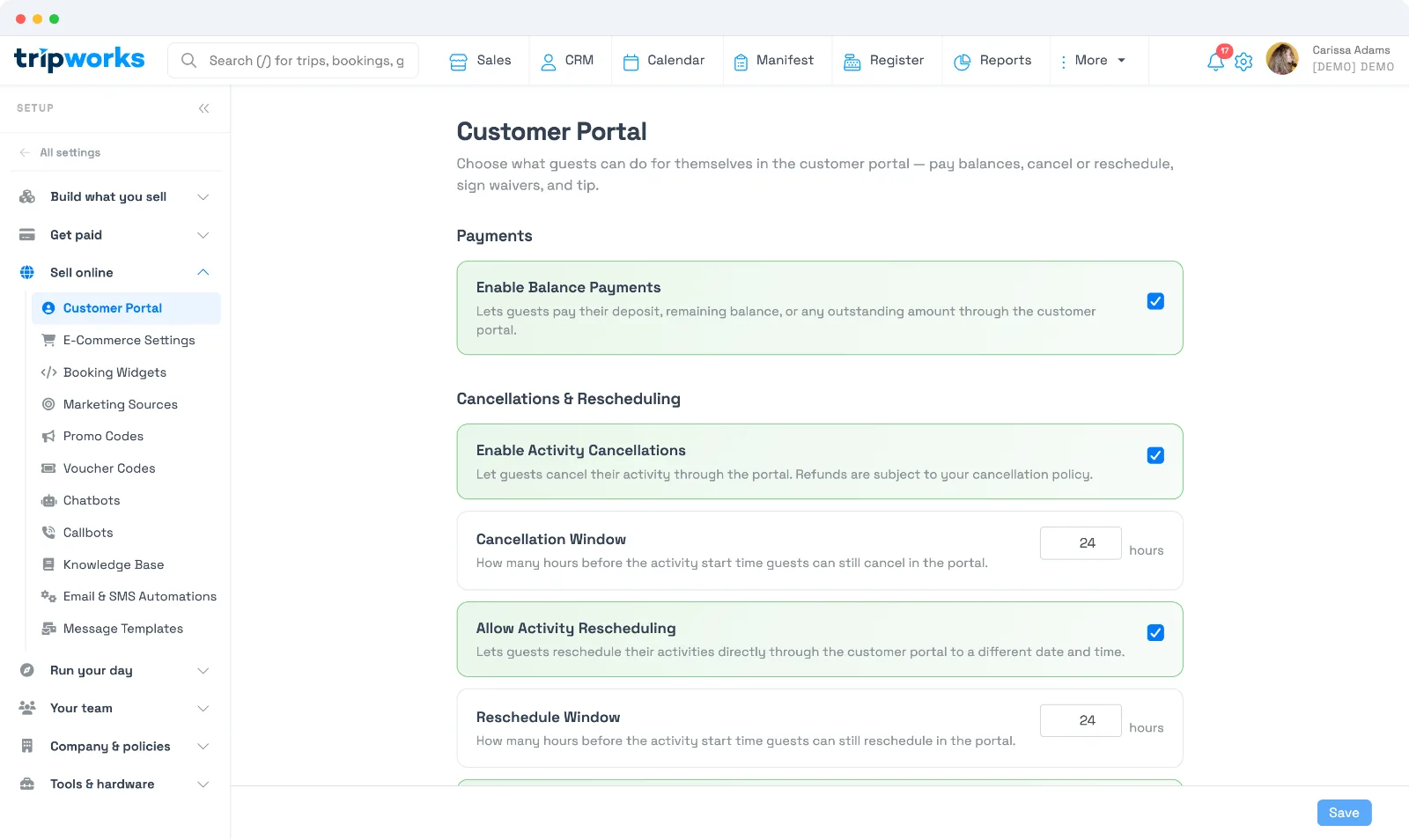
Payments
- Enable Balance Payments — lets guests pay their deposit, remaining balance, or any outstanding amount through the portal.
Cancellations & rescheduling
- Enable Activity Cancellations — lets guests cancel an activity from the portal. Refunds follow your cancellation policy.
- Cancellation Window — how many hours before the activity start time a guest can still cancel in the portal.
- Enable Automatic Refunds — issues the refund as soon as an eligible guest cancels, instead of leaving it for you. It applies to direct bookings paid entirely by card or entirely by gift card; anything else is routed to you. See Refund guests automatically when they cancel in the portal.
- Allow Activity Rescheduling — lets guests move an activity to a different date and time.
- Reschedule Window — how many hours before the start time a guest can still reschedule.
- Auto-Update Pricing When Rescheduled — recalculates the price when a guest changes date or time. A higher price prompts the guest to pay the difference (if Balance Payments is on); a lower price can be refunded at your discretion.
Waivers & tips
- Enable Standalone Waivers — let guests sign waivers that aren't tied to a specific booking.
- Enable Activity Tipping — let guests add a tip when managing their activity.
Changes take effect right away on new activity in the portal.
Send guests the portal link
The portal only helps if guests can reach it. Add the Customer Portal link to your confirmation and reminder templates: in the message editor, insert the Customer Portal Url variable. TripWorks turns it into a personal link to each guest's booking. (The same portal also powers your waiver links.)
Branding
The portal is branded automatically from your account: your company name and hero image appear at the top, and your phone and email show as "Need help?". There's no separate color or theme editor for the portal — it follows your account branding.
Frequently asked questions
What can guests actually do in the portal?
Whatever you enable here — pay a balance, reschedule, cancel, sign waivers, and tip. See Using the customer portal for the guest's view.
What do the cancellation and reschedule windows do?
They set how close to the activity's start time a guest can still cancel or reschedule themselves. For example, a 24-hour window stops self-service changes within 24 hours of start — after that they'd contact you.
How are refunds handled when a guest cancels in the portal?
Refunds follow your cancellation policy either way. Turn on Enable Automatic Refunds and an eligible cancellation is refunded the moment the guest confirms; without it, the cancellation is recorded and you issue the refund. See Refund guests automatically when they cancel in the portal.
How do guests get the portal link?
Add the Customer Portal Url variable to your confirmation and reminder message templates. Each guest receives a personal link to their booking's portal.
Related
- Using the customer portal
- Refund guests automatically when they cancel in the portal
- Reschedule, unschedule, or cancel a booking
- Collect & send waivers to guests
Built for attractions, tours & activities
Put guests in control — on your terms
See how attractions, tours, and activities set guardrails on guest self-service with TripWorks. Book a demo and make the switch.