
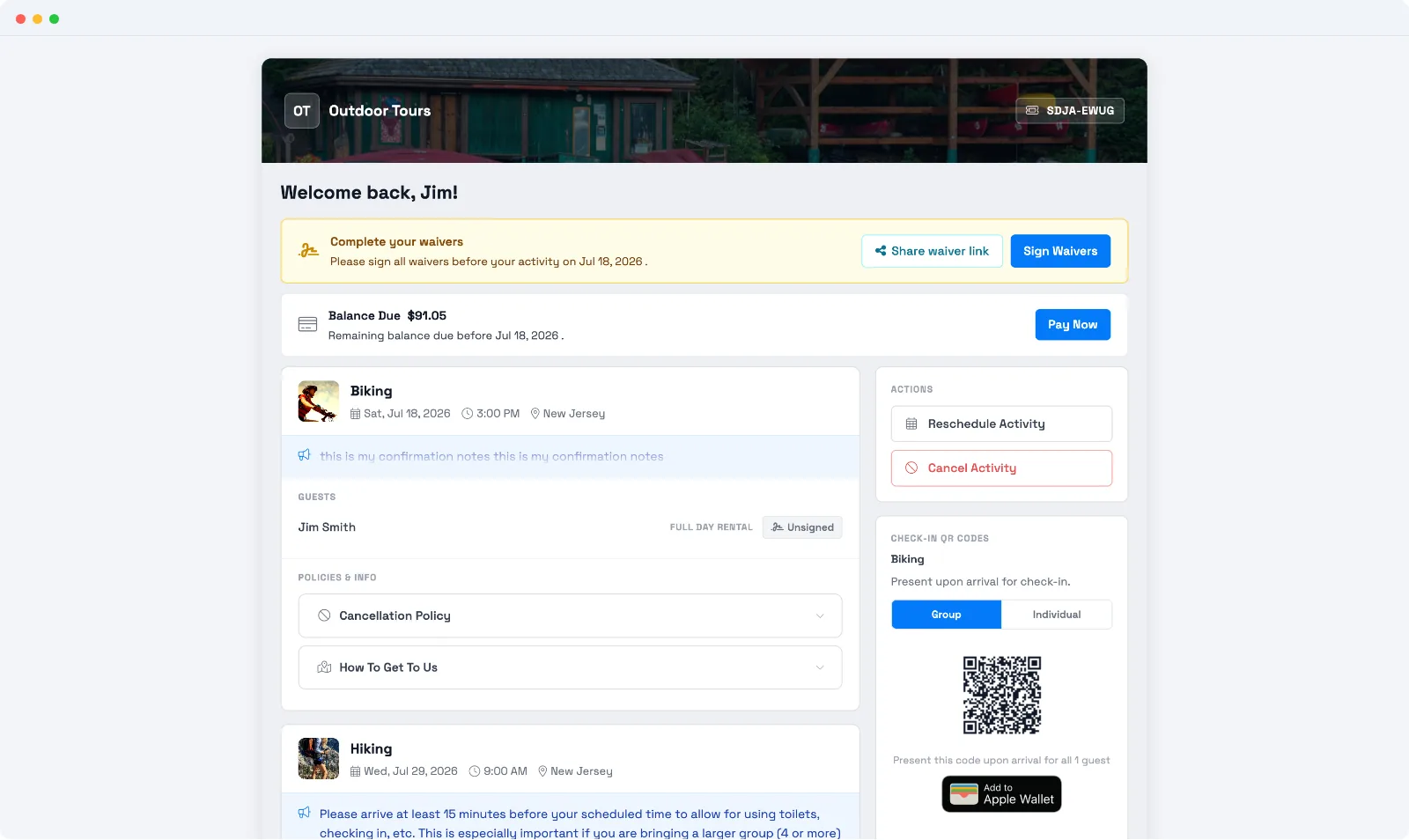
Every booking comes with a customer portal — a self-service page, branded with your company name and hero image, where guests can handle their booking themselves instead of calling you. What guests can do there is up to you; you turn each action on under Set up the customer portal.
In this article
How guests get to the portal
Guests reach the portal from a link you include in your messages — typically the confirmation and reminder emails or texts. Each guest gets a personal link straight to their booking's portal. See Set up the customer portal for adding the link to a template.
What guests can do
Depending on the settings you turn on, a guest can:
- See their booking — each activity's date, time, location, your notes and policies, and who's on the booking.
- Pay a balance — if there's an amount due, a Pay Now button lets them pay the deposit, remaining balance, or full amount.
- Reschedule or cancel an activity — move it to a new date and time, or cancel it, within the time limits you set. Refunds follow your cancellation policy, and with Automatic Refunds on, an eligible cancellation is refunded the moment the guest confirms.
- Sign waivers — a Complete your waivers banner lets them sign, or share the link with the rest of their party. See How guests sign a waiver.
- Leave a tip — add a tip when managing their activity.
- Check in — show a check-in QR code (for the whole group or an individual guest) on arrival, and add the pass to Apple Wallet on Apple devices.
- Get help — your phone number and email show under a "Need help?" section.
Guests who booked through an OTA
If a booking came through an OTA or reseller, the portal shows the trip details but hides pay, reschedule, cancel, and tip — those are managed by the OTA. The guest sees a note to contact the reseller directly.
Frequently asked questions
How does a guest get to their portal?
From the link in your confirmation or reminder message. Add the Customer Portal link to those templates so every guest gets a personal link to their booking — see Set up the customer portal.
Can guests pay, reschedule, or cancel from the portal?
Yes, if you turn those actions on. Each is a setting you control, along with how close to the start time a guest can still cancel or reschedule — see Set up the customer portal.
Why can't an OTA guest reschedule or pay in the portal?
Their booking is managed by the OTA they booked through, so those actions are hidden and the portal points them to the reseller. Direct bookings get the full set of self-service actions you've enabled.
Can a guest add their booking to a calendar?
On Apple devices they can add a pass to Apple Wallet. For arrival, the portal shows a check-in QR code they present on the day.
Related
- Set up the customer portal
- Refund guests automatically when they cancel in the portal
- Reschedule, unschedule, or cancel a booking
- How guests sign a waiver
Built for attractions, tours & activities
Let guests help themselves
See how attractions, tours, and activities cut inbound calls with a self-service guest portal on TripWorks. Book a demo and make the switch.