
Once you have set up your TSP654II AirPrint Receipt Printer, you can configure it to print on a single page from a Mac desktop. This requires installing the CUPS driver from Star Micronics and adding the printer to your Mac using a specific driver setting.
CUPS (Common Unix Printing System) is a network printing system built into macOS. It allows fine-grained control over how print jobs are handled, including the page-cut behavior needed for single-page thermal receipts.
Step 1: Find your printer's IP address
- Power the printer off.
- Hold the Feed button while powering the printer back on.
- Release the Feed button once the printer is on. It will print two pages.
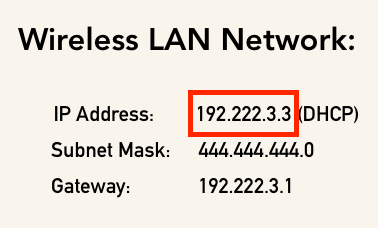
- On the second page, find the IP address listed under Wireless LAN Network.
Step 2: Install the CUPS driver and add the printer
- Go to the Star Micronics CUPS Driver for macOS page and download the driver. Follow the prompts to install it.
- On your Mac, open System Preferences and select Printers & Scanners.

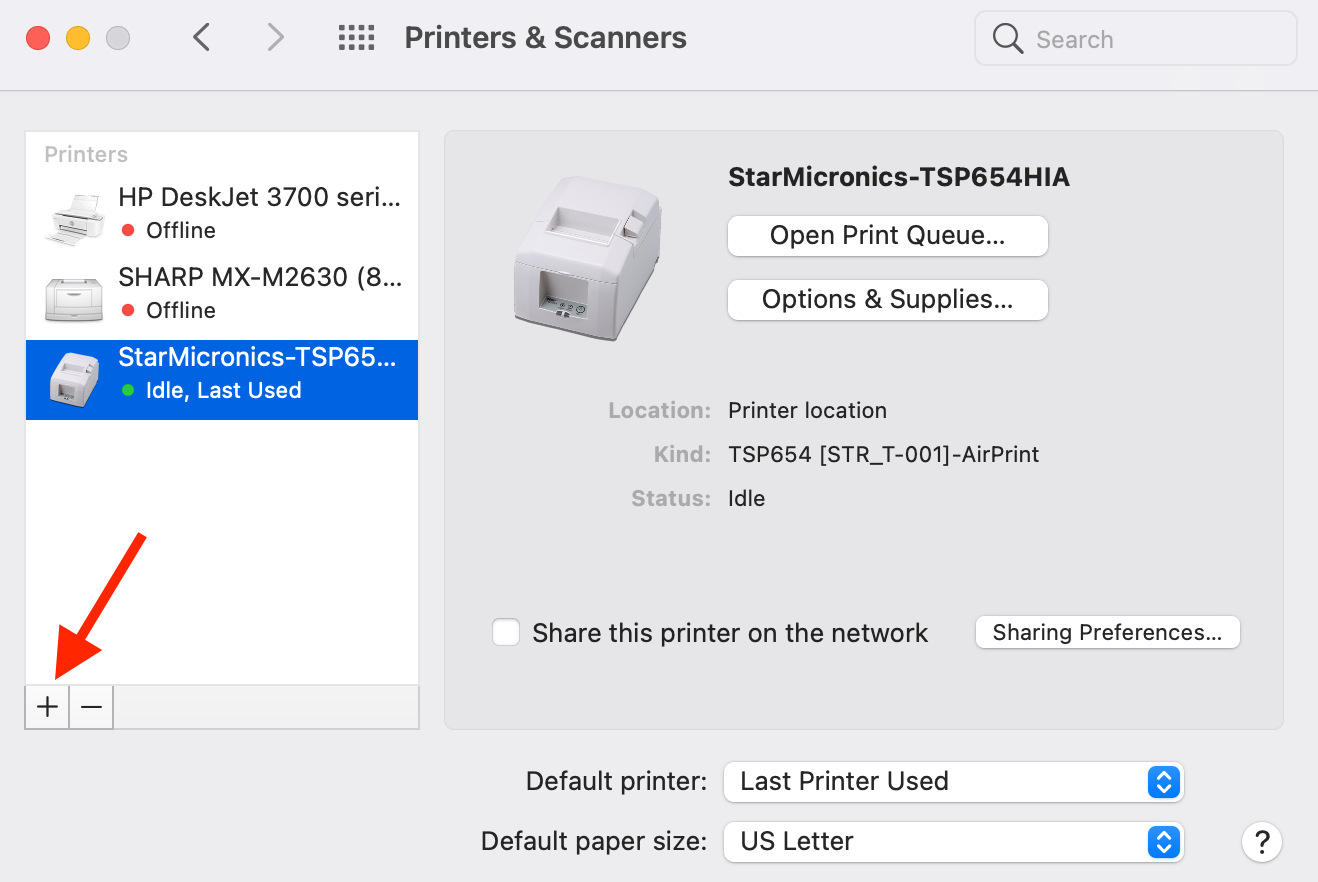
- Click the + icon to add a printer.
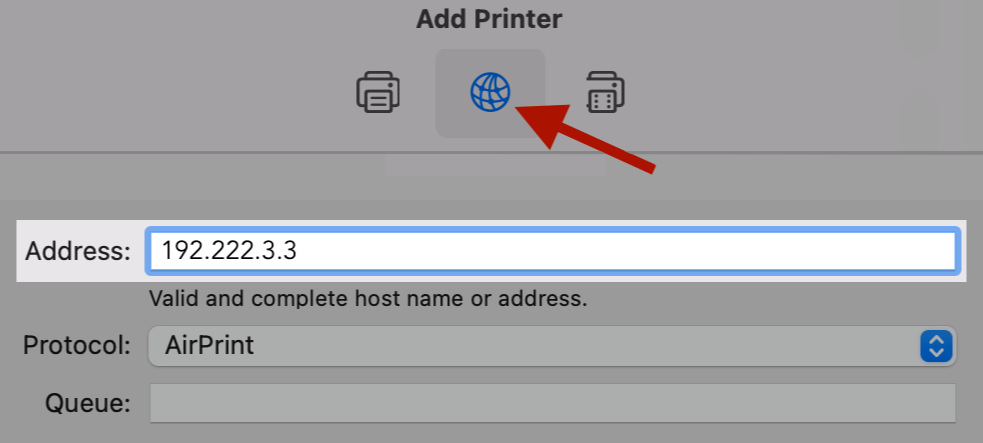
- In the Add Printer dialog, select the network icon and enter the printer's IP address in the Address field.
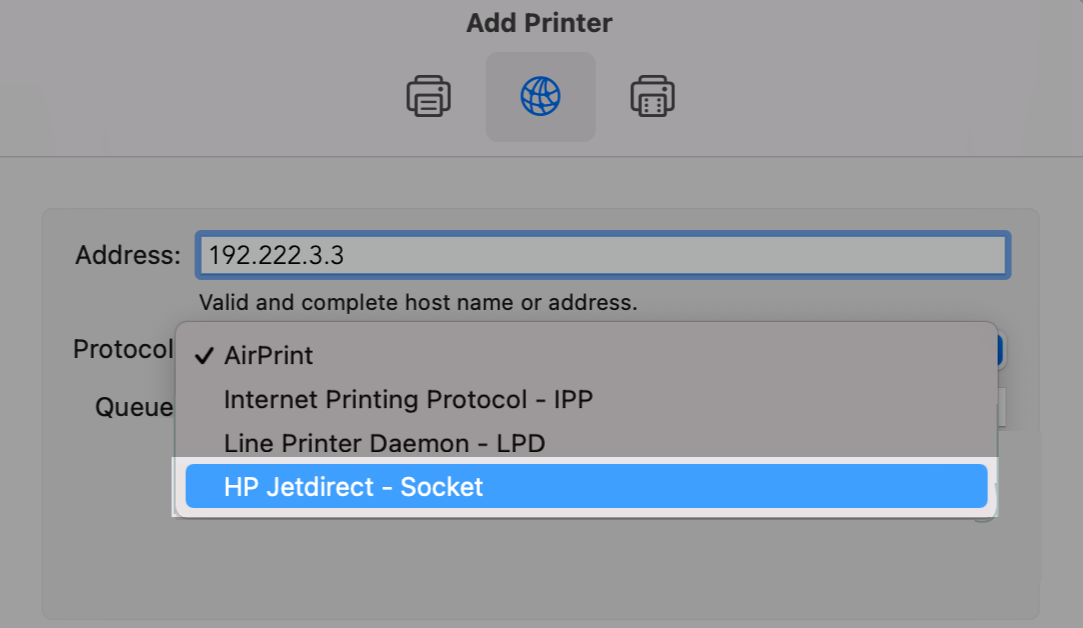
- From the Protocol menu, choose HP Jetdirect - Socket.
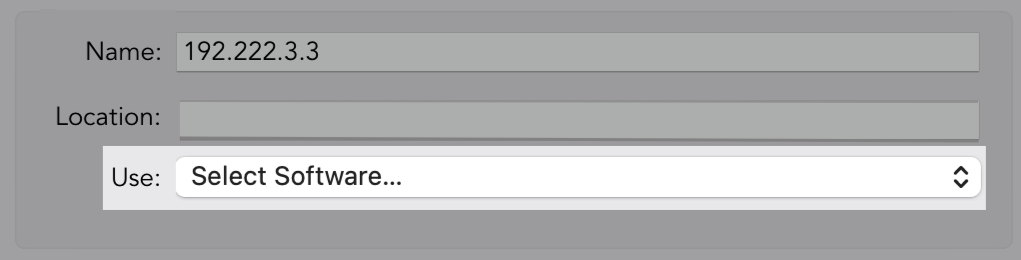
- From the Use menu, choose Select Software.
- In the Printer Software dialog, search for 650 and select TSP650 Cutter.
If TSP650 Cutter does not appear in the search results, the CUPS driver is not installed. Go back to Step 1 and install it before continuing.
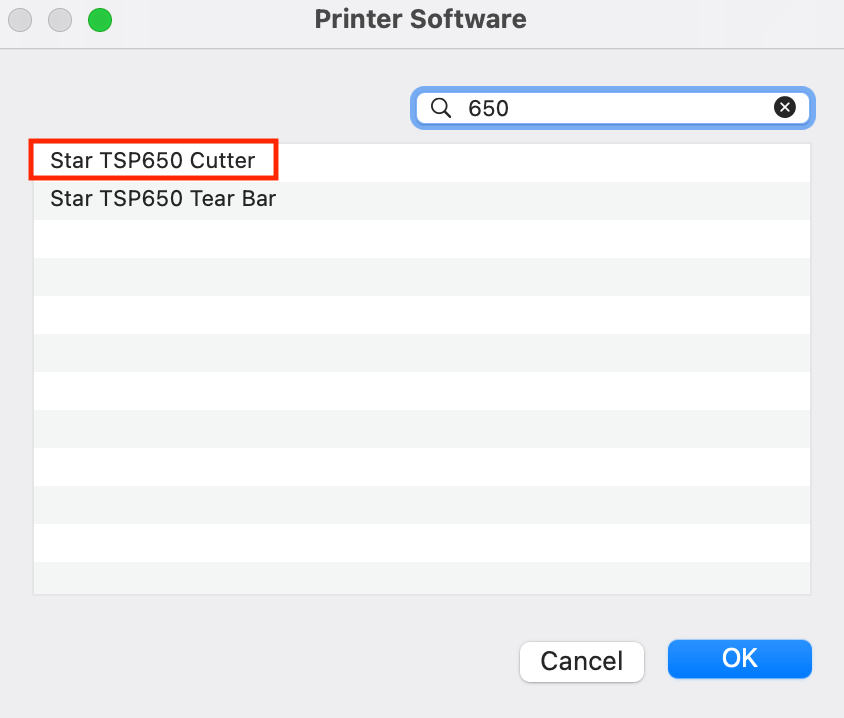
- Click OK, then click Add to confirm.
Your printer is now configured to print single-page receipts from your Mac.