
TripWorks supports three separate ways to print, and which one applies to you depends on the device you're printing from and the hardware you have. A laptop, an iPad, and a dedicated ticket printer each work differently, so this article gets you to the right one.
In this article
Printing from a desktop browser
If you're using TripWorks in a desktop browser (Chrome, Safari, Firefox), you can print a receipt to any printer your computer can already access: a standard office printer, a network printer, or a receipt printer connected by USB or network. No special configuration is required: open the trip, select Print Receipt, and your browser's standard print dialog appears with any available printer to choose from.
Printing from an iPad or iPhone
Printing from an iPad, iPhone, or any iOS device uses AirPrint. TripWorks supports the Star TSP654II AirPrint Receipt Printer for this. Once it's on the same WiFi network as your device, it appears as a print target whenever you print from inside TripWorks or from a receipt email.
- First-time setup: Set up your TSP654II AirPrint receipt printer
- Printing on a single page from a Mac desktop instead: see Send or print a receipt for a booking
Printing physical tickets with QZ Tray
Printing physical tickets (not receipts) uses QZ Tray, lightweight software that runs on your computer and connects TripWorks to a locally attached or networked printer, including thermal ticket printers. You configure it under Setup → Tools & hardware → Ticket Printing, where you set a raw printer command, the data fields to merge into each ticket, and a default printer. QZ Tray has to be running on the device you're printing from.
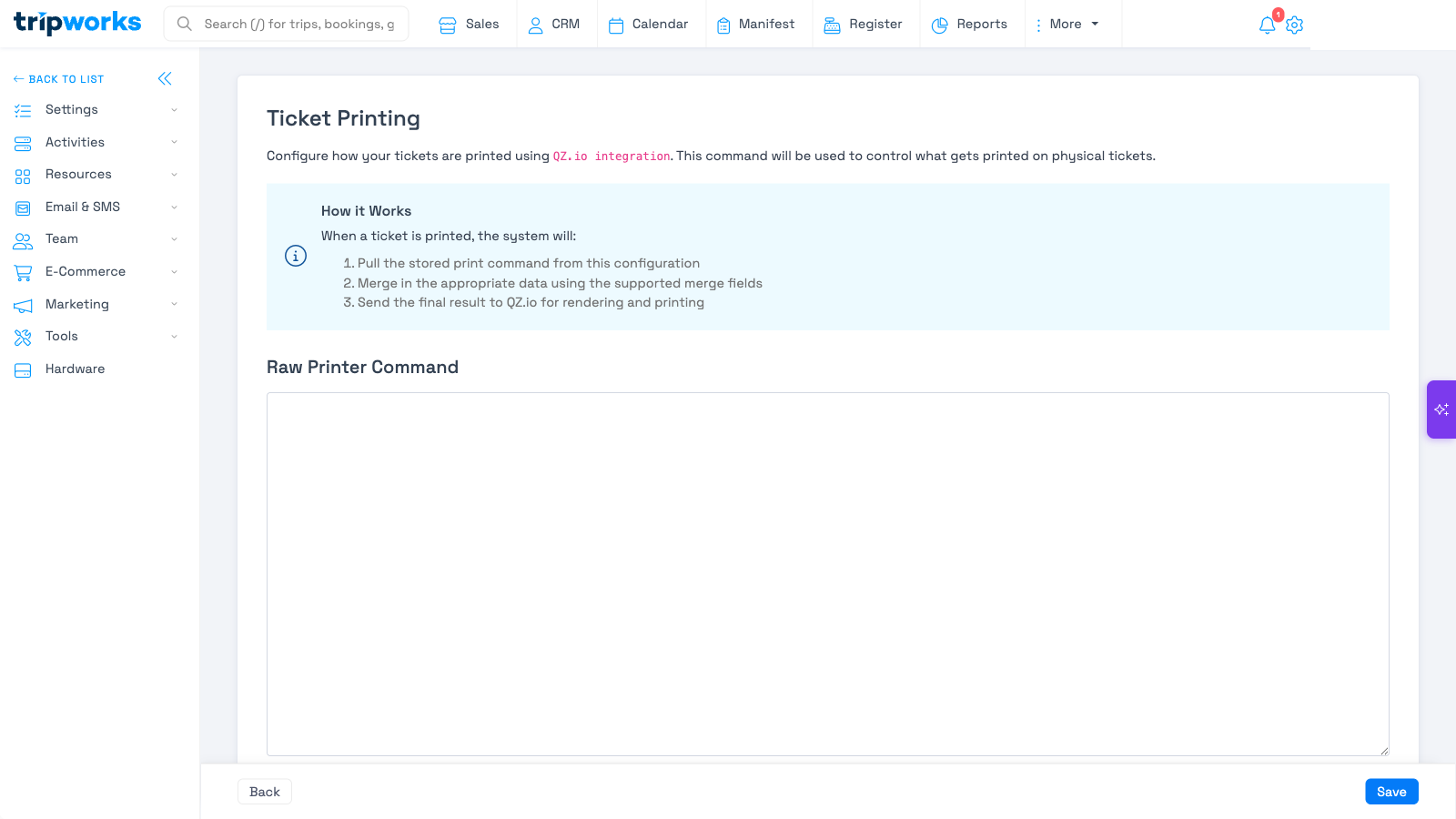
Ticket printing and receipt printing are separate features. Ticket printing uses QZ Tray and is configured under Settings; receipt printing uses your browser or AirPrint and needs no extra software.
See Set up ticket printing with QZ Tray for the full setup.
Which one do I need?
- Printing from a laptop or desktop → your browser's print dialog, any printer works.
- Printing from an iPad or iPhone → the TSP654II AirPrint printer on your WiFi network.
- Printing physical event tickets, not receipts → QZ Tray, configured under Settings.
Frequently asked questions
Can I print receipts on any printer?
From a desktop browser, yes — your browser's print dialog can send a receipt to any printer your computer can reach. From an iPad or iPhone, only the Star TSP654II AirPrint printer works with TripWorks.
Do I need QZ Tray for receipts too?
No. QZ Tray is only for physical ticket printing. Receipts print through your browser or AirPrint and need no extra software.
Related
- Set up ticket printing with QZ Tray
- Set up your TSP654II AirPrint receipt printer
- Send or print a receipt for a booking
Built for attractions, tours & activities
Run the front desk without the friction
See how attractions, tours, and activities print tickets, run walk-ups, and check guests in — on the hardware they already have — with TripWorks. Book a demo and make the switch.