
A guest needs a receipt for their expenses or their business — and usually they want it emailed to them. You can send a guest their receipt straight from the booking, and re-send it any time they ask. (If they'd rather have a paper copy or a PDF, you can print it too.) Either way it pulls from the booking, so the amounts, taxes, and payments are already correct.
In this article
Send a receipt to the guest
The quickest way to get a guest their receipt is to email it from the booking — and you can do it as many times as they ask:
- Open the booking (Bookings → open the trip).
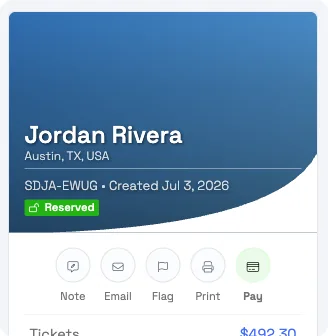
- Click the Email action to open the Send a Message composer. (The Email action appears once the guest has an email on file.)
- Under Choose a template, pick your receipt template.
- (Optional) Add a short note, switch the language, or CC someone (yourself, or all bookings on the trip).
- Click Send — it goes to the guest's email on file.
The guest gets their itemized receipt by email, and you can re-send it whenever they need another copy.
Your receipt template (set up once)
TripWorks doesn't have a separate "receipt" template type. A receipt is simply an email template built with two blocks — the Order Detail Block (line items, taxes, total) and the Payment Ledger Block (payments and balance) — which together make it read like a formal receipt. Two ways to have one:
- Add those two blocks to your Confirmation template — then your confirmation is the receipt, and it already appears in the send picker.
- Or build a dedicated User Defined Message template (a "Receipt" you send by hand) with the same two blocks, and set it Live so it shows up in the picker.
See create a receipt email template for the step-by-step, and send manual emails for the full composer options.
Prefer a printed copy or a PDF?
If a guest wants a paper receipt at the desk — or you'd rather attach a PDF yourself:
- Open the (Reserved) booking and click Print (the printer icon) in the action row.
- Your browser's print dialog opens on the Sales Receipt — send it to a printer, or choose Save as PDF.
The Print button appears once a booking is Reserved — a draft or unconfirmed cart won't show it. The printed receipt is formatted for a standard (72 mm) receipt roll, so for a polished copy the guest keeps, emailing the receipt is usually the better route.
Make it look official
What appears on the receipt comes from your account settings, so a guest's "formal" receipt has your business identity on it. Under Setup General:
- Company name, contact email, and phone print in the header.
- The Receipt Legal Footer prints at the bottom — use it for a tax ID, refund policy, or "Thank you for your business."
Taxes and surcharges show as line items when they apply (set them up in taxes & surcharges), and an individual activity can add its own receipt footer on top of the account default. Open the activity, then go to Description → Advanced → Receipts & tickets and enter the Receipt footer text.
Frequently asked questions
How do I send a customer a receipt on request?
Open their booking, click the Email action to open the Send a Message composer, choose your receipt template, and click Send. It emails the guest's address on file, and you can re-send it any time they ask.
Can I re-send a receipt if the guest asks again?
Yes — there's no limit. Sending a receipt is just sending a template from the booking, so you can email it again whenever a guest needs another copy.
Which template is the "receipt"?
There's no separate receipt template type. A receipt is any template built with the Order Detail Block and Payment Ledger Block — usually your Confirmation template, or a User Defined Message you create for this. Any live template shows up in the send picker. See Create a receipt email template.
Can I put my business name and tax ID on the receipt?
Yes. Your company name, email, and phone come from Setup → Company & policies → Company Info & Branding and print in the header; add a tax ID or policy text in the Receipt Legal Footer field, which prints at the bottom of every receipt.
Why don't I see a Print button on this booking?
The Print button shows once the booking is Reserved. A draft or unconfirmed cart won't display it — reserve the booking first, then print.
Can I save the receipt as a PDF?
Yes. Click Print, then in your browser's print dialog choose "Save as PDF" (the destination dropdown) instead of a printer. You'll get a PDF you can attach to an email.
Does the receipt show taxes and the amount paid?
Yes. It itemizes the order, lists each applicable tax and surcharge, the tip and booking fee, the total, and a payment ledger showing what's been paid and what's still due.
Can I add different footer text for one activity?
Yes. An activity can have its own receipt footer, which prints above your account-wide legal footer — useful for activity-specific terms or instructions.
Can the guest download their own receipt?
The customer portal offers a booking confirmation (voucher) download rather than a formal receipt. For a receipt, print/save it for them or email them the receipt message.
Related
Built for attractions, tours & activities
A clean receipt, whenever a guest asks
See how attractions, tours, and activities handle receipts on TripWorks. Book a demo and make the switch.