
Quick answers to the questions operators ask most about Lead Center. For the full picture, start with the Lead Center overview, then How lead statuses work and Working your leads.
In this article
The basics
What is Lead Center?
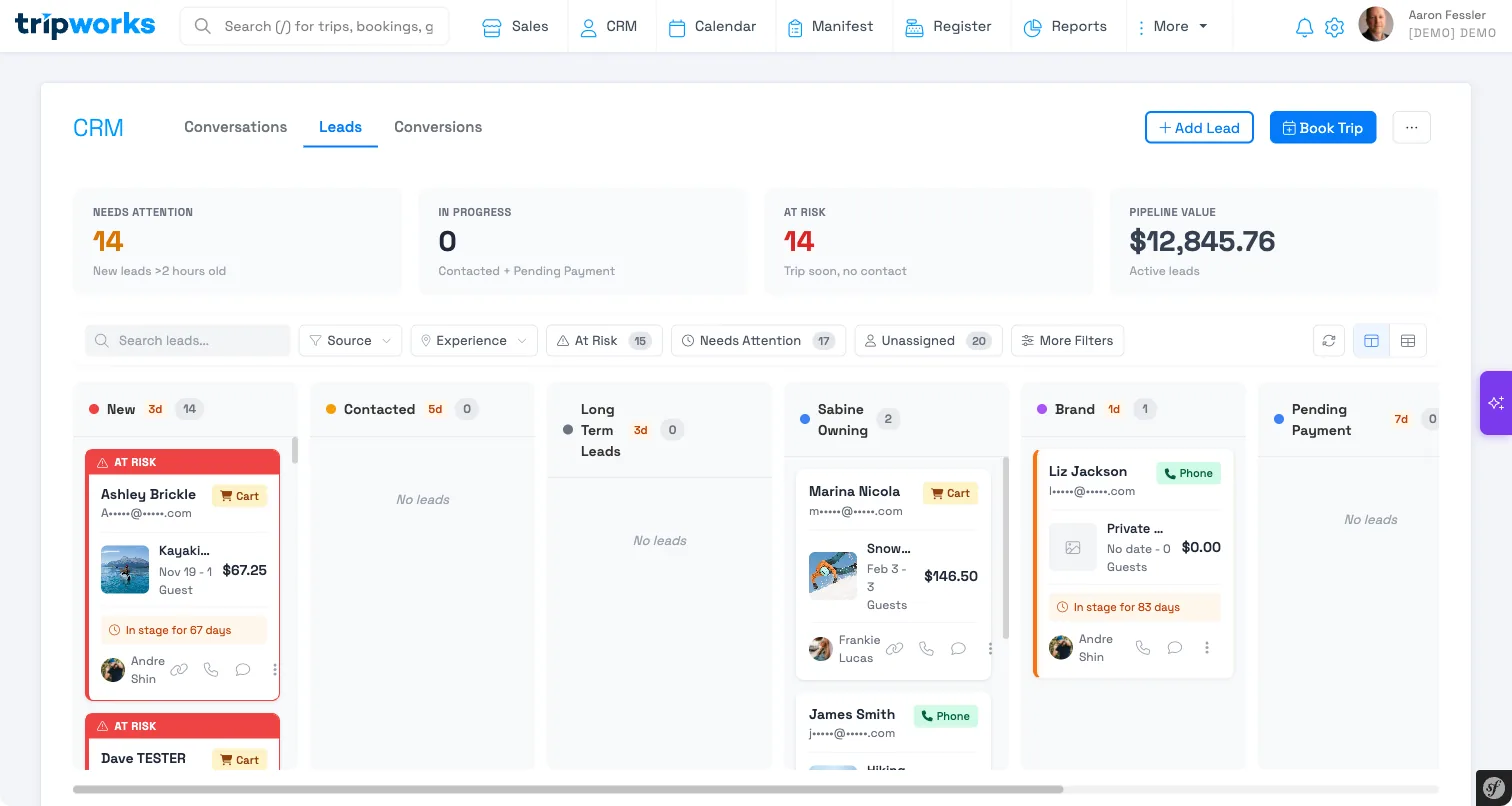
Lead Center is TripWorks' built-in pipeline for the would-be bookings that didn't finish — abandoned carts, AI chat and CallBot conversations, enquiry forms, and leads you add by hand. Instead of that interest evaporating, it collects in one list you can work, so you can follow up and win the bookings back.
What counts as a lead?
A lead is a guest who showed real interest but hasn't completed a booking. TripWorks creates leads from several sources: Cart (an unfinished online checkout), AI Chat, AI Call (the AI CallBot), Form (an enquiry), Phone, and Manual (ones you add yourself).
Where do I find Lead Center?
Open Lead Center from your TripWorks dashboard to see your whole pipeline in one place. It needs no setup to start collecting leads — open it whenever you're ready to work them.
Leads vs. other tools
Is a lead the same as an abandoned cart?
Not quite. An abandoned cart is an unfinished online booking; a lead is how that near-miss shows up in Lead Center so you can act on it. Every eligible abandoned cart becomes a lead, but Lead Center also gathers leads from AI chat, the AI CallBot, enquiry forms, and manual entry — so it's a wider pipeline than carts alone. See Lead Center and abandoned-cart recovery.
How is Lead Center different from Calls?
Calls captures answered live phone calls with full recordings, transcripts, and analysis. Lead Center is for the would-be bookings that stopped short and need a follow-up. An answered live call doesn't create a lead on its own — but you can add a lead by hand for a caller you want to chase.
Do I still need Lead Center if abandoned-cart emails are automatic?
Yes. Automatic recovery emails win back the guests who just needed a reminder, but they can't make a call, answer a question, or tailor an offer. Lead Center is the human layer where high-value leads collect so you can work them personally. The two cover different opportunities. See Lead Center and abandoned-cart recovery.
Statuses
What do the lead statuses mean?
Leads move through five statuses: New (nobody's reached the guest yet), Contacted (reached at least once), Pending Payment (a payment link is out), Converted (they booked), and Lost (the opportunity didn't come back). Converted and Lost are the terminal outcomes. Full detail is in How lead statuses work.
Why did a lead move to Contacted on its own?
Because the guest was reached. A New lead advances to Contacted automatically when TripWorks sends an automatic recovery email for the cart, or when you log a call, email, or meeting on it. This keeps your pipeline honest — the leads still at New are the ones nobody has touched yet.
Why did a lead become Lost?
If a lead never converts and the tour's date and time pass while the booking is still unfinished, TripWorks marks it Lost automatically, so your active pipeline only shows live opportunities. You can also mark a lead Lost by hand — for example, if the guest tells you they booked elsewhere.
Can I add my own statuses?
Yes. You can add custom stages between Contacted and Pending Payment to match your team's workflow. The built-in anchors stay put: leads still start at New, and Converted and Lost remain the terminal outcomes.
Working leads
How do I follow up on a lead?
Open the lead to see where it came from and what the guest wanted, then reach out and log the call, email, or meeting on it. When the guest is ready, send a payment link straight from the lead. See Working your leads.
Can I add a lead myself?
Yes. Alongside the automatic sources, you can add a lead by hand for a phone conversation or walk-up you want to follow up on. It joins the same pipeline, with a status and a timeline, like any other lead.
Can I assign leads to team members?
Yes. Assign a lead to a specific person so it's clear who owns the next step, and set a follow-up reminder so leads that need another touch resurface on the right day.