
When you sell through a reseller or OTA that takes a commission, the number you care about is what you actually keep. TripWorks calculates that for you — the trick is reading the right column and making sure each reseller's commission is set up.
In this article
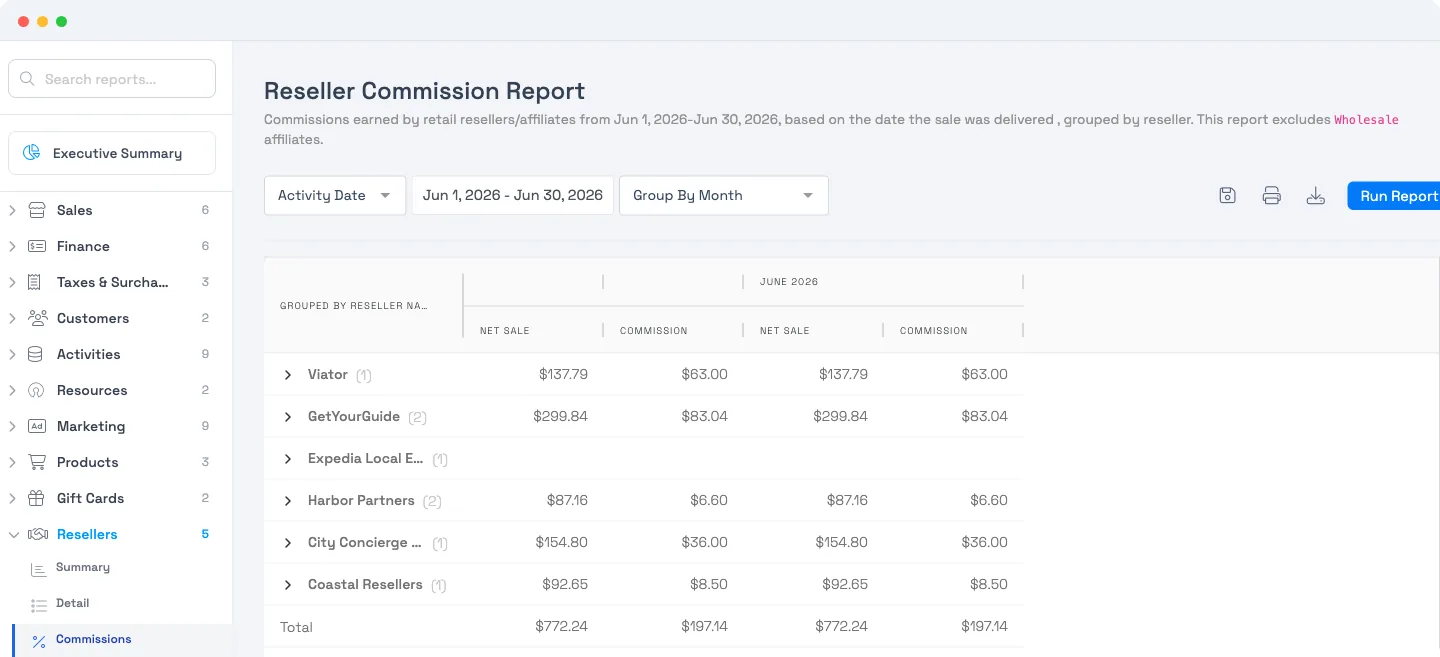
The key idea: Net Sale is already net of commission
This is the one thing that trips people up. On a reseller booking:
- Subtotal is the gross sale.
- Net Sale is what you keep after the reseller's commission has been subtracted.
So don't subtract commission from Subtotal yourself — Net Sale has already done it. If your hand-math doesn't match, you're often comparing against Subtotal instead of Net Sale.
But there's a bigger "gotcha," especially with OTAs like Viator: Net Sale is only right if TripWorks is using the correct commission in the first place. If your figures don't match what the partner actually pays you, the fix is almost always in the reseller's settings — see OTA bookings: match the partner's payout below.
The reseller reports
Find these under Reports (search "reseller"):
- Reseller Commission — the cleanest answer to "what do I owe and what do I keep." Shows Commission and Net Sale, and includes only bookings where you actually pay a commission (it excludes retail-type resellers).
- Reseller Summary — every reseller's sales grouped by reseller, with Pax, Subtotal, Payments, Commission, and Net Sale.
- Reseller Detail — the same, broken out to individual bookings.
Each report has a grand-total row and can be exported to CSV.
If commission shows as zero
If a report shows no commission, the report isn't wrong — the reseller's commission usually isn't configured. Open the reseller's Settings tab and set the Commission Mode (Global or Per-Activity), the Type (a percentage, up to 60%, or a fixed amount), and the rate/amount.
Commission applies going forward, to bookings made after it's set — it isn't back-applied to bookings that were already taken with no commission on file.
OTA bookings (Viator, GetYourGuide): match the partner's payout
This is the one that catches people out. With an OTA, the guest pays the OTA, the OTA keeps its cut, and it remits the net to you. For the customer total in TripWorks to match what the OTA actually pays you, two settings on that reseller have to be right. Open the reseller (e.g. Viator) → Settings:
- Guest Payment Amount → Wholesale. This tells TripWorks the OTA keeps its commission and pays you the net — so the commission is subtracted from the trip total. If it's set to Retail, commission is never taken out and the total shows the full retail price.
- Auto calculate commission rate → on. With this on, TripWorks uses the net amount the OTA reports on each transaction and works out the commission from that. This is what you want when the OTA's cut can vary per booking — for example Viator's Accelerate program, where the commission changes based on what you've bid.
With Wholesale + Auto calculate on, your Viator bookings follow the amount Viator actually pays you, even as that rate moves.
If you'd rather use a fixed rate
If you leave Auto calculate off, TripWorks uses the commission rate you type on the reseller — it has no way to see what you've set on the OTA's side. So if your Viator commission changes (or was set differently inside Viator), you have to update the rate in TripWorks by hand to keep them in sync. TripWorks can't reconcile that for you — the OTA doesn't expose your rate settings — so keeping the typed rate matching your real OTA cut is on you.
If you use Auto calculate, the customer/trip total is what tracks the OTA's actual payout. The "Net Earned" figure is calculated from your configured rate, so for the truest picture of an OTA booking, reconcile against the trip total (and the net the OTA reports), not just the Net Earned column.
Frequently asked questions
Which column shows what I keep after a reseller's commission?
Net Sale. It's already net of the reseller's commission. Subtotal is the gross amount before commission — read Net Sale for your take-home, and don't subtract commission from Subtotal a second time.
Which report should I run to see commission owed?
Run the Reseller Commission report for your date range. It shows the Commission column (what's owed to / kept by the reseller) and Net Sale (what you keep), and it only includes bookings that actually carry a commission.
Why is my commission showing as zero?
Almost always because the reseller has no commission configured. Open the reseller → Settings tab and set the commission mode, type, and rate. It applies to bookings made after that, so past bookings with no commission on file stay at zero.
My Viator total doesn't match what Viator actually pays me — what's wrong?
This is a settings issue on the Viator reseller. Set Guest Payment Amount to Wholesale (so commission is subtracted) and turn on Auto calculate commission rate (so TripWorks uses the net amount Viator reports on each booking — which is what changes under Viator's Accelerate program). With both on, the trip total follows Viator's actual payout.
What is "Auto calculate commission rate"?
It tells TripWorks to take the net amount the OTA reports on each transaction and work out the commission from that, instead of using a rate you typed. Turn it on when the OTA's cut can vary per booking (like Viator Accelerate). With it off, TripWorks uses your typed rate — and can't see what you set inside the OTA, so you'd have to keep the two in sync by hand.
Can TripWorks reconcile my commission with what I set inside Viator?
Not directly — the OTA doesn't expose your rate settings to us. Either turn on Auto calculate (so TripWorks uses the net Viator sends per booking), or manually set the reseller's commission rate in TripWorks to match your real Viator cut and update it whenever it changes.
What's the difference between Retail and Wholesale on a reseller?
It's the "Guest Payment Amount" setting. Wholesale = the partner keeps its commission and pays you the net, so TripWorks subtracts commission from the total (use this for OTAs like Viator). Retail = the payee remits the full retail price including commission, so commission isn't subtracted from the total — you settle it with the partner separately.
My totals don't match what I expected — what's wrong?
Two common causes. First, comparing gross to net — Subtotal is gross, Net Sale is after commission. Second (for OTAs), the commission TripWorks is using is wrong — check the Wholesale + Auto-calculate settings above. See Why don't my report totals match? for other causes.
What's the difference between the Reseller Commission and Reseller Summary reports?
Reseller Commission is focused: Commission and Net Sale, only for bookings you pay commission on. Reseller Summary is broader: every reseller's Pax, Subtotal, Payments, Commission, and Net Sale, including retail resellers.
Can commission be a flat fee instead of a percentage?
Yes. On the reseller's Settings tab, set the Type to a fixed amount instead of a percentage. You can also choose whether it applies globally or per activity.
Can I export the reseller report?
Yes — every reseller report has a CSV export action and a grand-total row, so you can hand it to your accountant or reconcile it against a reseller's statement.
Does this cover OTA bookings like Viator and GetYourGuide?
Yes — OTAs are resellers in TripWorks, so their bookings appear in these reports. See How OTA & reseller bookings connect for how those connections work.
Related
Built for attractions, tours & activities
Know exactly what you keep
See how attractions, tours, and activities track reseller revenue on TripWorks. Book a demo and make the switch.