
Need to remove a booking that shouldn't exist — a duplicate, a mistake, or test data? You can delete a single booking from its trip screen. For a batch created by an import, there's a faster way (below).
In this article
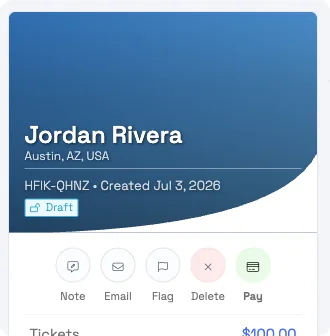
Delete a single booking
- Open the booking (Bookings → open the trip, or open it from the customer).
- In the trip summary card, click Delete (the red X).
- Confirm in Delete this Trip?
The booking is marked Deleted and drops out of your active lists. It's kept in the background (not fully erased) so your records stay complete.
Delete vs cancel vs unschedule
These are different — pick the one you mean:
- Delete — removes the whole booking (for duplicates/mistakes/test data). Only for bookings with no payments.
- Cancel — keeps the booking as a record but releases the seats; it does not refund. Use when a real guest isn't coming.
- Unschedule (Clear Date/Time) — keeps the booking and its payment, just removes the date so you can rebook later.
See reschedule, unschedule & cancel a trip for the last two.
Remove a batch of imported bookings (duplicates or test data)
If unwanted bookings came from an import — duplicate events, or test data you want gone before go-live — the cleanest fix is to roll back the import rather than deleting trips one by one:
- Go to Setup Tools Data Importer and open the import history.
- Find the import that created the bookings.
- If it finished within the last 24 hours, click Delete on that import and confirm.
This removes every booking from that import (and imported customers not used elsewhere). It won't run if some of those records were reused afterward (for example, an imported customer later made a real booking) — you'll get a message naming what to clear first. See using the importer tool.
The import rollback is only available for 24 hours after the import completes. After that, there's no bulk delete — you'd remove bookings one at a time, or contact TripWorks support for a larger cleanup.
Frequently asked questions
How do I delete a single booking?
Open the booking, click Delete (the red X) in the trip summary card, and confirm. It's marked Deleted and leaves your active lists. It works only for bookings with no payments.
Why is there no Delete button on this booking?
Delete only shows when the booking has no payments or gift cards, isn't a wholesale-reseller booking, and you have the booking-edit permission. If a payment exists, refund or cancel it first.
Is a deleted booking gone forever?
It's removed from your active lists and marked Deleted, but kept in the background for your records rather than fully erased. If you delete one by mistake, contact support.
What's the difference between deleting and cancelling?
Delete removes a booking that shouldn't exist (duplicate/mistake/test), and only works with no payments. Cancel keeps a real booking as a record but frees the seats and doesn't refund. Unschedule keeps the booking and its payment but removes the date.
How do I remove a bunch of duplicate bookings from an import?
Roll back the import: Setup → Tools → Data Importer → find the import → Delete (available for 24 hours after it completes). That removes all bookings from that import at once, plus imported customers not used elsewhere.
How do I clear out test bookings before we go live?
If the test data came from an import within the last 24 hours, delete that import to wipe it in one step. Otherwise, delete unpaid test bookings one at a time, or ask TripWorks support for a bulk cleanup.
Can I select many bookings and delete them at once?
Not from the bookings list — there's no multi-select delete there. The only bulk removal is the import rollback (within 24 hours). Otherwise it's one booking at a time.
Related
Built for attractions, tours & activities
Keep your bookings clean
See how attractions, tours, and activities manage bookings on TripWorks. Book a demo and make the switch.