
Flagging is how you send a booking to a specific teammate for review. When a sale needs a particular person's eyes — a problem to sort out, a VIP to handle personally, a detail to double-check — you flag it to that person and add a note explaining why. The flag attaches a "please look at this" marker to the booking, addressed to one teammate, and it stays until they clear it.
In this article
It's not a status or a label on the booking for everyone — it's a targeted, tracked handoff to one person, so the right thing lands with the right teammate instead of getting lost in a shared list.
One rule that follows from that: you flag to other people, not to yourself. Because flagging is about routing a review to someone else, your own name won't appear in the list of people you can flag to.
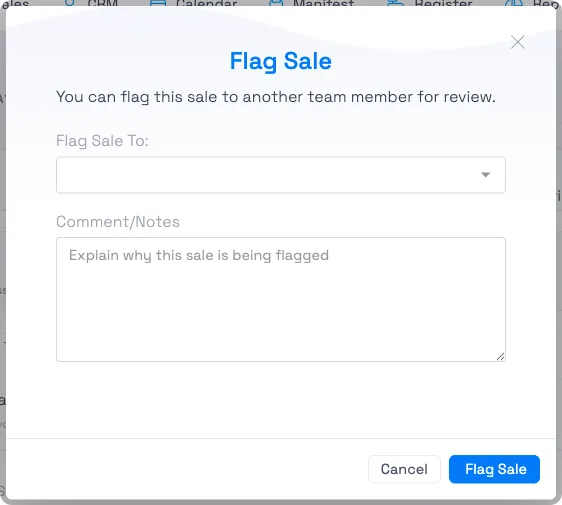
Flag a trip
- Open the trip.
- Select Flag in the trip's action row.
- In Flag Sale, pick the teammate under Flag Sale To, and in Comment/Notes explain why you're flagging it — this note is how they know what to look at.
- Select Flag Sale.
The trip then shows a flag banner at the top — "Sale flagged to [name] … by [you], [time] ago" — so anyone opening the booking sees it's under review and who owns it. Your note is also saved to the booking's Notes, so the context stays with the trip.
Flagging needs the trip-flag permission. If you don't see the Flag action, ask an admin to enable it for your permission group.
Good times to flag
- A payment or booking problem you need a specific person (say, a manager) to resolve.
- A VIP or special-handling booking you want a particular guide or lead to own.
- Anything a teammate asked you to route to them for a decision — a refund approval, a change request, a follow-up call.
Where the assignee sees flagged trips
When a trip is flagged to someone, it shows up for them in three places:
- Notifications — the bell icon in the top toolbar shows their flagged trips, with a count of how many need attention.
- The dashboard — a Flagged Trips section lists what's assigned to them, with a quick way to open and resolve each one.
- Reports — a Flagged Trips report (under CRM) lists everything flagged in a period, filterable by who it was flagged to, who flagged it, and confirmation code — useful for a manager reviewing across the team.
The flag note is also saved to the booking's notes, so the context stays with the trip.
Unflag when it's handled
Once the assignee has taken care of it, they clear the flag from the trip's flag banner (this needs the trip-flag permission). The trip drops out of the flagged-trips views, so the list always reflects what still needs attention.
Frequently asked questions
What does flagging a trip do?
It sends the booking to a specific teammate for review, with a note on why. Flagging isn't a general status or label — it's a targeted, tracked handoff to one person, so a booking that needs attention lands with the right teammate and stays flagged until they clear it.
How do I flag a trip to a team member?
Open the trip, select Flag, choose the team member, add a note about what's needed, and confirm. It appears in their flagged-trips views and as a banner on the trip.
Can I flag a trip to myself?
No. Flagging is for delegating a trip to someone else, so your own name isn't offered in the list of people to flag to.
Where do I see the trips flagged to me?
Three places: the Notifications bell in the top toolbar (with a count), a Flagged Trips section on the dashboard, and the Flagged Trips report under Reports → CRM.
How do I unflag a trip once it's resolved?
Open the trip and clear the flag from its flag banner. It then drops out of the flagged-trips views. This needs the trip-flag permission.
Why don't I see the Flag option?
Flagging is gated by the trip-flag permission. If the Flag action isn't there, ask an administrator to enable it for your permission group.
Does the person get notified when I flag a trip to them?
Yes — it appears in their Notifications (the bell icon) with a count, and on their dashboard's Flagged Trips section, so they can act on it.
Related
Built for attractions, tours & activities
Nothing important slips through
See how attractions, tours, and activities keep their team on top of every booking with TripWorks. Book a demo and make the switch.