
The search bar at the top of TripWorks isn't just for looking up a booking — it's a global search across your whole account. It finds trips, customers, payments, gift cards, and resellers instantly, and it goes further than plain text matching: it uses semantic search to surface trip notes and phone calls too.
In this article
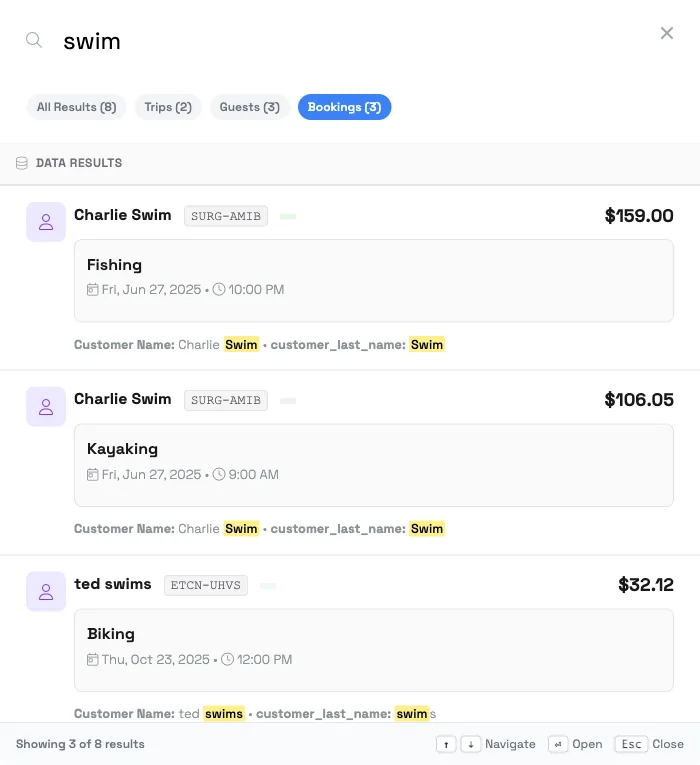
Open it with a keystroke
Press / (the forward-slash key) from anywhere in TripWorks to jump straight into search — no need to reach for the mouse. (It won't trigger while you're typing in a field, so it never gets in your way.) Start typing and results appear as you go.
Once results are up, you can stay on the keyboard: ↑ / ↓ to move through them, Enter to open the highlighted one, Esc to close.
What you can search for
Global search runs in two passes, so the common lookups are instant and the deeper ones follow a moment later:
Instant (text search):
- Bookings / trips — by guest name, confirmation code, or the last 4 digits of the payment card
- Customers — by name or part of their email
- Payments — find a specific transaction on a booking
- Gift cards — by code, recipient, or purchaser
- Voucher codes — by code (type at least 4 characters), including already-redeemed ones, which link straight to the trip they were redeemed on
- Resellers — jump to a partner's record
A moment later (semantic search):
- Trip notes — the notes your team leaves on bookings
- Phone calls — your logged calls
Semantic search understands meaning, not just exact words, so it can surface a relevant note or call even when your wording doesn't match the text letter-for-letter. Because it does more work, notes and calls arrive a few seconds after the instant results — you'll see the fast matches first, then notes and calls fill in.
Bookings, customers, payments, gift cards, and resellers are matched by their usual fields, not by meaning. If you want a deeper dive into how the by-meaning matching works on notes and calls, see Search across everything with semantic search.
It understands dates and prices, too
Type a natural date or dollar amount into your search and TripWorks picks it out automatically, no separate date picker or filter panel needed first. Try things like:
- "bookings last month"
- "reservations next weekend"
- "payments over $500"
When TripWorks recognizes a date range or price in what you typed, it shows a small badge above the results confirming the filter it applied, so you can see exactly what's being matched.
Narrow and navigate
- Category pills at the top let you filter the results down to one type (for example, just resellers) when a search returns a lot.
- A Features section surfaces Setup pages matching your search — so typing a setting's name (say, "taxes" or "resources") jumps you straight to that screen, not just to records.
Getting the best results
A couple of habits make search noticeably more reliable:
- For a guest's last name, type more of it. A very short fragment (three or four letters) can match a lot of unrelated names before it narrows down to the one you want, so the more of the name you type, the tighter the match. If a partial name isn't turning up the record you expect, try the full last name, the email address, or the confirmation code instead; those match exactly and are the most reliable route to a specific booking.
- Confirmation codes and OTA reference numbers match on what's actually stored, including punctuation. If a code includes a hyphen or a prefix (like an OTA voucher reference on a booking), type it as shown on the booking. OTA references such as GetYourGuide's are matched reliably, but a few reference formats from other resellers may not surface the booking; if one comes up empty, search the guest's name or email instead. (This is different from searching a voucher code itself, which matches reliably as you type; see above.)
- Search doesn't currently filter by booking status, so a guest's draft or abandoned booking can appear in results alongside their confirmed one. If you're not sure which is which, open the result to check the trip status, or head to Sales, where you can filter the full bookings list by status directly.
The other ways to find bookings
Search is the fastest route when you know what you're looking for. When you're browsing or filtering, these views are better:
- Sales — the full bookings list, with sortable, filterable columns (e.g. "all e-Commerce swimming bookings").
- Calendar — everything booked on a given activity and day.
- Manifest — the operational day-of view of who's arriving.
- Reports — the Sales Detail report, for a set of bookings matching detailed criteria.
Frequently asked questions
How do I open search quickly?
Press the / key anywhere in TripWorks (as long as you're not already typing in a field). The search bar focuses instantly. Use ↑/↓ to move through results, Enter to open one, and Esc to close.
What can I search for besides bookings?
Customers, payments, gift cards, and resellers come back instantly, and semantic search also surfaces trip notes and phone calls. Typing a setting's name also jumps you to that Setup page via the Features section.
Can I really search my notes and phone calls?
Yes. Trip notes and phone calls are covered by the semantic pass. It understands meaning rather than requiring an exact text match, so it can find the right note or call even if your wording differs. These results appear a few seconds after the instant matches.
What can I type to find a booking?
The guest's name (first, last, or both), part of their email address, the confirmation code, or the last 4 digits of the card used to pay. Any of those will surface the booking.
Why do some results take a little longer to appear?
Search runs in two passes. The fast text pass (trips, customers, payments, gift cards, resellers) returns almost immediately; the semantic pass (notes and phone calls) does more work and fills in a few seconds later.
A search returned too many results — how do I narrow it?
Use the category pills at the top of the results to filter to a single type, such as customers or resellers.
I typed part of a guest's last name and got nothing, or the wrong names — why?
A short fragment (three or four letters) can match a lot of unrelated names, or not enough to narrow down yet. Type more of the last name and the match tightens up. For the fastest, most reliable hit, search the full email address or the confirmation code instead — both match exactly.
Why doesn't an OTA or reseller reference number find the booking?
Confirmation codes and reference numbers match on exactly what's stored, including hyphens and prefixes — type the code as shown on the booking. OTA references like GetYourGuide's are matched reliably; a few reference formats from other resellers may not. If one comes up empty, search the guest's name or email instead. This doesn't affect searching a voucher code itself, which matches reliably as you type: see the next question.
Can I find a voucher code, or a booking a guest already redeemed one on?
Yes. Type at least 4 characters of the code and it comes up, case-insensitively, as you type, including codes that have already been redeemed, which link straight to the trip they were used on. See Voucher codes for how the codes themselves work.
Can I search for a date or a price, like "bookings last month" or "over $500"?
Yes. Type a natural date or dollar amount right into your search and TripWorks recognizes it automatically — you'll see a small badge above the results confirming the date or price filter it applied.
A draft or abandoned booking showed up next to a confirmed one — is that normal?
Yes — search doesn't currently filter by booking status, so drafts and abandoned carts can appear alongside confirmed bookings for the same guest. Open the result to check its status, or use Sales to filter the bookings list by status directly.
When should I use Sales, Calendar, or the Manifest instead?
Use search when you know what you're after. Use Sales to browse and filter the full list, the Calendar to see a specific activity/day, the Manifest for who's arriving today, and Reports to pull a set of bookings matching detailed criteria.
Related
- Reschedule, unschedule, or cancel a booking
- Add a guest to an existing trip
- Book multiple activities in one reservation
- Voucher codes
Built for attractions, tours & activities
Find anything in one keystroke
See how attractions, tours, and activities move at counter speed on TripWorks. Book a demo and make the switch.