
Every gift card sale is recorded as its own order, just like a booking — with the buyer's details, its payment, and the gift card itself. Open a card from the Gift Cards list to see it.
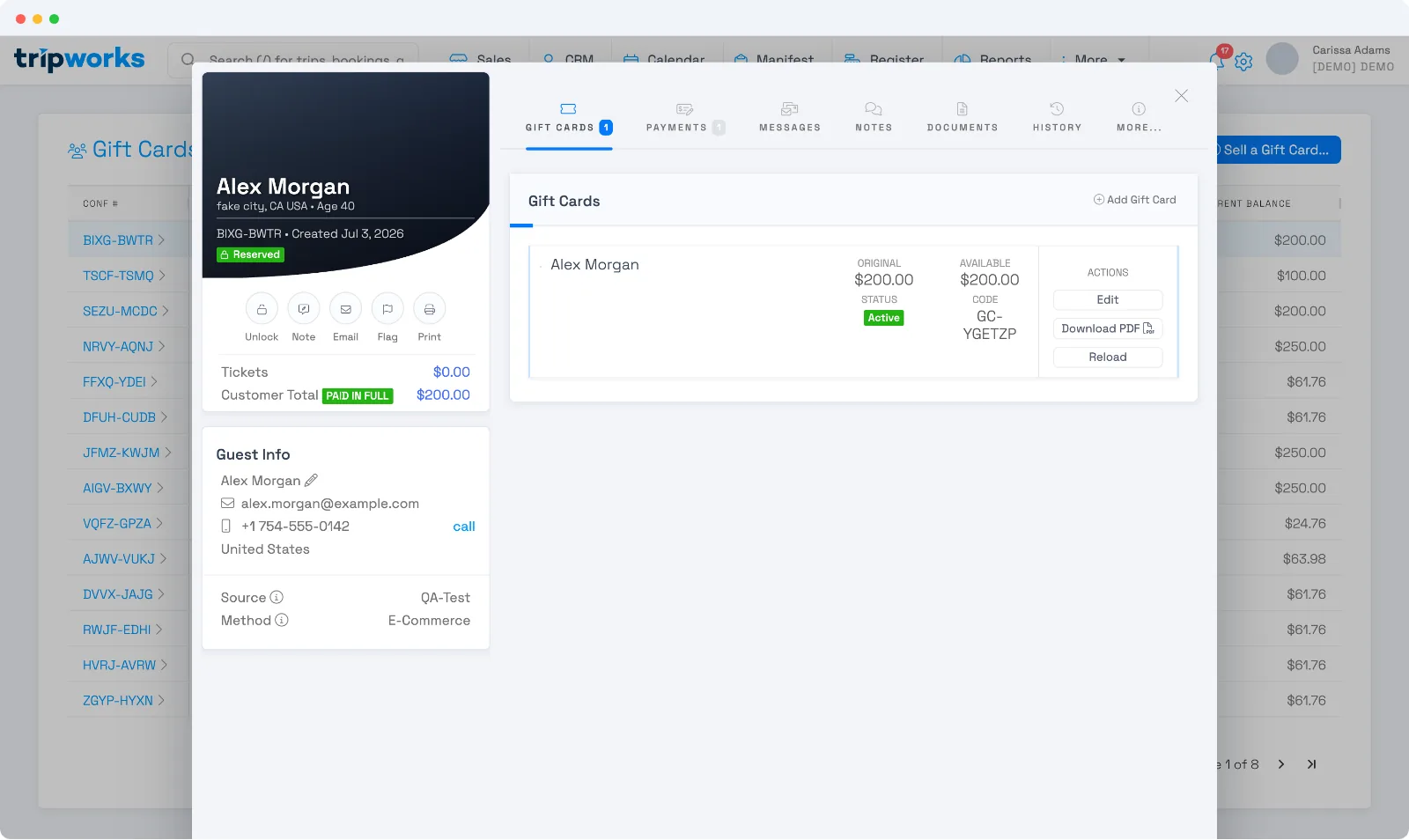
What's on the order
- Buyer details — the customer who purchased it, and the order's payment (a gift card order shows Paid in Full once settled).
- The Gift Cards tab — the card itself: its original and available balance, status, and code, with the actions you run on it.
Actions on the card
- Edit — change the recipient name, the design, the expiration date, or mark it Complimentary.
- Download PDF — save or print the gift card to hand or send to the recipient.
- Reload — add more value (then collect payment for it).
For finding cards and the full set of management tasks, see Manage gift cards. To apply a card to a booking, see Redeem a gift card.
Frequently asked questions
Why does a gift card order show as "Pending"?
The card activates once the order is paid in full (or marked complimentary). Until then it's Pending and can't be redeemed.
Can I change who a gift card is for after it's sold?
Yes. Select Edit on the card to update the recipient name, design, or expiration date.
Related
Built for attractions, tours & activities
Keep every gift card sale organized
See how attractions, tours, and activities track gift card sales alongside bookings on TripWorks. Book a demo and make the switch.