
A guide is a team member you can schedule to run trips: a guide, instructor, captain, pilot, or crew member. Marking someone as a guide is what makes them available to assign to timeslots, so their name shows on the calendar and manifest and they get their own schedule and alerts. (If your account uses different wording, "Guides" may appear as "Staff," "Crew," or similar.)
In this article
Guides live under Setup Run your day Guides.
A guide is a team member with guide status on
Under the hood a guide is the same person record your Team Users screen manages, with guide status turned on. That split matters when you're deciding where to make a change:
- Team Users owns who they are and what they can reach: login, name, email, cell phone, permission groups, account access.
- The Guides screen owns how they're scheduled: title, manifest color, guide status, tip eligibility, alerts, and time off.
Because of that, display name, email, and cell phone show as read-only on the guide record, with a lock icon. The Edit account & permissions button at the top of the guide takes you straight to their team-member record when you need to change those.
Read the roster
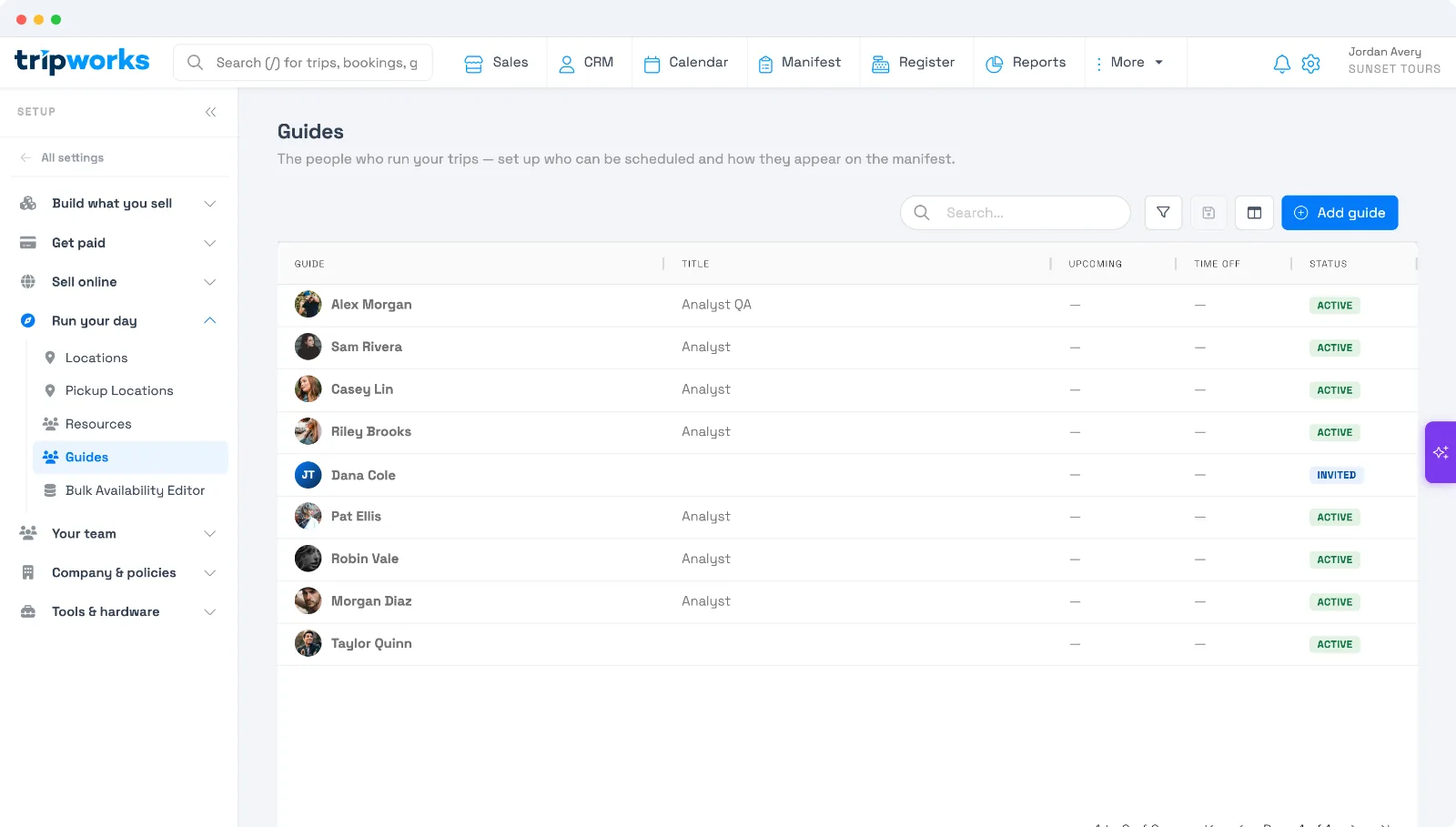
The roster gives you the state of your whole team in one screen:
- Upcoming: how many future trips this guide is assigned to. A zero on someone who should be working is a staffing gap.
- Time off: how many current or upcoming time-off windows they have. Past time off isn't counted.
- Status: Active (signed in and schedulable), Invited (invitation sent, not yet accepted), or Disabled (sign-in turned off on their team-member account).
An Invited guide can't be scheduled until they accept and sign in.
Add a guide
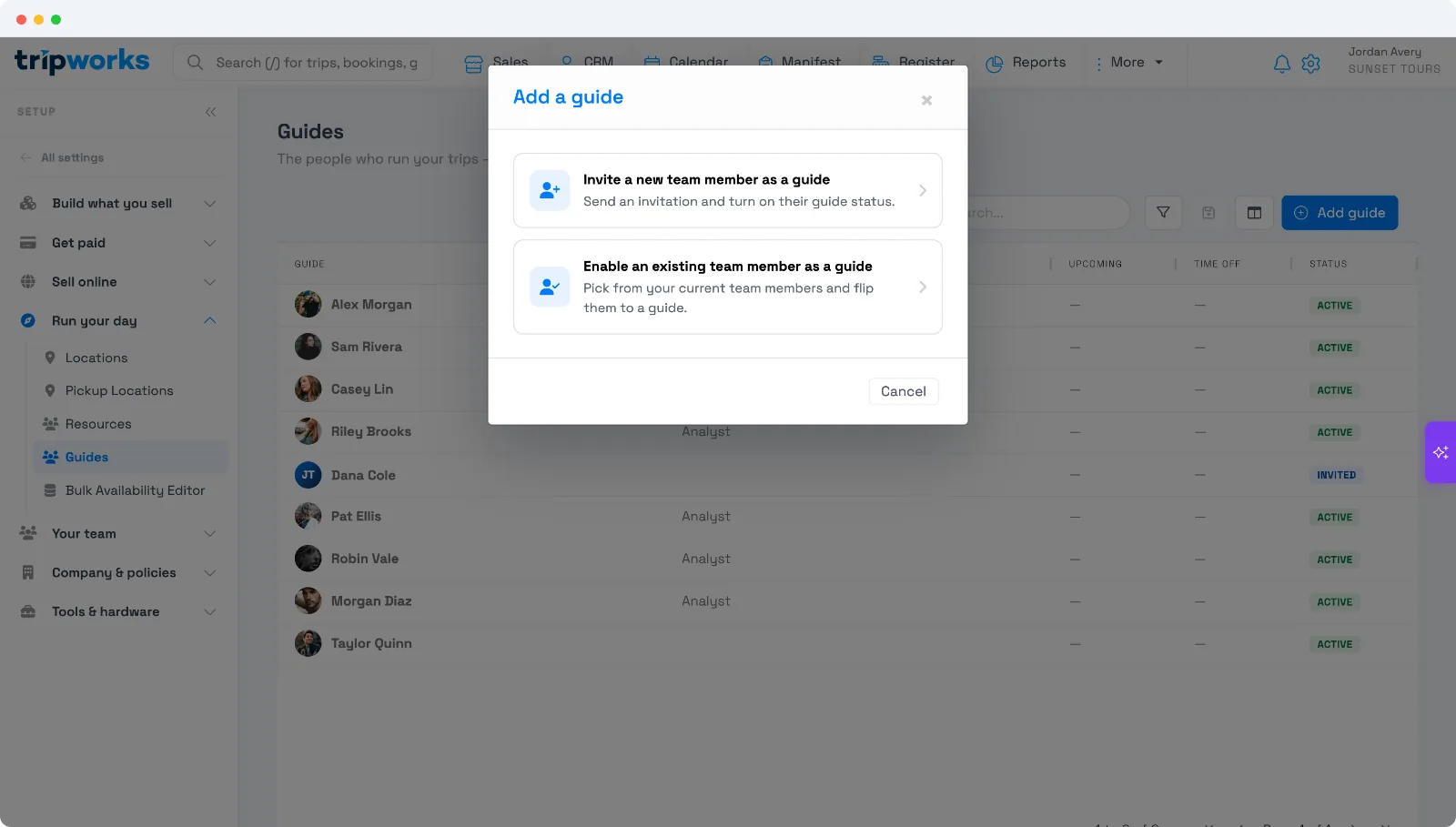
Select Add guide and choose one of two paths:
- Invite a new team member as a guide: sends an invitation and turns on guide status at the same time. They show as Invited until they accept and sign in.
- Enable an existing team member as a guide: flips someone already on your team to a guide. They're schedulable straight away.
Set how the guide appears
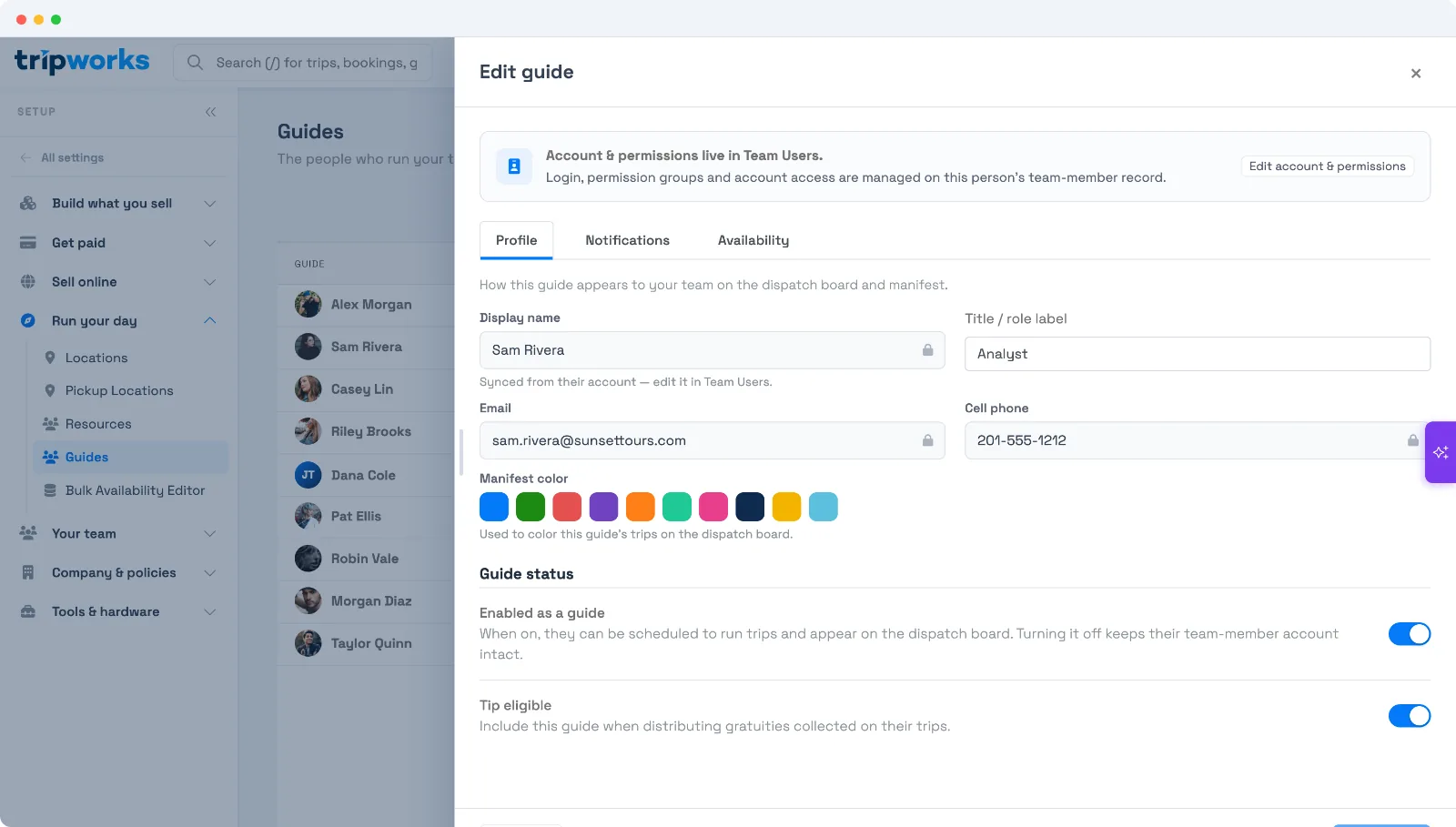
Open a guide and use the Profile tab:
- Title / role label: free text, for example "Captain" or "Lead Guide."
- Manifest color: pick a swatch. This colors the guide's trips on the dispatch board and manifest, which is what makes a busy day readable at a glance, so give people who work the same shifts visibly different colors.
- Enabled as a guide: when on, they can be scheduled and appear on the board.
- Tip eligible: include this guide when distributing tips collected on their trips.
Record time off
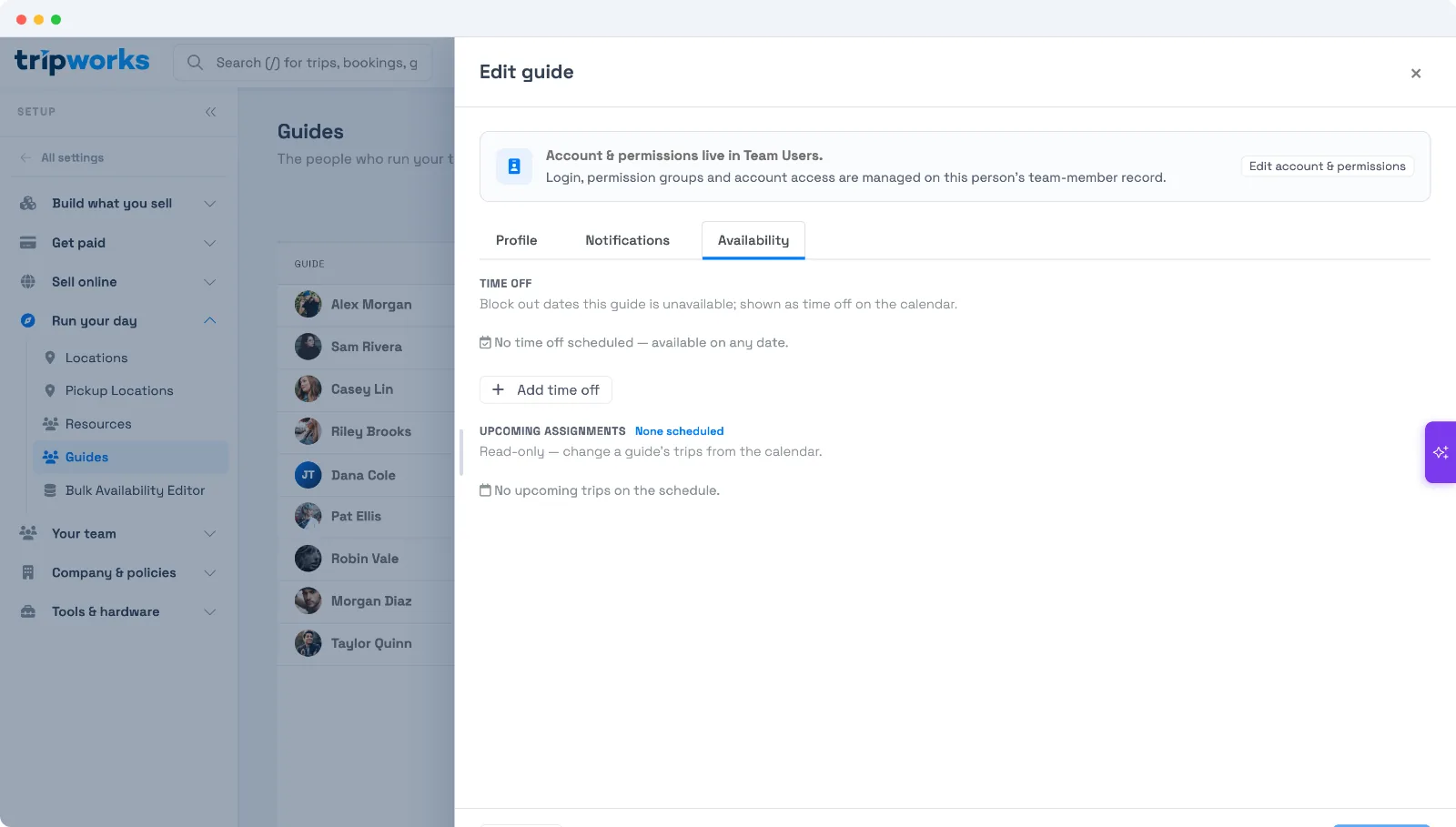
Open the guide's Availability tab and select Add time off to record vacation, a day off, or an appointment. Past time off is hidden, so the list stays current.
The same tab lists the guide's upcoming assignments. That list is read-only here: change what a guide is scheduled for from the calendar, not from their profile.
Time off is a record, not a lock. It doesn't stop anyone assigning that guide during those dates, it doesn't remove trips they're already on, and it doesn't trigger the double-booking warning. Check the roster's Time off column before you staff a date.
You can also block out time from the schedule grid, over a range of dates, without opening each profile. See Assign guides in bulk & set recurring schedules.
Choose their alerts
The Notifications tab controls which trip events reach this guide and on which channels. See Guide alerts & notifications.
Stop scheduling someone
Turn Enabled as a guide off. They stay a team member with their login and permissions intact, but they no longer appear anywhere you assign guides. Their personal schedule feed also stops working, since it's tied to active guide status.
Use this rather than deleting the person: it keeps their history on past trips readable.
Frequently asked questions
Is a guide the same as a team member?
Yes. A guide is a team member with guide status enabled. Their login and permissions live in Team Users, and the Guides screen adds the scheduling details: title, manifest color, tip eligibility, alerts, and time off.
Why can't I edit a guide's name or email on the Guides screen?
Those fields belong to the person's team-member account, so they're read-only here and marked with a lock icon. Use the Edit account & permissions button at the top of the guide record to change them in Team Users.
Do guides affect availability or capacity?
No. Assigning a guide is an internal label for who is running a trip. It doesn't change ticket availability, capacity, or pricing, and a departure with no guide still sells normally.
Why does a guide show as Invited?
Their invitation hasn't been accepted yet. They appear on the roster so you know they're set up, but they can't be scheduled until they accept and sign in for the first time.
How do I stop scheduling someone without deleting them?
Turn off "Enabled as a guide" on their Profile tab. They remain a team member with their account intact, but they stop appearing for scheduling and their personal schedule feed stops working.
What does the manifest color actually do?
It colors that guide's trips on the dispatch board and manifest so you can pick out who's on what at a glance. Give guides who work the same shifts clearly different colors.
Does recording time off remove trips the guide is already on?
No. Existing assignments stay in place, and nothing is cancelled. If someone books time off after they've been scheduled, unassign them from those departures yourself.
Related
Built for attractions, tours & activities
Put the right person on every trip
See how attractions, tours, and activities schedule their team on TripWorks. Book a demo and make the switch.