
When a guest wants to add something after they've booked — a rental, a photo package, an extra ticket, a fee — you can add it to their existing booking and, if they paid online, charge the card already on file for the new balance in one action. No chasing a second payment, no re-keying a card.
In this article
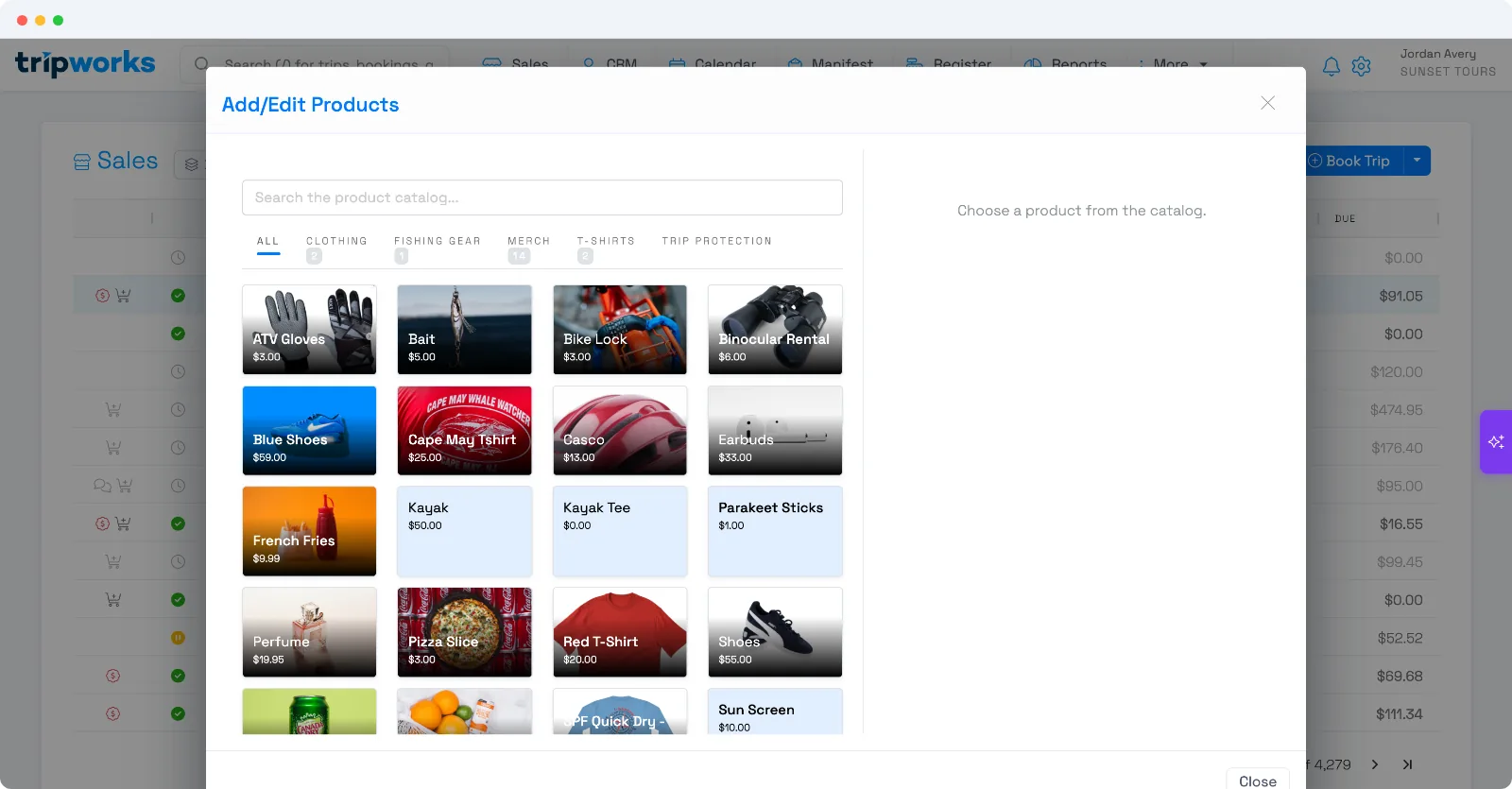
Add a product or charge to the booking
- Open the trip and, on the guest's booking, open the Actions menu.
- Choose Sell Product… to open the product catalog.
- Pick the product (browse the category tabs or search). If the product's price is set as editable, a keypad appears so you can set the amount — handy for an ad-hoc "Reschedule Fee" or custom charge.
- Set the quantity, then Close.
The product now appears in the guest's booking details, and its cost is added to their balance due — ready to collect. Because it's added to the trip (not a standalone POS sale), it also shows in that customer's guest profile and your trip-level reports.
Charge the card on file
If the guest has a saved card, collect the new balance without contacting them:
- On the trip, open the Payments tab and Add Payment.
- Choose Saved Card — the "Charge a Card on File" option.
- Pick the card, confirm the amount (it defaults to the balance due), and select Charge.
This is a real, immediate charge to the stored card — not a payment-request link. (It uses the card the guest previously authorized, so it's the right tool for a genuine follow-on charge, not a surprise one.)
Don't see Saved Card? It appears only when the guest has an unexpired card on file and your user has permission to charge cards. If there's no card on file, send a payment request link or take a new card instead.
Frequently asked questions
How do I add an extra charge to an existing booking?
Open the trip, open the booking's Actions menu, choose Sell Product…, pick the product (set the price if it's editable), set quantity, and Close. The charge is added to the guest's balance due.
Can I charge the guest's saved card without asking them again?
Yes, if they have a card on file. On the trip's Payments tab, choose Add Payment → Saved Card → Charge a Card on File, pick the card, and charge the balance. It's an immediate charge to the card they already authorized.
Is that a real charge or just a payment link?
A real charge. "Charge a Card on File" bills the stored card on the spot — it's not a request-for-payment link. Use it only for charges the guest expects, since it goes through immediately.
Why don't I see the "Saved Card" option?
Three things are required: the guest must have a card on file, that card must be unexpired, and your user account must have permission to charge cards. If any is missing, the option is hidden or disabled.
Is a card saved when a guest books online?
Yes — an online checkout stores the card for reuse, and it's tied to the customer, so it's available across their trips. Cards keyed by staff or taken on a card reader are saved too. See Is my card saved when I book online?
Can I set a custom price when adding a product?
Only if that product is configured with an editable price — then a keypad appears so you can enter the amount. Otherwise it's added at its catalog price. You set "price is editable" on the product itself.
What if the guest has no card on file?
Take a new card on the Payments tab, or send them a secure payment request link to pay the new balance themselves.
How is this different from a standalone POS sale?
Selling a product to a booking attaches it to that trip and guest — it shows on their booking, profile, and the trip reports. A standalone point-of-sale sale isn't tied to any guest or trip.
Related
Built for attractions, tours & activities
Upsell on the spot, charge in a tap
See how attractions, tours, and activities add sales and collect on TripWorks. Book a demo and make the switch.