
Your Viator Supplier ID is in the Viator supplier portal, under Account, Connectivity, once you choose TripWorks as your reservation system. It's a number Viator gives you (also called your supplier number), and it appears next to your Viator API Key. TripWorks doesn't create it. You copy it from Viator and paste it into your Viator reseller in TripWorks, and from then on Viator bookings land in your calendar on their own.
In this article
In this article
- Where to find your Supplier ID and API Key in the Viator supplier portal.
- Where to enter them in TripWorks.
- What the connection does for you once it's on.
- What to do if you see an error or can't find the ID.
Find your Supplier ID in Viator
- Sign in to the Viator supplier portal.
- Select your company name, then Account Connectivity, then Edit.
- Choose TripWorks as your reservation system.
- Copy the Supplier ID and the API Key, then save in Viator.
The ID and key only appear once TripWorks is selected as your reservation system. TripWorks' own screen says the same: you have to connect to TripWorks in Viator to get these values. If the fields look empty, finish step 3 and save first.
Enter it in TripWorks
Learn how to manage permission groups
- Open More Resellers and open your Viator reseller. If you don't have one yet, select Add a Partner... and choose Viator.
- Select Settings, then the General tab, and scroll to API Information.
- Turn on Connect Availability API.
- Paste your Viator Supplier ID and Viator API Key, then select Update.
The two fields go together. TripWorks needs both the Supplier ID and the API Key before it saves either one.
Connecting is only the first half. Next you choose which activities Viator can sell and match your ticket types to Viator's. The full walkthrough is in Connect Viator to TripWorks.
What happens once Viator is connected
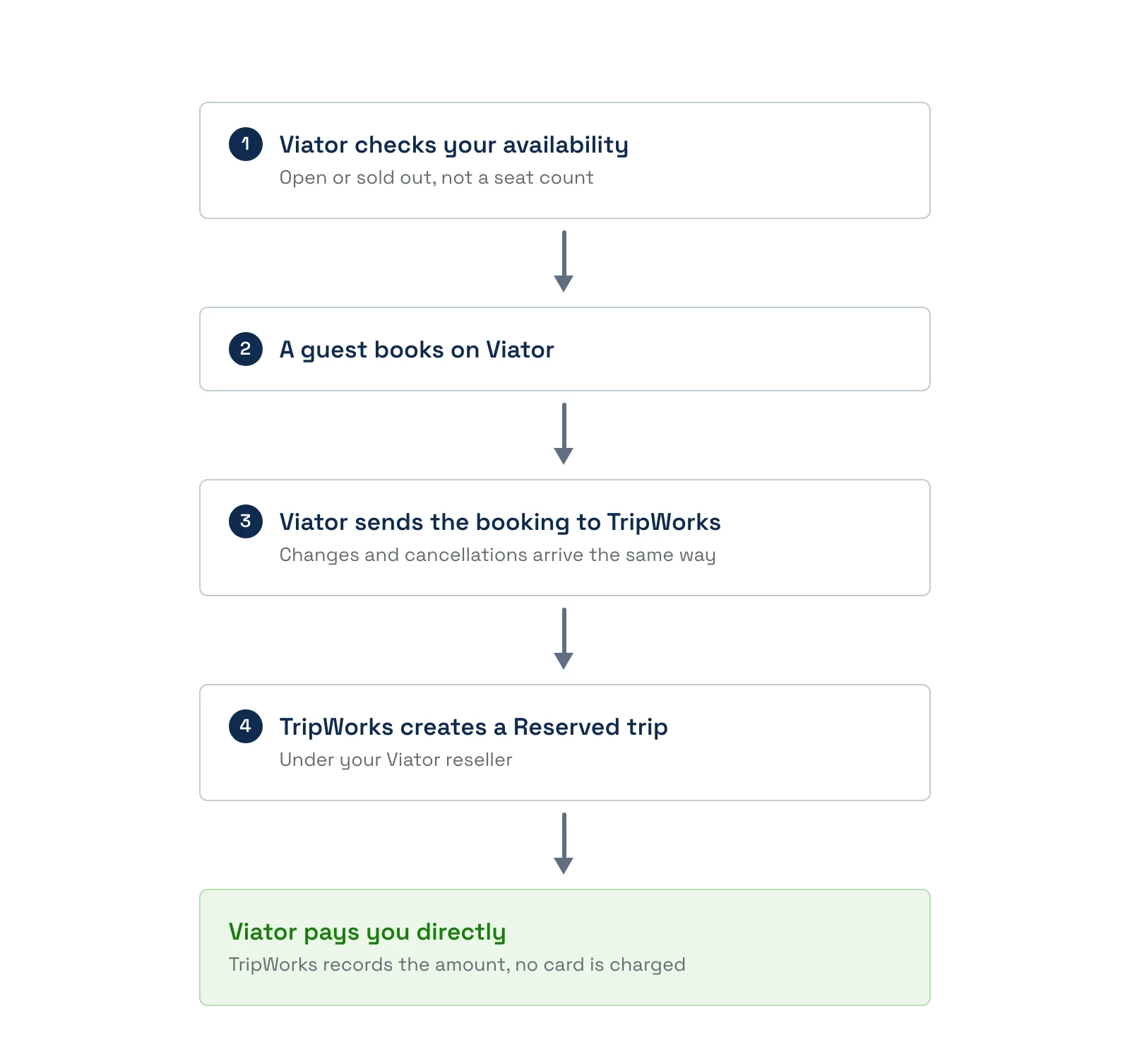
- Your availability stays current. Viator asks TripWorks whenever it needs to know, so a sold-out or blocked-out timeslot shows as unavailable, with nothing for you to push or sync.
- Bookings arrive on their own. New bookings, changes and cancellations from Viator create and update trips in your calendar. No re-keying.
- You choose what Viator can sell. Only the activities you tick on the Viator reseller are offered to Viator.
- Every booking is attributed. Each one is tracked under your Viator reseller, with commission and net sale in your reseller reports.
- Several Viator accounts work too. Brands, locations or franchises with separate Viator accounts each get their own reseller with their own Supplier ID.
Your bookings, in one place
TripWorks works as your channel manager as well as your booking system. Viator is one of the OTAs you can add by name, alongside GetYourGuide, Expedia, Klook and others, and TripWorks connects you to a marketplace of hundreds of OTAs and resellers in all. Their availability, bookings and cancellations come into the same calendar your team already uses for direct sales, so there's one place to see what's booked and what's open.
- Run Viator, GetYourGuide and your own website from one calendar.
- Track commission and net sales for every channel in one set of reports.
- Add private partners such as a nearby resort or agency, with their own rates and invoices.
See the full list in Supported OTAs, or read How OTA and reseller bookings connect for the bigger picture.
If you see an error
- "Viator API Key is required when Viator Supplier ID is provided." You entered the ID but not the key. Paste the API Key from the same Viator screen.
- "Viator Supplier ID is required when Viator API Key is provided." You entered the key but not the ID. Paste the Supplier ID from the same Viator screen.
- "This Viator Supplier ID is already in use by another reseller." Each Supplier ID can only be on one reseller. Open your other Viator reseller and check it, and use a separate reseller for each Viator account.
Examples
- Find the ID you were never sent. Sign in to the Viator supplier portal, go to Account, Connectivity, choose TripWorks, and copy it from there.
- Fix a connection that has a key but no ID. Open your Viator reseller, go to Settings, General, API Information, and add the missing Supplier ID.
- Connect a second brand. Create a second Viator reseller and give it the second brand's own Supplier ID and API Key.
- Stop offering one activity on Viator. Open the Viator reseller, untick the activity on its activities tab, and select Update.
- Check what Viator has earned you. Open your reseller reports and compare Net Sale with Commission for the Viator reseller.
Frequently asked questions
Where do I find my Viator Supplier ID?
In the Viator supplier portal. Sign in at supplier.viator.com, select your company name, go to Account, Connectivity, choose Edit, and select TripWorks as your reservation system. Your Supplier ID and API Key then show on that screen.
Is the supplier number the same as the Supplier ID?
Yes. "Supplier number" and "Supplier ID" are two names for the same number Viator assigns to your business.
Does TripWorks give me a Supplier ID?
No. The ID comes from Viator, not TripWorks. TripWorks stores it on your Viator reseller so it can match each incoming booking to the right account.
Where do I enter the Supplier ID in TripWorks?
On your Viator reseller. Go to More, Resellers, open the reseller, then Settings, the General tab, and the API Information section. Turn on Connect Availability API, add the Supplier ID and API Key, and select Update.
Do I need the API Key as well as the Supplier ID?
Yes. Viator shows them together, and TripWorks needs both before it saves either one. If you add only one, TripWorks tells you the other is required.
The Supplier ID and API Key aren't showing in Viator. What now?
They appear once TripWorks is chosen as your reservation system under Account, Connectivity. Choose TripWorks, save, and check again. If TripWorks isn't offered as an option on your Viator account, contact TripWorks support.
Can I use the same Supplier ID on two resellers?
No. A Supplier ID can only be on one reseller, and TripWorks shows an error if it's already in use. If you run separate brands with separate Viator accounts, create one Viator reseller per account, each with its own Supplier ID.
Is TripWorks a channel manager for Viator?
Yes. TripWorks connects to Viator and brings its availability, bookings and cancellations into your calendar. It does the same for GetYourGuide, Expedia, Klook and a wider marketplace of OTAs and resellers, so you manage every channel and your direct sales in one place. See How OTA and reseller bookings connect.
What do I do after I enter the Supplier ID?
Choose which activities Viator can sell, then connect each product in the Viator portal and match your ticket types to Viator's traveler types. Each step is in Connect Viator to TripWorks.
Related
- Connect Viator to TripWorks
- How OTA and reseller bookings connect
- Supported OTAs
- Set up a reseller (OTA or private partner)
- Report on reseller revenue and commission
Built for attractions, tours & activities
Sell on Viator and every other channel from one calendar
TripWorks is your channel manager and your booking system in one. Connect Viator, GetYourGuide and a marketplace of hundreds of OTAs and resellers, and see every booking in one place. Book a demo and make the switch.